Automate and standardize element numbering with rule-based templates, filters, and partitions. Control formatting, resolve gaps, and manage element numbering with consistent, editable results.
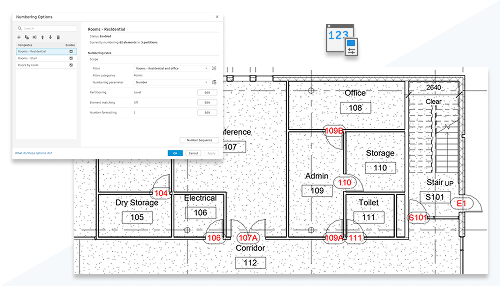
About Rule-Based Numbering
Create rules for numbering elements in the model based on filters and partitions to control how numbers are applied.
Create different templates to assign rule-based number to elements each template is customizable with filters to control the scope, formatting of the applied numbers. When templates are removed or disabled, the assigned number remains as editable text.
- Manage tab
 Settings panel
 (Numbering)
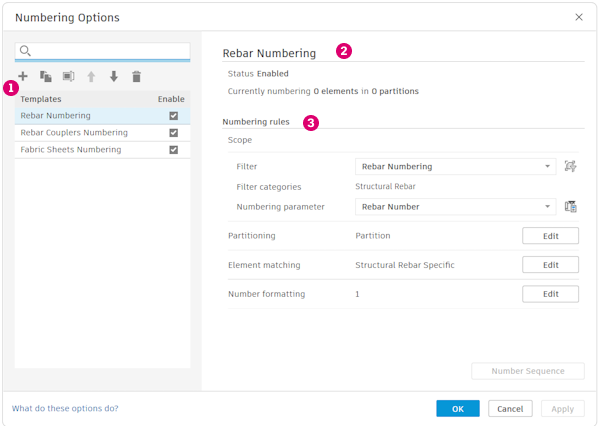
 – Create, Rename, Delete, and adjust the priority of numbering templates.
 – Name of template, status and number of elements rule is applied to.
 – Numbering rules used by the template. Set the scope, partitioning, and number formatting used by the rule.
Use rule-based numbering to automate and standardize element numbering across categories. Numbering templates use rule-based filters to define scope, partitions, and sequences, all driven by a shared, editable text parameter.
Partition numbering by parameters such as Level or Room, set starting values per partition, and remove gaps after element deletion. Template priority controls which rules apply when multiple templates target the same parameter. Formatting options include digit count, letter suffixes, and case, with support for room-based door numbering and conditional suffixes.
Elements are matched by exact geometry, with optional parameter-based matching for cases such as steel connections. Overrides apply consistently to identical elements, and you can swap numbers or clean up sequences directly. When a template is disabled or removed, assigned values remain as editable text.
Dedicated templates are created automatically for rebar, couplers, and fabric sheets. Rebar numbers are now editable, and partitions can be driven by parameters such as Host Category.
This feature is described on the product road map.
See Numbering.