Live Reference
In VRED 2027, you can now send new or updated materials, annotations, view variants, and Clipping Contours directly to Alias. These Live Reference enhancements further streamline collaboration between visualization designers and digital sculptors.
Sending VRED Overrides to Alias
When using Live Reference with Alias and VRED, you can send VRED overrides to Alias. This allows you to modify a material, view variant, create an annotation or clipping contour in VRED and have these changes sent back to the active Alias session and updated.
Sending Overrides to Alias
To send overrides from VRED to Alias:
- Open the Live Reference module.
- Click Reload View
 to display the updates in the VRED column.
 - Click Send Overrides to Alias
 .
.
When overrides are available in Alias, the Live Reference status icon displays  , indicating that updates are pending.
Working with Overrides and Promotions
When working with overrides and promotions between VRED and Alias, be aware of the following considerations:
Materials
- If you rename a material in VRED after it has been promoted to Alias, promoting it again will create a new material in Alias.
- When working with Live References in Alias, use VRED materials exclusively. Set Alias to VRED render mode to ensure full compatibility with all VRED material types, including multi‑pass, layered, and switch materials.
View Variants
When sending variant overrides from VRED back to Alias, associate the variant with an Alias camera from the Live Reference data. This requirement applies to both variants originally created in Alias and new variants created in VRED. If you don't associate the variant with an Alias camera, the variant will not be sent to Alias.
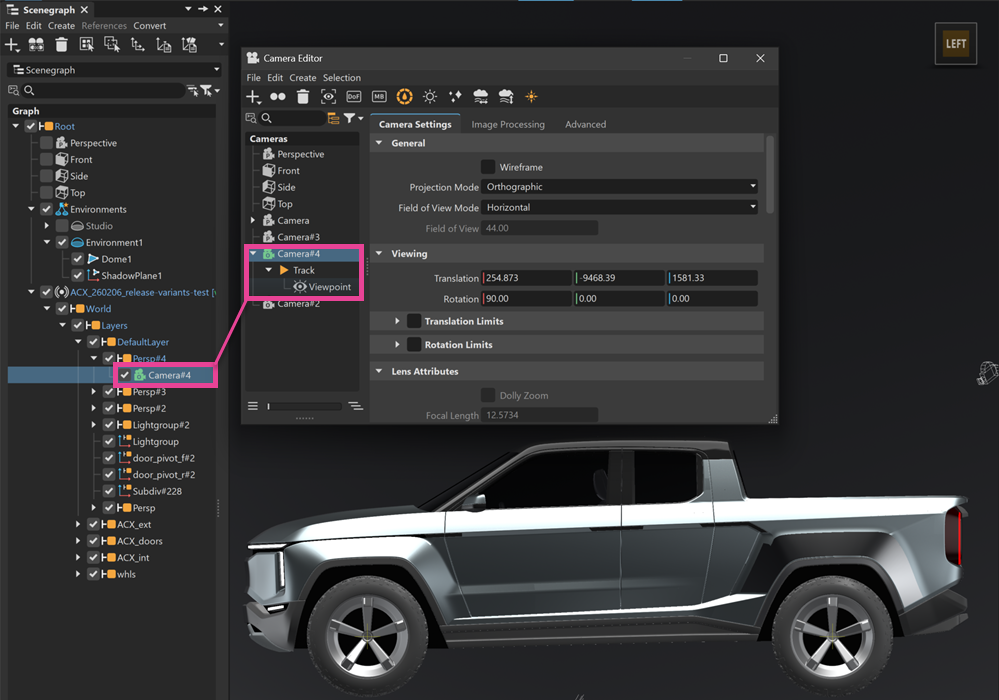
Promoted variants include only the viewpoint’s camera position, with shading set to off (or Wireframe). All other Variant Group filters are ignored. To update shading, environment, or object and layer visibility, activate the variant and recapture it as needed.
Annotations
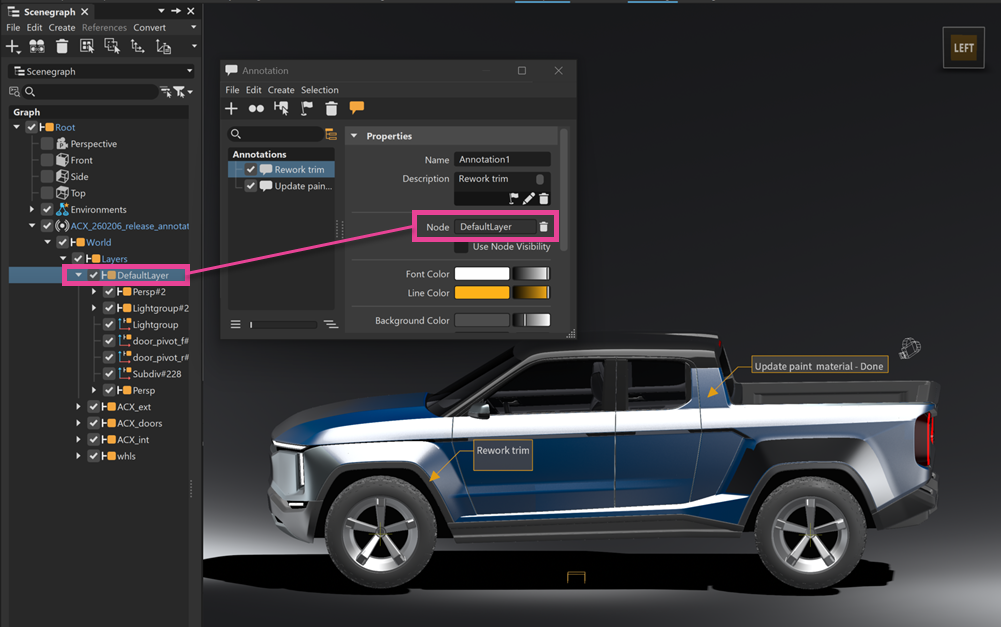
To edit an existing Alias annotation or create a new one in VRED, associate the annotation node with an existing scene node. As a best practice, link the VRED annotation to an Alias layer. Because node names can differ between Alias and VRED, failing to do so may result in duplicate annotations when overrides are sent from VRED to Alias multiple times.
Clipping Contours
You can create a Clipping Contour in VRED and send it to Alias, where it appears as a Section. Before sending it, move the Clipping Contour node group under the model node in the Scene Graph. This ensures Alias recognizes the contour after promotion.
 For more information see the following: