Real-time Physics
We added rigid body simulation directly into VRED to experience real-time Physics and bring virtual prototypes to life. Interact with objects naturally, simulate realistic collisions, gravity, and dynamics directly in your scene, and add a new dimension of interaction to your visualization workflow.
Rigid Body Simulation
Users can now experience real-time Physics simulations and bring virtual prototypes to life with real-time rigid body simulation directly in VRED. This powerful new feature lets you interact with objects naturally, simulating realistic collisions, gravity, and dynamics directly in your scene and adds a new dimension of interaction to your visualization workflow.
Physics Editor
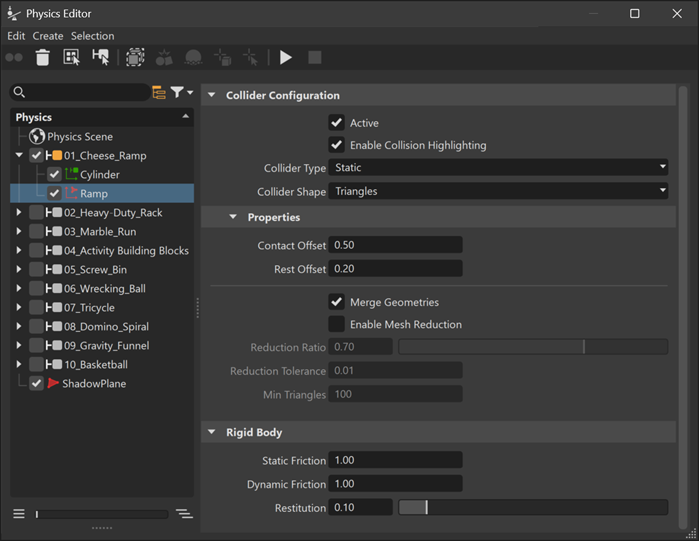
The new Physics Editor is available in the VRED main menu under Scene. Like other modules, it allows you to add and organize objects directly from the Scenegraph. On the right, the familiar object properties panel provides detailed controls. The module menu bar and context menu offer tools and visualization options for setting up colliders and physics actors. The menu bar also includes Play, Pause, and Stop controls, making it easy to start, pause, or reset the simulation.
Physics Actors
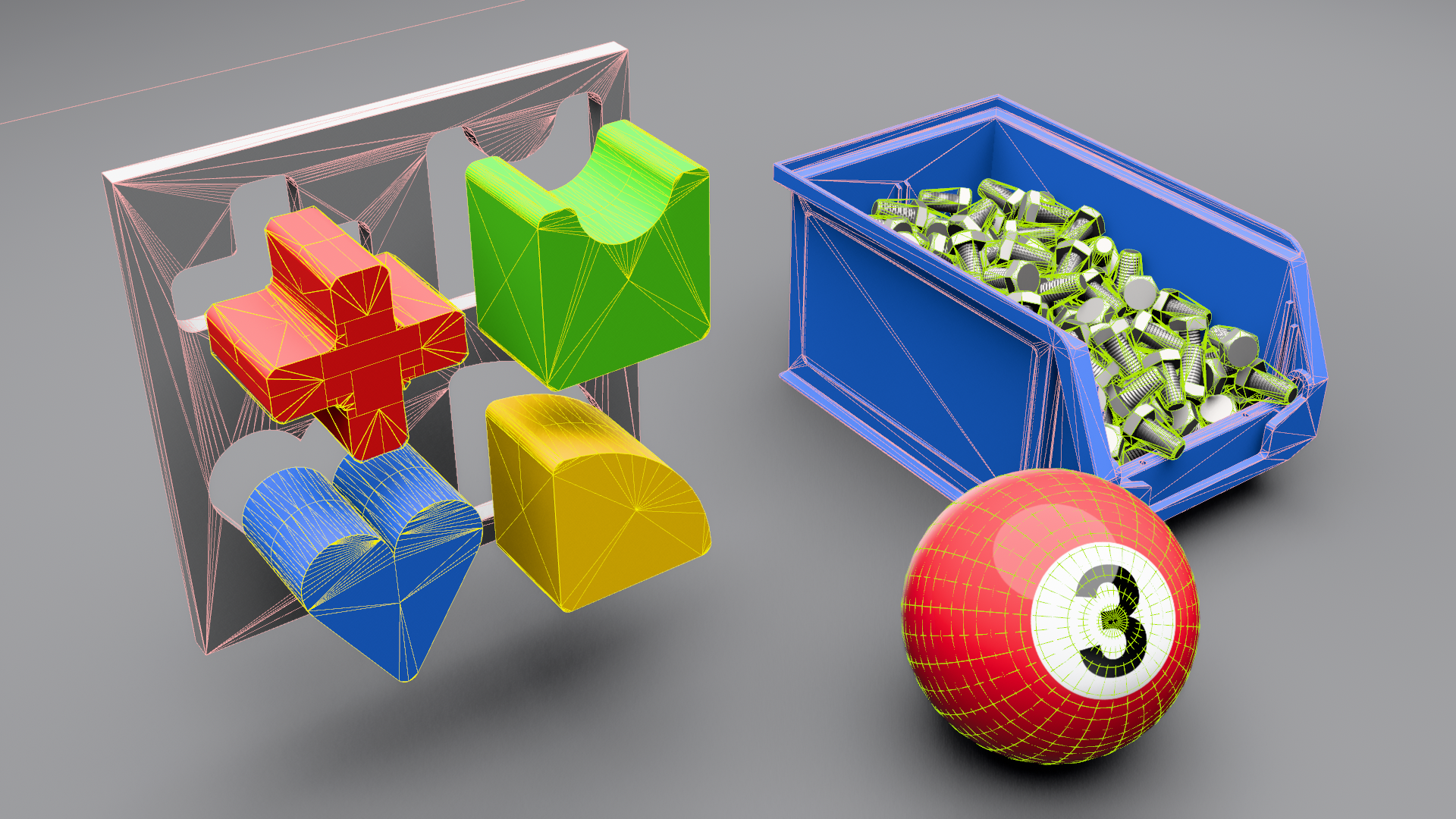
VRED supports three types of physics objects, each with its own behavior and configuration options. In the Tree View, color coding corresponds to the wireframe color of the collision geometry shown in the Viewport and can be customized in Preferences.
 Static Actors - Represent immovable objects with infinite mass and inertia. These objects do not respond to simulation forces but can participate in collisions. Other objects can collide with them while they remain fixed in the scene.
 Dynamic Actors - Fully simulated objects that respond to forces, gravity, impulses, and collisions. These objects require mass properties, including mass, inertia, and center of mass, and the simulation continuously updates their linear and angular velocity.
 Kinematic Actors - These objects do not respond to physics forces such as gravity or collisions. Instead, they follow user‑defined transformations or animations. While they can push or influence dynamic objects, they are not affected by collisions themselves.
Assigning Collision Types
To set up physics for an object, drag the object or group from the Scenegraph into the Physics Editor Tree View. Then, assign the appropriate Collision Type in the Properties panel on the right.
You can also create physics objects directly from the Scenegraph using your mouse:
- Left Mouse Button (LMB): Static Actor
- Middle Mouse Button (MMB): Dynamic Actor
- Right Mouse Button (RMB): Kinematic Actor
Set Collision Shapes
Depending on the actor type, different collision shapes can be selected from the Collider Shape drop-down list in the Collider Configuration panel, including:
Convex Hull - Represents a convex hull of a mesh (built via cooking).This collider is well suited for approximating complex shapes while maintaining good performance and compatibility with dynamic actors. When applied to Groups, all child geometries are merged into a single convex collider by default. Disable Merge Geometries in the Properties panel to generate individual convex hulls as a compound collider for improved accuracy.
Note: Creating multiple convex hulls can significantly increase processing time and may impact performance.Convex Decomposition - Dynamic and Kinematic Actors typically require convex colliders. . If an object contains holes, cavities, or highly irregular geometry, a single convex hull can oversimplify its shape. Breaking down the object into multiple convex parts preserves collision accuracy.
Triangles - This collider uses a 1:1 triangle‑based representation of the mesh surface, allowing accurate support for concave geometry. It is restricted to Static Actors. For better performance, the collider’s triangle count can be reduced using the Enable Mesh Reduction option, which optimizes the geometry while preserving overall shape.
SDF (Science Distance Fields) - This collider uses a voxel‑based representation in which each voxel stores the signed distance to the nearest surface. By eliminating the need for convex decomposition and leveraging GPU acceleration, it provides efficient and accurate collision handling for complex or concave geometry.
Sphere - Defined by a single radius and centered at the origin. This collider is ideal for simple, spherical collision detection.
Box - A box‑shaped collider defined as an axis‑aligned rectangular prism with configurable width, height, and depth.
Capsule - A capsule‑shaped collider consisting of a cylinder capped with hemispheres, defined by a radius and half‑height.
Plane - An infinite flat surface, typically used to represent ground planes or boundaries. While useful for static collision reference, Dynamic Actors generally do not support plane collisions.
 Toggle Collider Visibility On/Off icon in the menu bar to show or hide them.
 Scene Settings
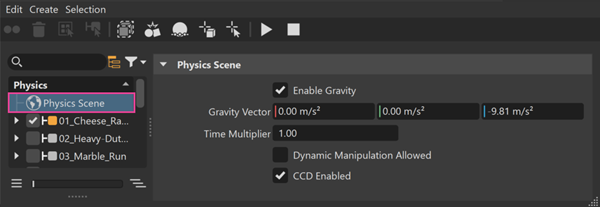
The Physics Editor always includes a default node with a globe icon called Scene Settings. This node lets you control global simulation parameters, including turning gravity on and off with Enable Gravity, setting the Gravity Vector, adjusting the Time Multiplier, and enabling CCD (Continuous Collision Detection) to prevent fast‑moving objects from passing through thin or small geometry.
Center of Mass Visualization
The Physics Editor allows you to visualize the center of mass by using a small cross for selected objects, in addition to the collider visualization. This supports manual adjustment when the center of mass is not aligned with the collider center. To adjust it, disable Auto-Calculate Center of Mass to enable the controls.
Running the Simulation
After your scene is set up, with all objects assigned the appropriate colliders and properties, you can start the simulation using the Play button in the module bar. Use Pause to temporarily halt the simulation, or Stop to end it. When the simulation is stopped, all objects reset to their original pre‑simulation positions.

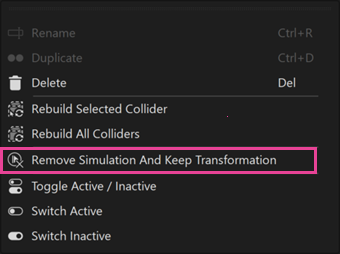
Using Edit > Remove Simulation And Keep Transformation from the context menu, you can capture the current simulation state while the simulation is running or paused. This command removes the selected actors from the Physics Editor and applies their current transformation to the objects. It is especially useful for baking simulation results into assets that no longer need to participate in physics simulations.
Moving Dynamic Actors
To move dynamic actors during an active physics simulation, hold Shift + Alt and LMB to select and drag the object. Release LMB to release the object.
To move the object along the depth axis, hold Shift + Alt + A, then move the mouse toward or away from you.
Visualizing Simulations in the Viewport
Rubber Band
When moving physics‑enabled objects in the viewport, a Rubber Band visualization appears between the object’s original position and the mouse cursor. This visual represents a temporary constraint force applied during manipulation, providing clear feedback while dragging. By applying compliant forces instead of teleporting objects—that is, instantly moving them to a new position without simulating the physical forces or motion in between, the interaction maintains physics stability and results in natural, predictable movement during adjustments.
Object & Mouse Cross Visualization
Depth perception on a 2D display can be difficult. To improve spatial awareness while positioning objects, enable Object Cross and Mouse Cross in the module menu bar for additional visual guidance.
Collision Highlighting & Collision Point Visualization
For detailed insight into collision behavior, enable Collision Highlighting and Contact Point Visualization in the module menu bar. These tools show exactly when and where contacts occur. You can also control the maximum number of displayed contact points and their size in Preferences.
 For more information see the following:
Physics Compatibility with Previous Versions
When a 2026 scene that uses Python‑based physics is opened in 2027, the Physics Editor recreates and displays the physics objects were originally created and driven by the script.
For more information see Opening a Script-Based Physics Scene with the Physics Editor.