Skin Tools provides specialized brushes for painting and refining skin weights on layers. Skin Tools painting operates on the active layer and the selected influence.
Brush projection
Brush projection modes control how brush strokes are projected from the viewport onto the mesh surface during painting. Projection affects which vertices are influenced by a stroke and how brush falloff is evaluated.
| Surface | Projects the brush directly onto the visible surface under the cursor. |
| Volume | Calculates influence based on 3D proximity, allowing smoothing across disconnected shells. |
| Screen | Applies a 2D projection that affects vertices on both the front and back of the mesh. |
Brush modes
Skin Tools provides multiple brush types that define how skin weights are modified during painting. Brush types are available in Paint Weights and Paint Mask tools, and their behavior is affected by the active layer, influence selection, and normalization settings.
| Replace | Sets the weight of the current influence toward the target value, overriding existing weights in the painted area. |
| Add | Adds weight to the current influence based on brush intensity. Weight values are clamped according to normalization rules and influence limits. |
| Scale | Scales existing weights by the brush intensity, preserving the relative distribution between influences. |
| Smooth | Averages weights between neighboring vertices to reduce sharp transitions and improve deformation continuity. |
| Sharpen | Increases contrast between high and low weight values, tightening weight boundaries and reducing blending. |
Brush shape
Specifies the falloff profile of the brush.
| Hard | Applies a sharp falloff with minimal blending at the brush edge. |
| Soft | Applies a smooth, gradual falloff from the center of the brush. |
| Gaussian | Applies a bell-shaped falloff, concentrating the strongest effect at the center with a smooth decay toward the edges. |
Intensity
Specifies the strength of the brush effect.
Preset values define the amount of weight applied or modified per stroke, where lower values produce more subtle changes and higher values produce stronger effects.
Brush shortcuts
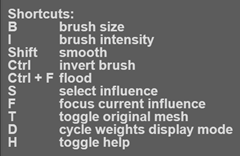
Skin Tools provides onscreen help and interface elements to assist with editing skin weights.
Press H while the paint tool is active to toggle the display of onscreen help.
| Skin Tools Operations | ||
|---|---|---|
|
B + Left Mouse Button |
Adjust brush radius interactively while painting. Note: Alternatively, you can drag the Middle mouse button horizontally.
|
|
|
I |
Brush intensity. |
|
|
Shift |
Press and hold |
Temporarily switch to Smooth brush mode from other modes. Note: Alternatively, you can drag the Middle mouse button vertically.
|
|
Ctrl |
Press and hold |
Invert current brush intensity. |
|
Ctrl |
F |
Floods the currently selected brush mode and settings to the entire mesh (or current selection). |
|
S |
Select influence. |
|
|
F |
Focus current influence. |
|
|
T |
Toggle original mesh. |
|
|
D |
Cycle weights display mode. |
|
|
H |
Toggle help onscreen. |
|
Marking menu options
When the Skin Tools > Paint Tool is active, right-clicking in the viewport displays a context-sensitive marking menu.
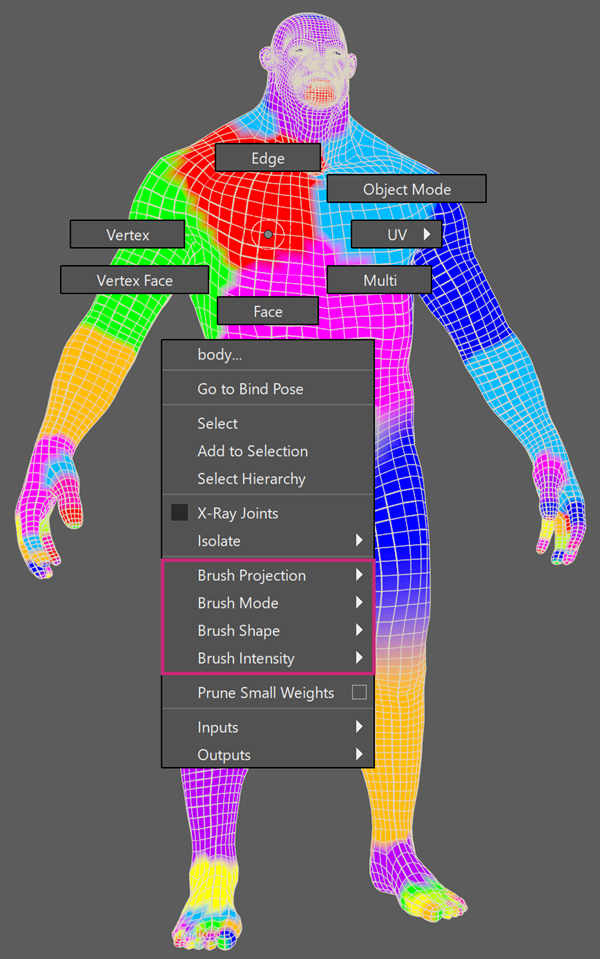
These options provide quick access to commonly used painting and influence controls while working in the viewport.