Collaborate in Cost Management
Cost Management enables collaboration between contractors, owners, suppliers, architects and consultants through controlled access permissions. External partners can view and edit specific information assigned to them while maintaining project security.
The collaborative permission allows members to view and edit limited attributes on items assigned to them, including custom attributes that the administrator has made visible to collaborators. To collaborate within Cost Management, every member needs a Forma Build licence.
To set up collaborative access, refer to the Cost Management Permissions article.
In this article:
- Collaboration by Role
- Setting Up Collaboration
- Collaborators in Approval Workflows
- Restricted Comments
- File Permissions for Collaboration
Collaboration by Role
Suppliers
Suppliers can collaborate in multiple areas of Cost Management:
Request for Quotation and Change Orders
- Respond directly to email notifications with attachments and comments (see Respond to Cost Management Emails)
- Provide work breakdown and pricing
- Upload or download attachments
- Export reports
Payment Applications
- View and Response Access: Fill in and submit payment applications, view previous submissions, generate documents, upload attachments
- Create, View and Response Access: All view and response capabilities, plus the ability to create billing periods, set due dates and delete applications (with status limitations)
Contract Management
- Upload or download contract exhibits and attachments
- Provide schedule of values breakdown
Cash Flow Distribution
- Set distribution start and end dates
- Submit items for review
Related articles: Respond to Cost Management Emails | Collaborative Potential Change Order Workflow | Requests for Quotation | Work with Contracts | Cost Payment Application
Owners
Owners focus primarily on review and approval workflows:
Change Order Requests (CORs)
- Accept or reject incoming requests
- Download supporting documents
- Upload additional attachments
- Export project reports
Owner Change Orders (OCOs)
- Approve or reject proposed changes
- Download change order documents
- Manage attachments and supporting files
- Export reports for analysis
Payment Application Reviews
- Approve or reject payment applications
- Review payment history and previous submissions
- Download payment application documents
- Upload supporting documentation
Related articles: CORs, OCOs and SCOs | Budget Payment Application | Collaborative Potential Change Order Workflow
Architects and Consultants
Architects and other consultants (such as quantity surveyors or engineers) can participate in approval workflows for change orders and budget payment applications. This enables a multi-party review process where items are routed through upstream collaborators before being submitted to the owner.
For COR, OCO (including PCO as COR) and Budget Payment Application items, you can specify collaborators in the flyout panel:
- Architect Details: Select an architect company and contact. Inherits from the Main Contract by default.
- Additional Collaborators: Add multiple external companies and contacts.
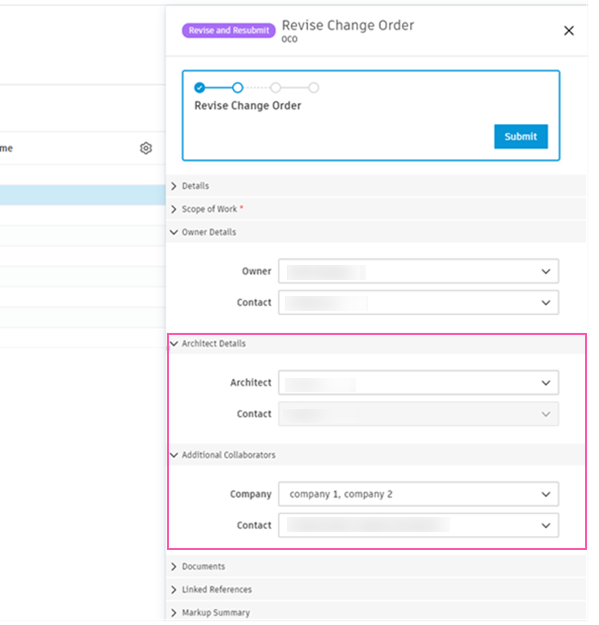
Collaborators specified in these sections:
- Receive email notifications when items are submitted
- Can be added as reviewers in approval workflows
- Have their information available for document variables (see People Variables)
Related articles: Approval Workflows | CORs, OCOs and SCOs | Budget Payment Application
Setting Up Collaboration
To enable effective collaboration, ensure accurate company and contact information is configured in Company Setup.
Invite Collaborators
To add a collaborator (supplier, owner, architect or consultant):
- Select the Members tool from the left menu.
- Click Add members and enter the collaborator's email address.
- Select the collaborator's Company and Role. Ensure that the Access level is set to Project Member.
- Click Send invitations.
Grant Permissions
In Settings > Permissions, grant the appropriate permission level for each company:
- Collaborate: For suppliers, owners, architects and consultants who need to respond to items or participate in approval workflows
- Full Control or Admin: For internal team members who need to create and manage items
Learn more: Cost Management Permissions
Configure Custom Attribute Access
Project administrators can control whether collaborators see and edit custom attributes on a per-attribute basis. When creating or editing a custom attribute, set the Collaborator access level:
- No access (default): The attribute is hidden from collaborators.
- View only: Collaborators can see the attribute value but cannot change it.
- View + Edit: Collaborators can see and edit the attribute during statuses where editing is allowed.
This setting is available for custom attributes in Main Contract, Budget Payment Application, Contract, Contract SOV, Cost Payment Application, RFQ, COR, OCO and SCO. Configure it in the respective settings tab: Budget, Cost or Change Order.
Configure Owner Access to Main Contract
To give owners collaborative access for document uploads:
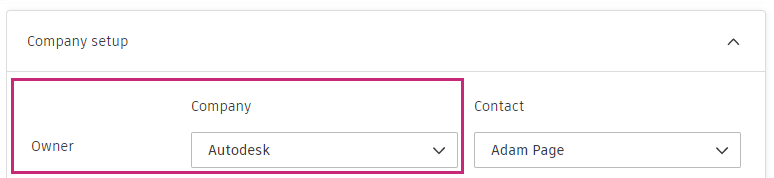
Go to the Settings tool.
Scroll down to the Company Setup section in the General tab.
Select company and contact for the owner role.
In the main contract's flyout panel, assign the correct owner in Owner Details.
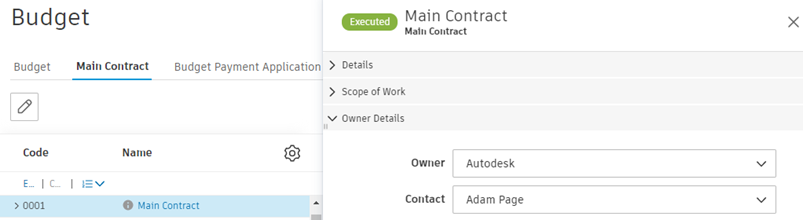
Owners with collaborative permission can view contract details in the Main Contract table and upload documents to the Attachment section. Access to individual SOV item links is restricted.
Troubleshooting Collaboration Access
If collaboration access isn't working, verify:
- Members tool: Collaborator's email address and name are linked with their company
- Settings → Permissions: Company has Collaborate access to the relevant module
- Flyout panel: Contact company matches the collaborator's company
- Item status: Item is not in Draft status
Collaborators in Approval Workflows
External collaborators – including owners, architects and additional collaborator companies – can participate as reviewers in approval workflows for OCOs and Budget Payment Applications. This enables a sequential review process where items are reviewed by multiple parties before final approval.
To enable collaborators as reviewers:
- Grant the external company Collaborate, Full Control or Admin permission for the relevant module.
- When creating an approval workflow, add the external company or its members as reviewers.
- Specify the collaborators in the flyout panel (Owner Details, Architect Details or Additional Collaborators) to include them in email notifications.
For detailed information about configuring workflows, permission requirements by workflow type, response options and document access during review, see Approval Workflows.
Restricted Comments
Control comment visibility with restricted comments:
- Public comments: Visible to all project members, including collaborators
- Restricted comments: Only visible to users with View All, Full Control or Admin permissions
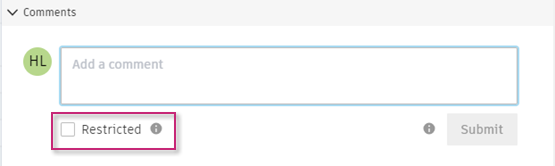
Users with Full Control/Admin permissions see a Restricted tick box. Tick the box to make the comment private to internal team members only.
File Permissions for Collaboration
When generated documents are stored in the Files tool, collaborators need specific folder permissions.
Automatic Folder Permissions
When the system creates an entity folder (for example, for a COR, OCO or Budget Payment Application), it automatically grants View + Download + Upload permission to:
- The Owner company specified in the item
- The Architect company specified in the item's Architect Details section
- All Additional Collaborator companies specified in the item's Additional Collaborators section
Folder Permission Tooltips
When viewing documents in Cost Management, tooltips display information about folder permissions:
- For Admin permission users: Shows which companies have permission and provides a link to manage folder permissions in Forma Data Management.
- For Full Control/View All permission users: Shows which companies have permission and which do not, with a link to manage permissions.
- For Collaborate permission users: Indicates whether your company has access to the Forma Data Management folder.
Setting Up Folder Permissions Manually
If you need to configure file permissions manually, use the Files tool. See Manage Folder Permissions to learn how to set up and manage access levels for collaborators.
Permission Requirements by Activity
Standard activities do not require additional file permissions:
- Proposing quotations or editing scope of work
- Closing RFQ requests
- Editing schedules (days and comments)
- Responding to contracts
- Entering Schedule of Values (SOV)
- Editing SOV progress and adding comments
- Submitting payment applications
- Accepting/rejecting change orders
- Approving/rejecting payment applications
Document management activities require View + Download + Publish Markups + Upload + Edit:
- Uploading quotations to attachments
- Managing contract attachments
- Uploading/deleting payment application documents
- Generating documents from templates
- Managing change order attachments
Application management requires Collaborate permission (Cost Management):
- Creating/deleting cost payment applications
- Creating/deleting budget payment applications