Create Custom Attributes
The details flyout panel allows members to quickly view detailed information behind any item in multiple components within Cost Management. With the Custom Attributes feature, teams can customise a portion of the details flyout panel to suit their needs and preferences. Create custom attributes to personalise the use of Cost Management.
In this article:
- Create a Custom Attribute
- Enter Data for a Custom Attribute
- Group by Custom Attributes
- Display Custom Attributes as Columns
- Custom Attributes and Contract Types
- Use Custom Attributes - an Example
Create a Custom Attribute
Project administrators are the only individuals who have permission to create and edit custom attributes. To do so, in Cost Management, select the Settings tool from the left navigation. You can now access the settings for the different components within Cost Management.
Custom attributes can be created in the following tabs for each component:
- Budget: budget, main contract and budget payment application
- Cost: contract, contract schedule of values, cost payment application, expense (and its subitems)
- Change Order: cost item and all change orders
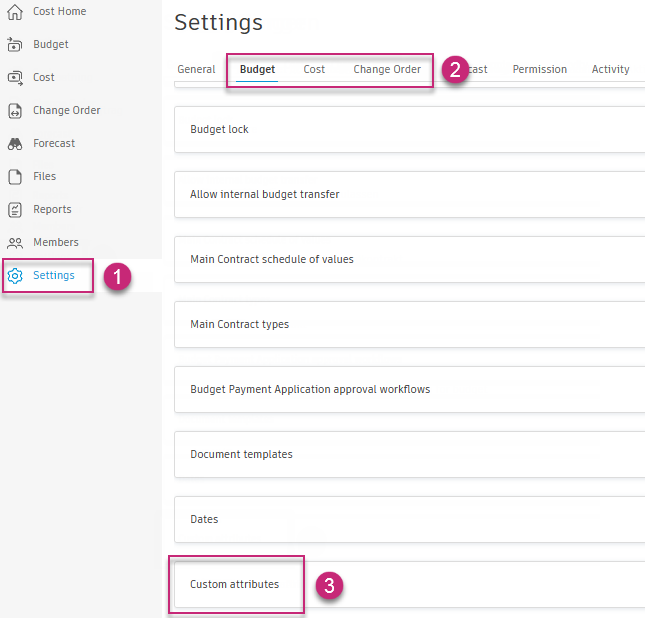
Then:
Click Add in the Custom Attributes section.
Either click to add, or drag the attribute from the left sidebar into the centre preview panel. Available attributes include:
- Text: Members can enter alpha-numeric text.
- Number: Members can enter numerical values.
- Date: Members can select a date from a calendar.
- Drop-down menu: Members can select from the options designated in the settings.
- Tick box: Members can enable or disable the tick box.
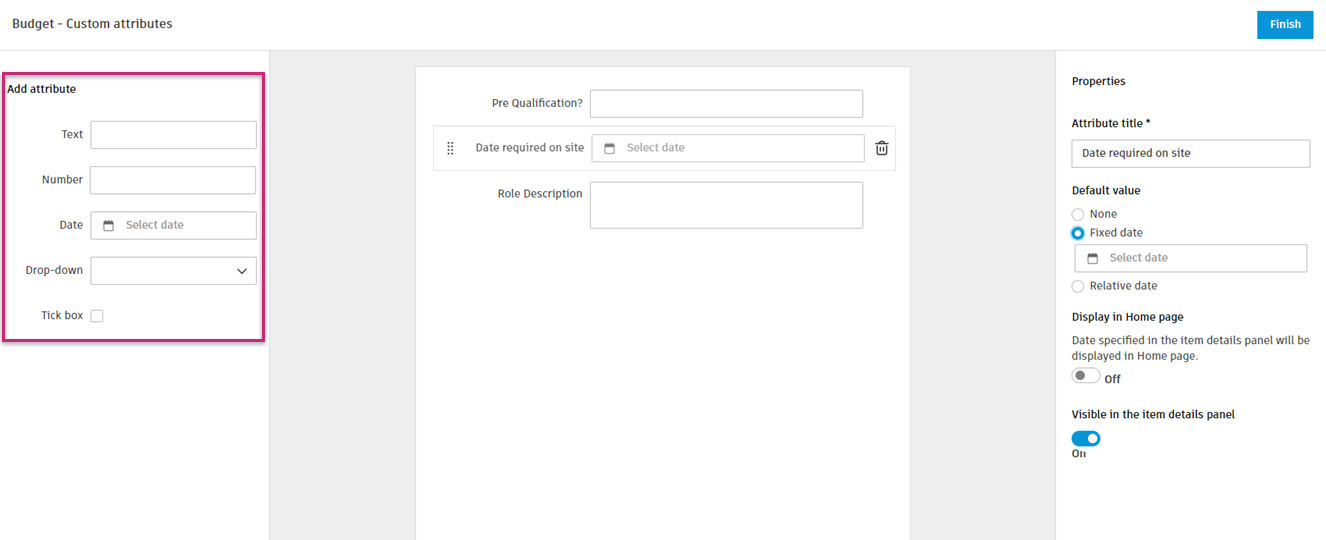
Select the attribute to define it in the properties panel on the right. The details vary depending on the selected attribute.
Text Number Date Drop-down Menu Tick box Attribute title Attribute title Attribute title Attribute title Attribute title Default value and format:
Multi Line – this option lets you enter a default value that spans multiple lines of text.
Rich Text – this option allows you to add formatting like bold, italics and bullet points to a default value. The Rich Text option must be used with the Multi-Line option.Default value – you can enter a whole number or a number with a decimal point. For example, 11,700. Default value:
None - there is no default value for a custom attribute, "Select Date" shows and you can choose the date from the calendar.
Fixed Date – you choose the date that appears next to the attribute by default. However, you will be able to select a new date by clicking the calendar.
Relative date – you can choose the adaptive date. For example, you can set the attribute to show the date one week after creating the contract – to mark the deadline.Options, where one option is allowed per line. Default value – to show the tick box custom attribute as marked or not. Display in the home page – determine whether the custom attribute's date should be visible in the home page. Visibility (show by default) – clear this option to make a custom attribute invisible in the item's detail panel. Visibility (show by default) – clear this option to make a custom attribute invisible in the item's detail panel. Visibility (show by default) – clear this option to make a custom attribute invisible in the item's detail panel. Visibility (show by default) – clear this option to make a custom attribute invisible in the item's detail panel. Visibility (show by default) – clear this option to make a custom attribute invisible in the item's detail panel. Apply to Contract Type – choose which contract type this custom attribute applies to. This option is available only for contract custom attributes. Make sure you set your contract types beforehand. When a new custom attribute is added, it automatically applies to all contract types. Apply to Contract Type – choose which contract type this custom attribute applies to. This option is available only for contract custom attributes. Make sure you set your contract types beforehand. When a new custom attribute is added, it automatically applies to all contract types. Apply to Contract Type – choose which contract type this custom attribute applies to. This option is available only for contract custom attributes. Make sure you set your contract types beforehand. When a new custom attribute is added, it automatically applies to all contract types. Apply to Contract Type – choose which contract type this custom attribute applies to. This option is available only for contract custom attributes. Make sure you set your contract types beforehand. When a new custom attribute is added, it automatically applies to all contract types. Apply to Contract Type – choose which contract type this custom attribute applies to. This option is available only for contract custom attributes. Make sure you set your contract types beforehand. When a new custom attribute is added, it automatically applies to all contract types. Click the attribute handlebar
 to rearrange attributes' order.
To delete an attribute, click on the recycle bin icon.
Click Finish to save.
After creating the custom attribute, it appears as an option in the details panel or table view.
Custom Attributes as Variables in Documents
Some custom attributes can be used in generating documents, such as change orders. Create custom variables to include your custom attributes in document templates. Not all custom attributes create custom variable entries. The following support custom variables:
- Cost contract customised attributes
- Change order custom attributes
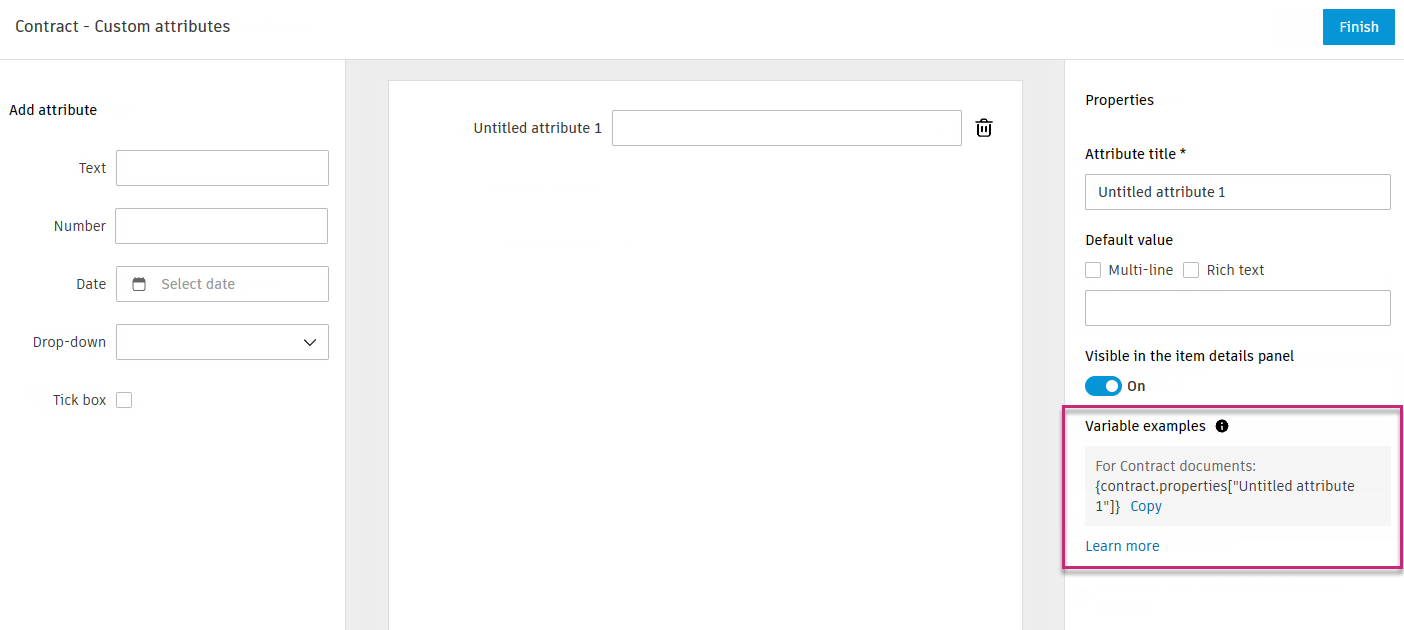
The format for these custom attributes is {xxx.properties["Attribute Title"]}. For example, a date custom attribute for an RFQ titled ‘Required on Site’ would be {rfq.properties["Required on Site"]} would return the date specified.
Copy the variable from the custom attribute edit and paste it into the desired document template.
Enter Data for a Custom Attribute
When a custom attribute has been defined in the settings, it is available to use in the area it was created for.
- Select the tool that you created the attribute for (for example, Budget) and the tab (for example, Main Contract).
- Click on a line item to open the details panel.
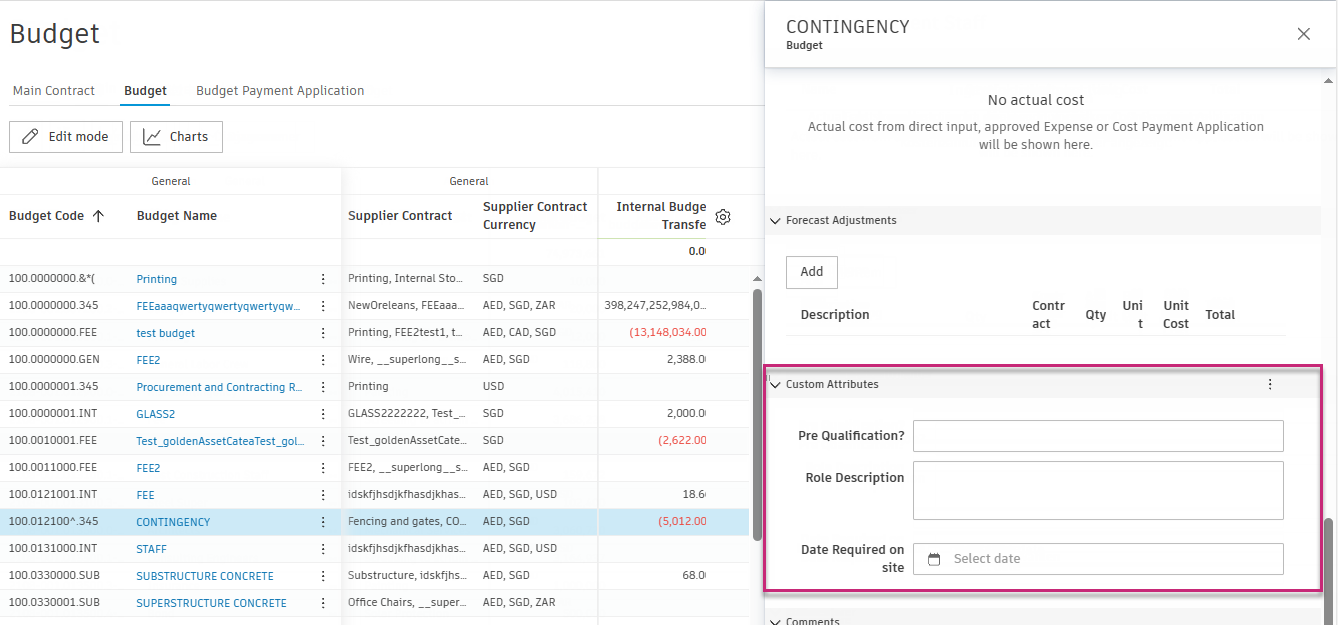
- At the top of the details panel, use the drop-down list to enable the tick box for Customised Attributes.
- Scroll to the bottom of the details panel to locate the customised attributes.
- Enter the data for each attribute.
Group by Custom Attributes
You can group by customised attributes in the Budget, Contract and Change Order views. This gives you customisable views that can be exported.
- Select the tool that you created the attribute for (for example, Cost) and the tab (for example, Contract).
- Select the filter icon
 .
. - Click on the Group Items By drop-down list and the defined custom attribute appears in the list.
- Enter a preset name in the Save Preset section and select Save.
Display Custom Attributes as Columns
You can choose to display custom attributes as columns in the Budget, Cost and Change Order table views.
- Select the tool that you created the attribute for (for example, Cost) and the tab (for example, Contract).
- Click the
 icon.
icon. - Select the tick boxes next to the custom attributes that you want to display as a column in the table view.
Custom Attributes and Contract Types
Contract custom attributes can be configured to apply to specific contract types. This allows you to tailor which custom attributes are relevant for different kinds of contracts in your project.
When you create or edit a contract custom attribute, you can select which contract types it applies to using the Apply to Contract Type drop-down list. By default, new custom attributes apply to all contract types.
To configure which custom attributes apply to contract types, see Contract Types in the Cost settings.
How Contract Types and Custom Attributes Interact?
The settings for contract types and custom attributes influence each other:
- If you clear a custom attribute for a contract type, that type will be automatically deselected in the custom attribute settings as well.
- If you deactivate a contract type, it will be hidden from the custom attribute settings.
- If you delete a contract type, it will be removed from all custom attribute settings.
When you change which contract types a custom attribute applies to, existing data may become invalid if a contract's type no longer matches the custom attribute configuration.
Not Applicable and Invalid Custom Attributes
When working with contracts, you may encounter custom attributes in two states:
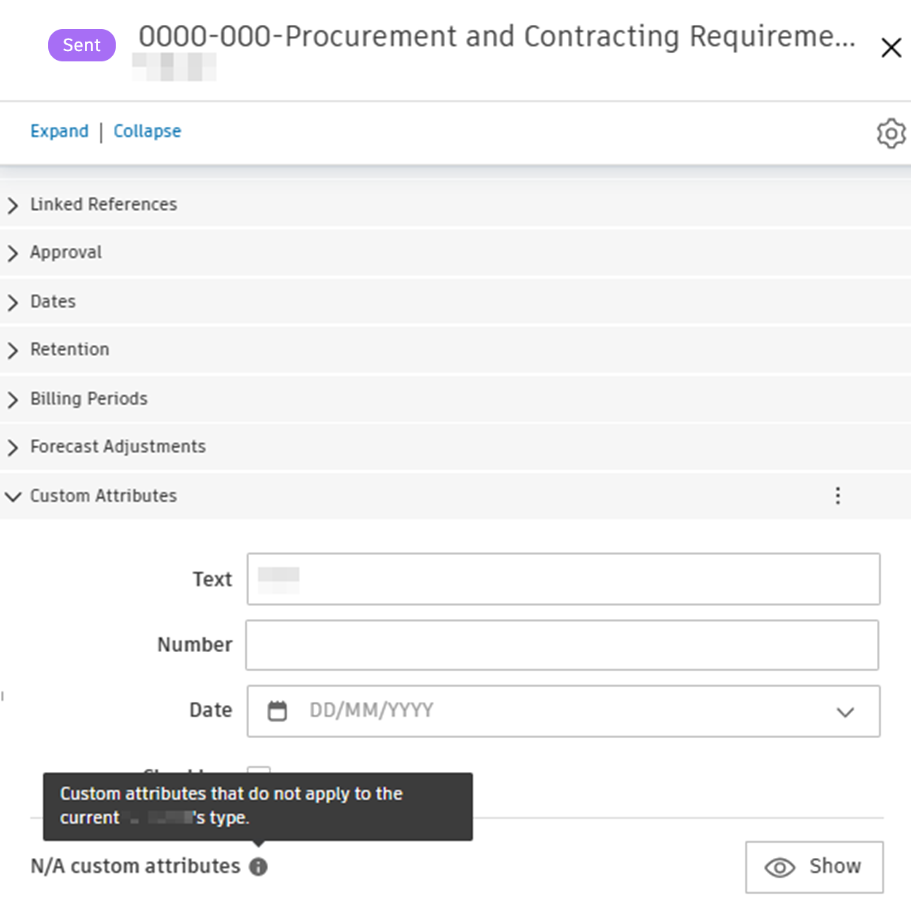
- Not Applicable (N/A): The custom attribute doesn't apply to the contract's current type. These appear dimmed in the table view.
- Invalid: A value exists in the custom attribute, but the attribute no longer applies to the contract's type (for example, if the contract type changed or the custom attribute configuration was modified). Invalid values appear dimmed and cannot be modified.
In the contract details flyout panel, the Custom Attributes section provides options to manage these attributes:
- Show N/A custom attributes: Click this button to display all custom attributes, including those that don't apply to the current contract type.
- Hide N/A custom attributes: Click this button to hide custom attributes that aren't applicable to the contract type.
- Clear invalid data: Click this link next to an invalid custom attribute to remove the value. A tooltip explains: "The custom attribute cannot be modified because it no longer applies to the current type."
- Clear all invalid data: Click this button to remove all invalid custom attribute values at once.
Use Custom Attributes - an Example
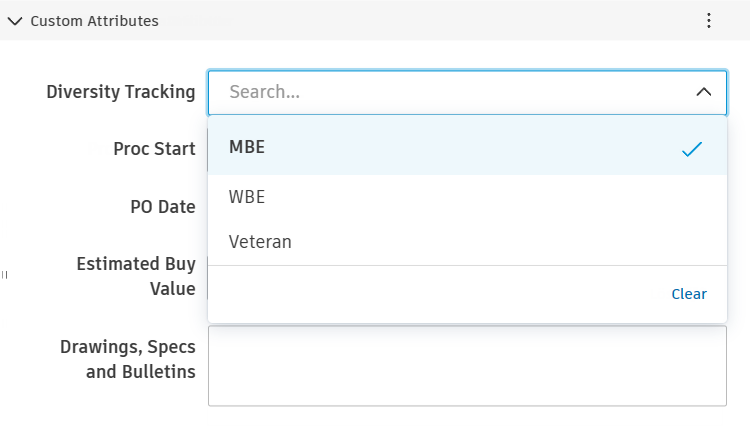
You can use a combination of custom attributes and filtering to access specific items in your budget, contracts or change orders. Custom attributes can be created for the different areas of Cost Management. In this example, we create a custom attribute Diversity Tracking and assign values to contracts.
First, add a custom attribute:
Go to the Settings tool, switch to the Cost tab.
Scroll down to Custom Attributes.
Click Add.
Click Dropdown to add it to the custom attributes list.
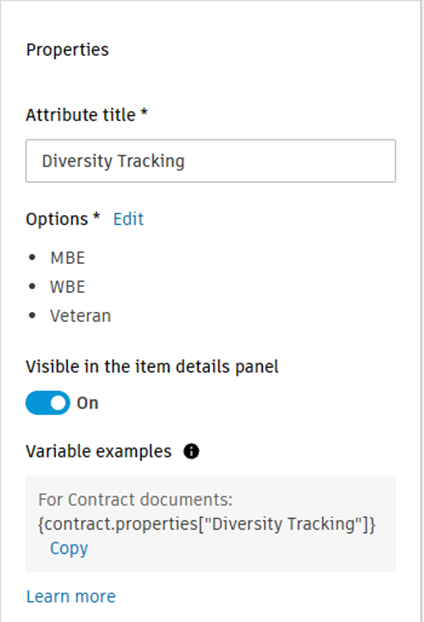
Fill out properties. In our example, the properties will look like this:
Click Finish.
Then, to assign values to a contract:
Go to the Contract tab.
Click the contract name to open the flyout panel.
Scroll down to the Custom Attributes section.
See the Diversity Tracking attribute on the list of the available custom attributes. Choose the right option for this particular contract.