Configure Asset Categories
Assets are grouped into categories and subcategories, and each category and subcategory can be customized by adding custom fields to it. These categories allow you to easily find, track, and sort assets on your project.
To use Assets effectively, project administrators can begin by creating asset categories and subcategories.
Create Asset Categories and Subcategories
Get started by clicking the Settings icon
 at the top-right to display Categories.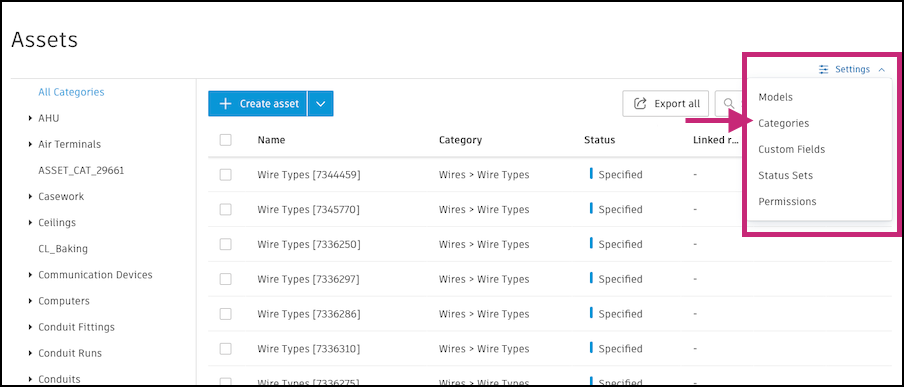
Click Create category.
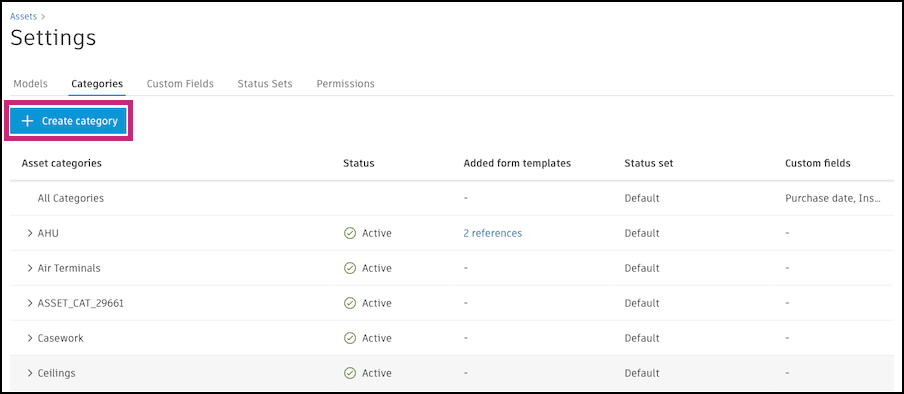
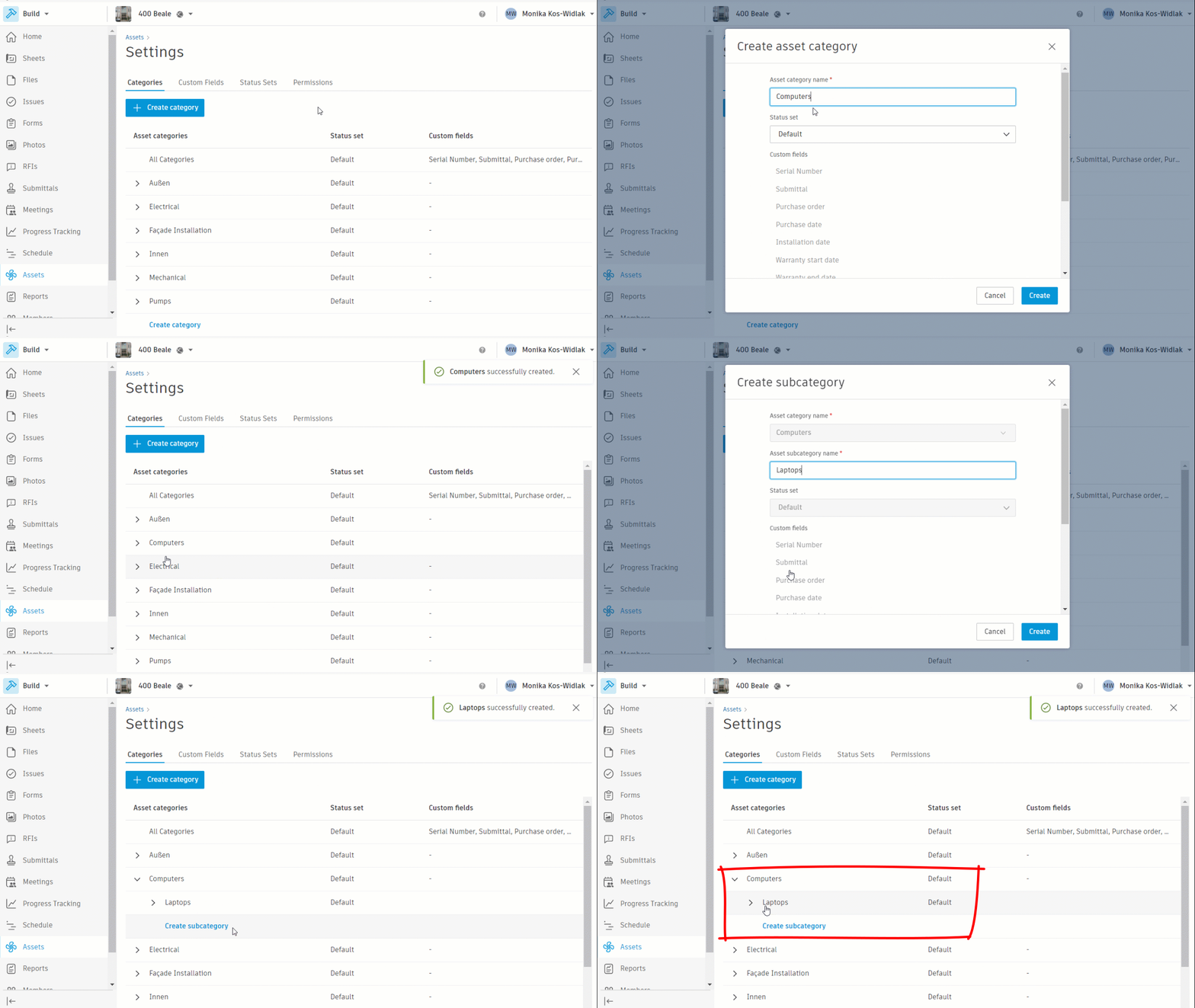
Name your category and select a status set. The default status set contains a generic list of statuses that work in many situations. If needed, you can create your own status sets. See Configure Custom Fields and Status Sets for details.
Note: Top-level asset category names must be unique.When creating a category, you can add custom fields to it. Click Add custom field at the bottom of the "Create asset category" panel to select desired custom fields. Custom fields must be created first in the settings.
- To remove a custom field once you've added it, click the remove icon
 next to it.
 - To reorder how custom fields will appear, hover over the custom field, hold
 on the left side, and drag to the desired location.
Note: If there are any custom fields applied to All Categories, those custom fields appear in gray and are inherited. Custom fields are also automatically inherited by all subcategories.- To remove a custom field once you've added it, click the remove icon
Click Create and your asset category will now appear in the list of categories. You can select it to make any necessary changes.
To create subcategories, click > next to the category you'd like to use as a top-level category, and then click "Create subcategory".
Note:- You cannot have subcategories with the same name under a top-level category. However, you can have multiple subcategories with the same name existing under different top-level categories.
- You can have up to nine subcategories under a category.
Apply Custom Fields or Form Templates to All Asset Categories
Rather than manually editing each category, you can apply custom fields or form templates to all the asset categories in your project.
- In the Categories tab in Asset Settings, click All Categories.
- For form templates, click Add to select existing form templates to reference.
- For custom fields, click Add custom field. Custom fields must be preconfigured to appear here.
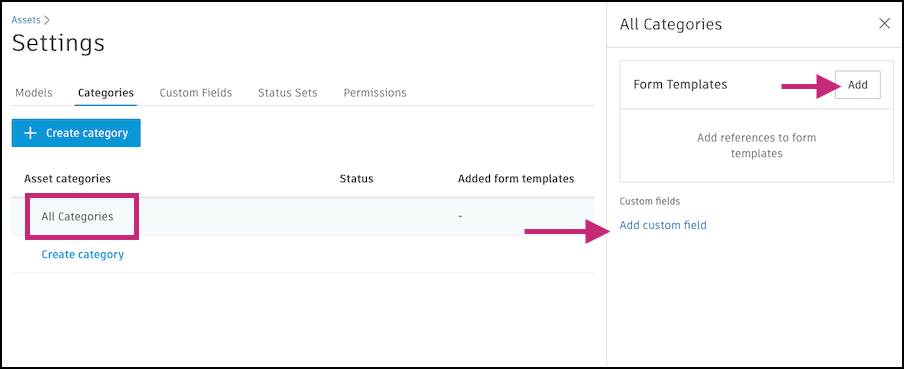
All categories will inherit any form templates or custom fields you add.
Edit Asset Categories or Subcategories
You can select a category or subcategory to edit it at any time. Find your category or subcategory in the Categories tab in Settings and click it to open the details.
Delete Asset Categories
To delete categories, select the category in the Categories tab in Settings and click  in the right-panel that appears.
Set Asset Categories to Active or Inactive
All categories are set to active by default. When a category is inactive, users will no longer be able to assign assets to it. To change a category's status, select the category in the Categories tab in Settings and in the right panel that appears, select either "Active" or "Inactive".
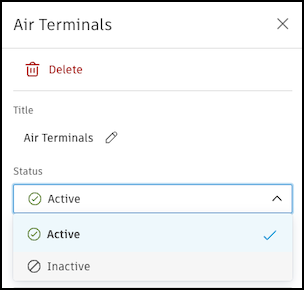
If an existing asset is assigned to an "Inactive" category, its category will still be visible when viewing the asset details.
Asset Category Permissions
By default, project administrators and everyone who has been given access to the Assets tool can view all the assets in every category.
However, if you have assets that should be accessed by only a limited number of people, you can modify the permissions on asset categories. These allow only certain members, roles, or companies to see assets in specific categories in your project.
To edit the permissions on asset categories:
In the Categories tab in Settings, click the category.
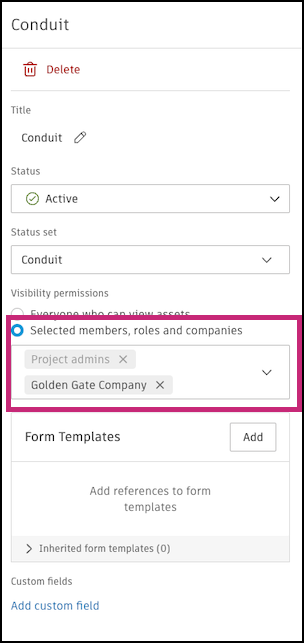
Note: You can only edit the visibility permissions on the top-level category.In the right panel that appears, select Selected members, roles, and companies.
Click the field and select members, roles, and companies from the drop-down menu.
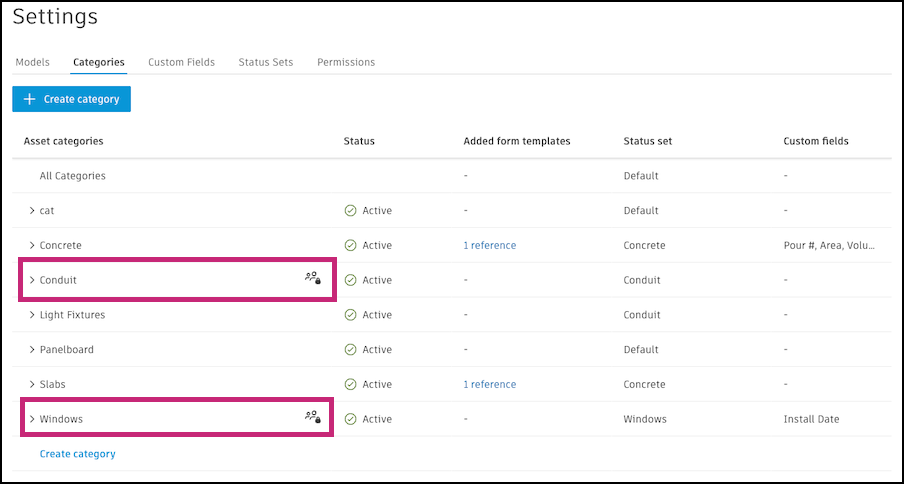
An icon appears next to any categories in the list that have modified permissions.
Next, you'll configure custom fields and status sets. See Configure Custom Fields and Status Sets for details.
Add Form Templates to Asset Categories
- In the Categories tab in Settings, click the category you want to edit.
- Next to Form Templates, click Add.
- Select form templates to add.
- Click Submit.
If your project was created from a project template, there could be form templates preconfigured on asset categories. Click Inherited form templates to open the list of these form templates. Learn more about adding form templates to asset categories in project templates.
Add, Remove, and Reorder Custom Fields in Asset Categories
- In the Categories tab in Settings, click the category you want to edit.
- To add, click Add custom field at the bottom of the "Create asset category" panel to select desired custom fields. Custom fields must be created first in the settings.
- To remove, click the remove icon next to it.
- To reorder how custom fields will appear, hover over the custom field, hold on the left side, and drag to the desired location.