Detached Assets
Model-based assets are assets that are created based on elements from a selected model. Assets can become detached from the model they were created from for several reasons:
An import rule was deleted, removing the attachment between the model and the assets.
An import rule was edited, resulting in assets that no longer meet the rule definition.
The model that the assets were created from was removed from the Assets tool.
The model elements that the assets were created from were updated in the model, changing their ID, and therefore no longer match the assets.*
Note: *This is only applicable to certain file types that have unstable element IDs. See the Assets FAQ for more information.
Detached assets are still listed in the Assets tab, but don't appear in the viewer when viewing assets.
View Detached Assets
You can see if an asset is detached on the Assets tab:
In the Assets tool, click the Assets tab.
In the Models column, the model name is grayed out:
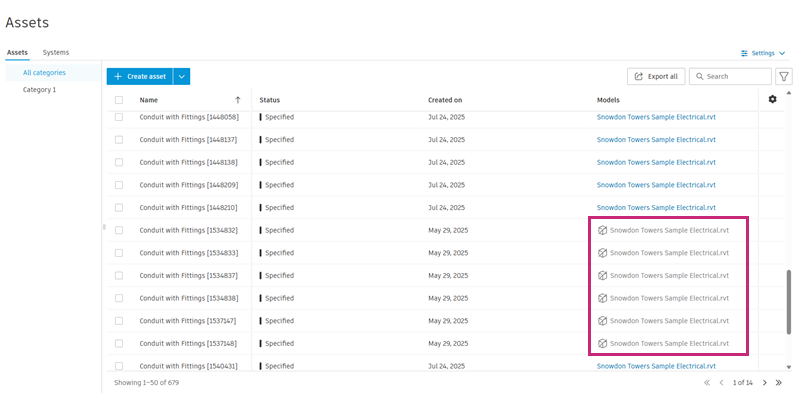
This indicates that the asset is no longer attached to the model.
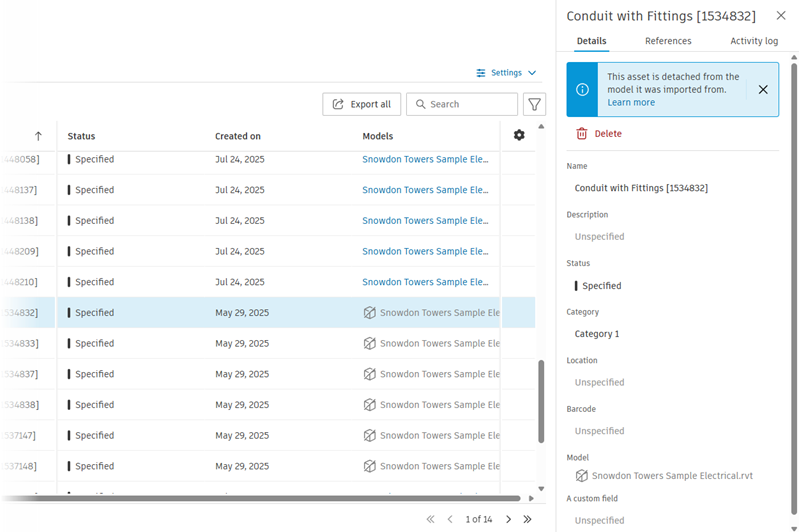
Click an asset to open the Asset details panel, which confirms the asset is detached:
Detach or Delete Assets
When using the model-based assets workflow on the Assets > Settings > Models page, there are several actions that can cause assets to become detached.
Delete import rules
In the Assets tool, click Settings > Models.
For a model that has assets imported from it, click the number in the Assets column.
Click Manage assets in the right panel.
Click the
 More menu next to a category that has assets imported into it.
Click Delete import rules.
Click Delete.
Note: The assets are detached instantly, but remain in the project. If you create the same import rules again, the assets will be reattached.
Edit import rules
In the Assets tool, click Settings > Models.
For a model that has assets imported from it, click the number in the Assets column.
Click Manage assets in the right panel.
Click [n] assets (where n is the number of assets), in the Assets column next to the category you want to edit import rules for.
Edit the import rules as required and then click Update results to see the assets that will be imported.
Click Save.
Click Next to map properties.
If necessary, edit the model properties that map to asset fields, then click Review changes.
If the changes to the import rules results in existing assets being detached, the relevant numbers are displayed:
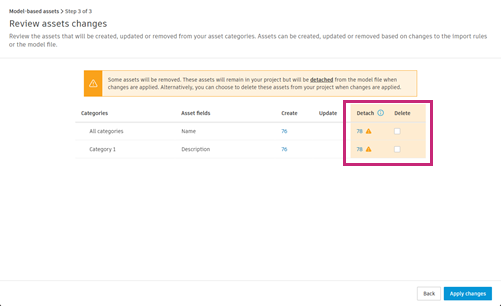
Optionally, you can check the Delete checkbox next to any categories you want to delete the assets from, instead of detaching.
Click Apply changes.
Note: If you delete the assets instead of detaching them, they are removed from the project.
Remove a model
In the Assets tool, click Settings > Models.
On the Models tab, click the
More menu next to a model that has assets imported from it.Click Remove model.
Click Remove.
Note: The assets are detached instantly, but remain in the project. If you add the same model back to the project, the assets will be reattached.
Reattach an Asset
There are several ways that you can reattach detached assets.
Restore import rules
When import rules have been deleted, when you return to the Import assets to category dialog, it will contain a Restore previous rules option:
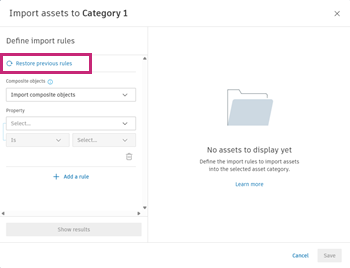
- Click the Restore previous rules option.
- Click Save.
- Click Next to map properties
- If necessary, edit the model properties that map to asset fields, then click Review changes.
- Review the assets that will be reattached, and then click Apply changes.
Re-add a model
If you removed a model that had assets imported from it, causing them to become detached, you can add the model back to the Assets tool to reattach the assets.
- In the Assets tool, click Settings > Models.
- Click Add model.
- Search or browse to find the model you previously removed, and then click Select.
The assets are automatically reattached to the model.