View Assets
If you have permission to view assets in the Asset tool, you will see a list of assets you have access to.
Navigate to the Assets tool in the left navigation.
In the Assets tab, you can:
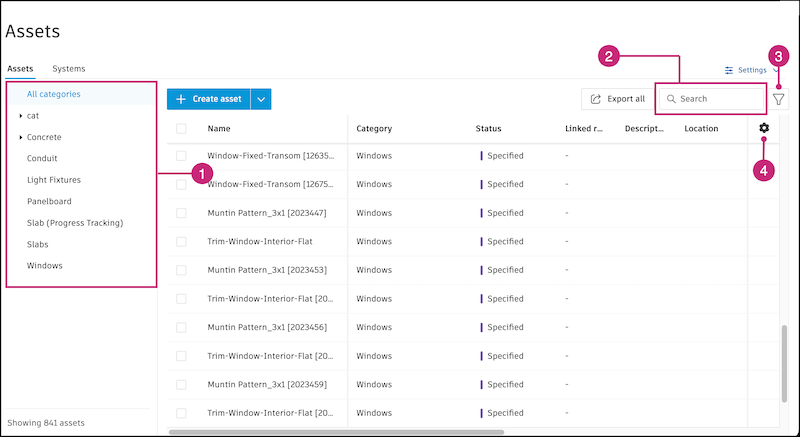
Select a category from the left panel to view the assets in that category.
Tip: You can resize the left panel by holding and dragging the vertical line next to the panel.Use the search field to search for an asset by name.
Click the filter icon
 to apply filters to find assets by status, location, the model it belongs to, or custom fields.
Click the cog icon
 at the top right of the asset list to customize your Assets table view.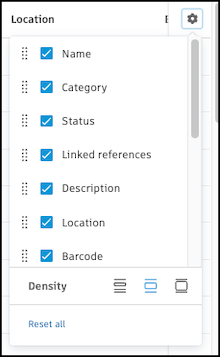
- Select to show or deselect to hide a column.
- To rearrange, hold on
 next to the name of the column and drag it into your desired order.
 - Select the density of the table.
- Click Reset all to return to the default view.
Note: The configurations you make will be saved for you in this project.
You may see some assets in the list where the associated model is unavailable for selection. These are detached assets. Assets can become detached when import rules are changed or the model has been updated. See Detached assets for more information.