Import As-builts from PlanGrid
If you have as-builts created in PlanGrid, you can easily transition them into the Files tool in Autodesk Forma to have a central location for all of your project information.
In Forma Data Management or Forma Build, navigate to the Bridge tool using the left navigation menu.
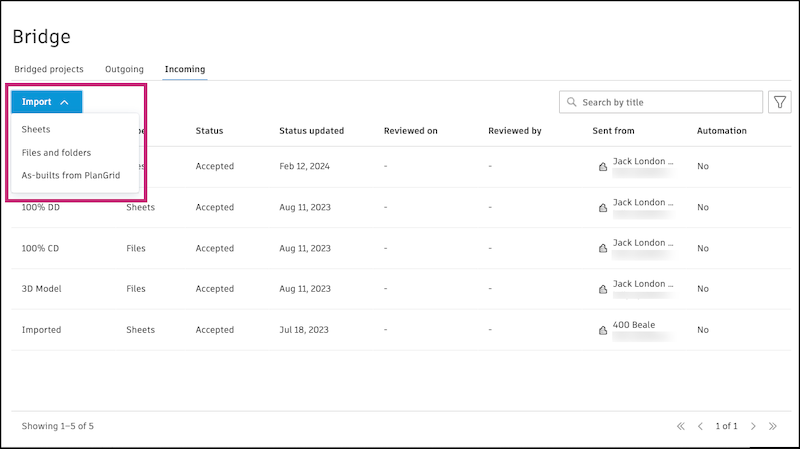
Select the Incoming tab.
Click Import and select As-builts from PlanGrid.
Select a source project. The drop-down menu will show your PlanGrid projects and workspaces.
Select the target folder. This is the folder in your current project that the as-builts from PlanGrid will be imported into.
Note: Only the folders in which you have Edit permission or higher will appear.Click Select as-built.
Note: If you don't have any as-builts in the selected source project, the list will be empty and there will be a link to Go to project in PlanGrid to go directly to the PlanGrid project and create as-builts.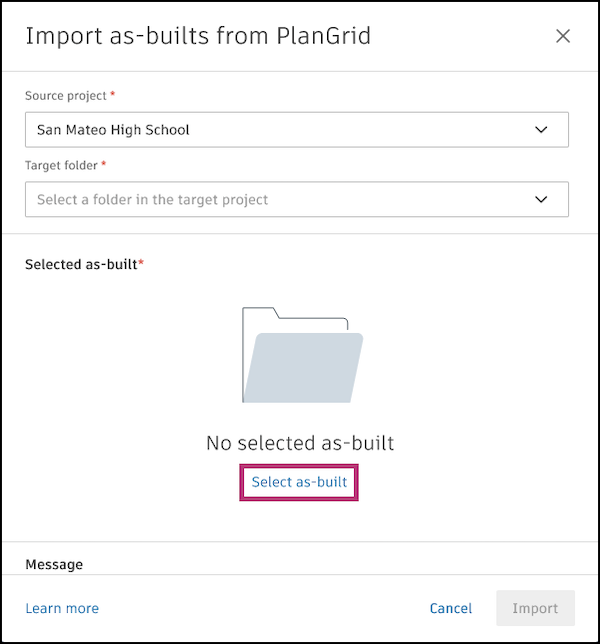
Select an as-built from the list.
Click Select.
(Optional) You can enter a message about the imported as-built to provide context for your project members.
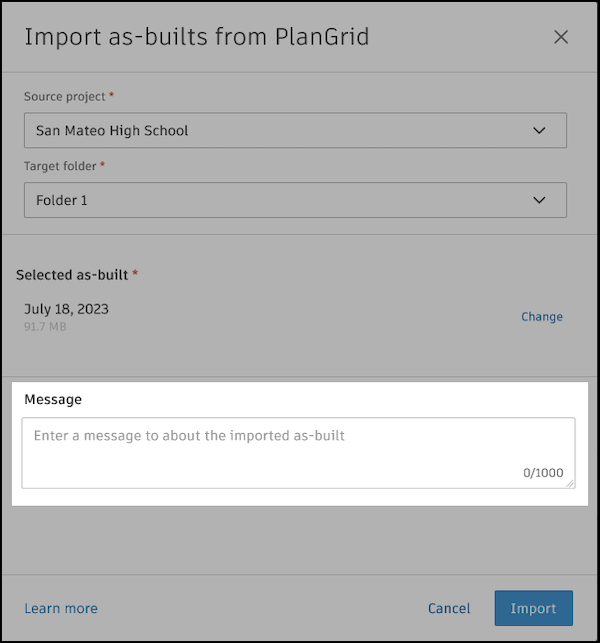
Click Import.
The as-built from PlanGrid will appear in the Files tool in the target folder you selected. Project administrators will receive an email notification when the as-builts are ready. A record of this import will appear in the Incoming tab.