Import Sheets from Another Project
In the Bridge tool, you can import sheets from other Autodesk Forma projects into your current project.
To import sheets, you must have:
- View + Export permission or higher in the project you are importing from
- Create + Upload permission or higher for Sheets in the current project
Navigate to the Bridge tool using the left navigation menu.
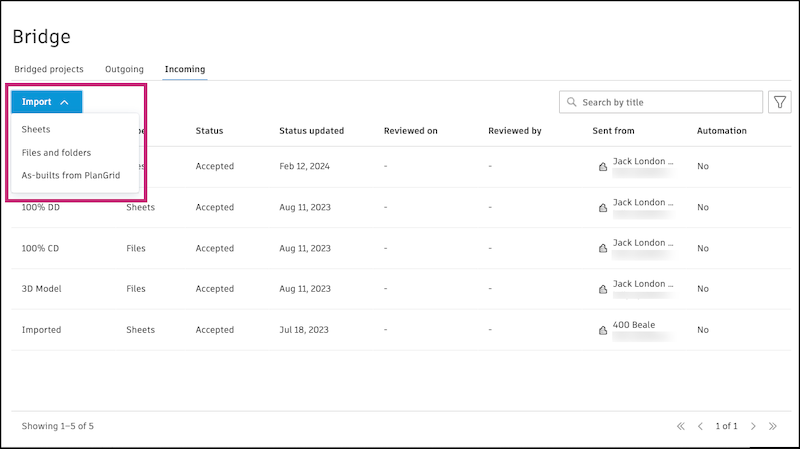
Click the Incoming tab.
Click Import and select Sheets.
In the Import sheets window, select a project to import sheets from.
Search for sheets by title and select the sheets that you want to import.
Note: If the project you select has Sheets Collections enabled and multiple collections created, you can also search for sheets in specific collections.(Optional) Select Automatically import new sheet versions if you want to create an automation. This automation lets you always receive new versions of the selected sheets uploaded in the other project.
Note: When you create an automation and the project you are importing from isn't bridged to the current project, a bridge will be created. The project will appear in the Bridged projects tab in Bridge. You can manage automations in the Bridge tool.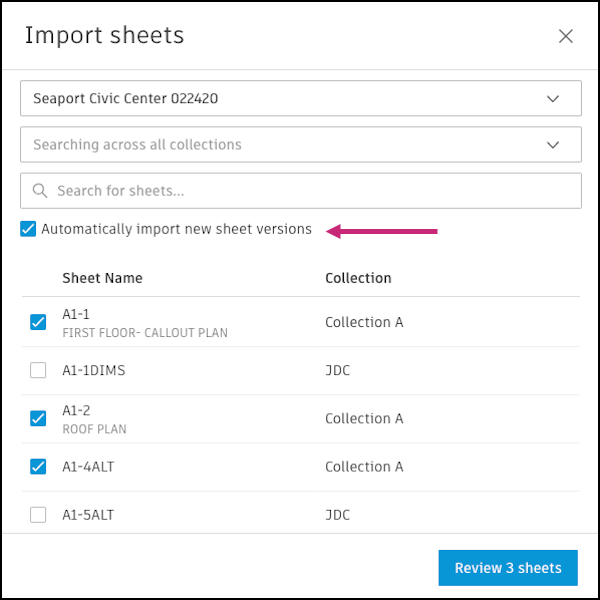
Click Review # sheets.
Select a collection for the content to go into if the project you're importing into has collections turned on.
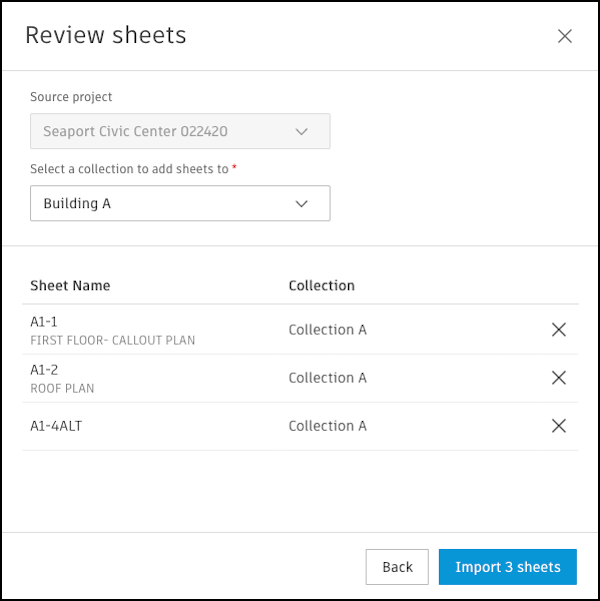
Review what is being imported.
(Optional) Enter a message to provide context for the recipients. The message will appear in relevant emails and on the Detail page in Bridge.
Click Import # sheets or Import # sheets with automation based on your selection.
Note: You must select a collection to add the selected sheets to if the project you are importing into has Sheets Collections enabled and multiple sheet collections created.
The imported sheets can now be found in the Sheets tool. You can track imported sheets in the Incoming tab in the Bridge Tool.