Share Sheets with Another Project from Bridge
You can share sheets with another project directly from the Outgoing tab in the Bridge tool. The shared sheets will appear in the target project's Sheets tool.
- The Sheets tool is only available in Autodesk Build.
- To share, you must have View + Export permissions or higher in Sheets in the current project. Learn more about permissions.
Select Build in the product picker.
Navigate to the Bridge tool using the left navigation menu.
Click the Outgoing tab.
Click Share with a project.
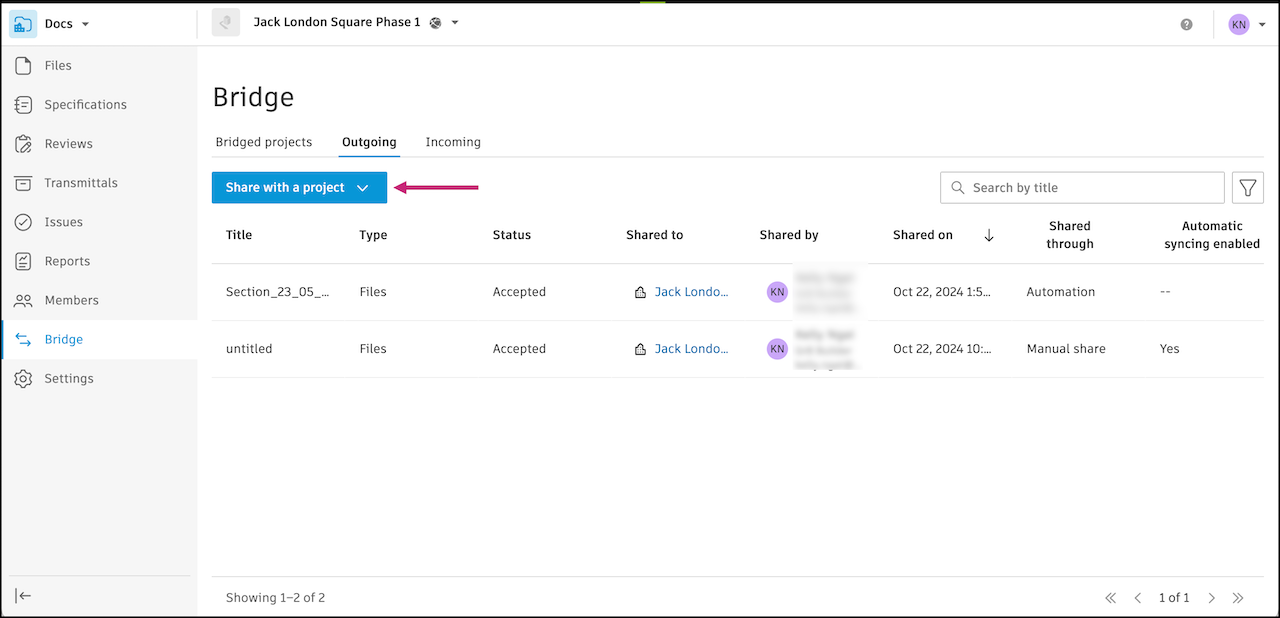
Select Sheets.
Use the search field to search for sheets by name. If your project uses collections, you can also search from a specific collection.
(Optional) Select Automatically sync updates to target project to create a sheet automation. The sheets you share will automatically update in the target project when they're updated in the source project.
Select sheets from the list.
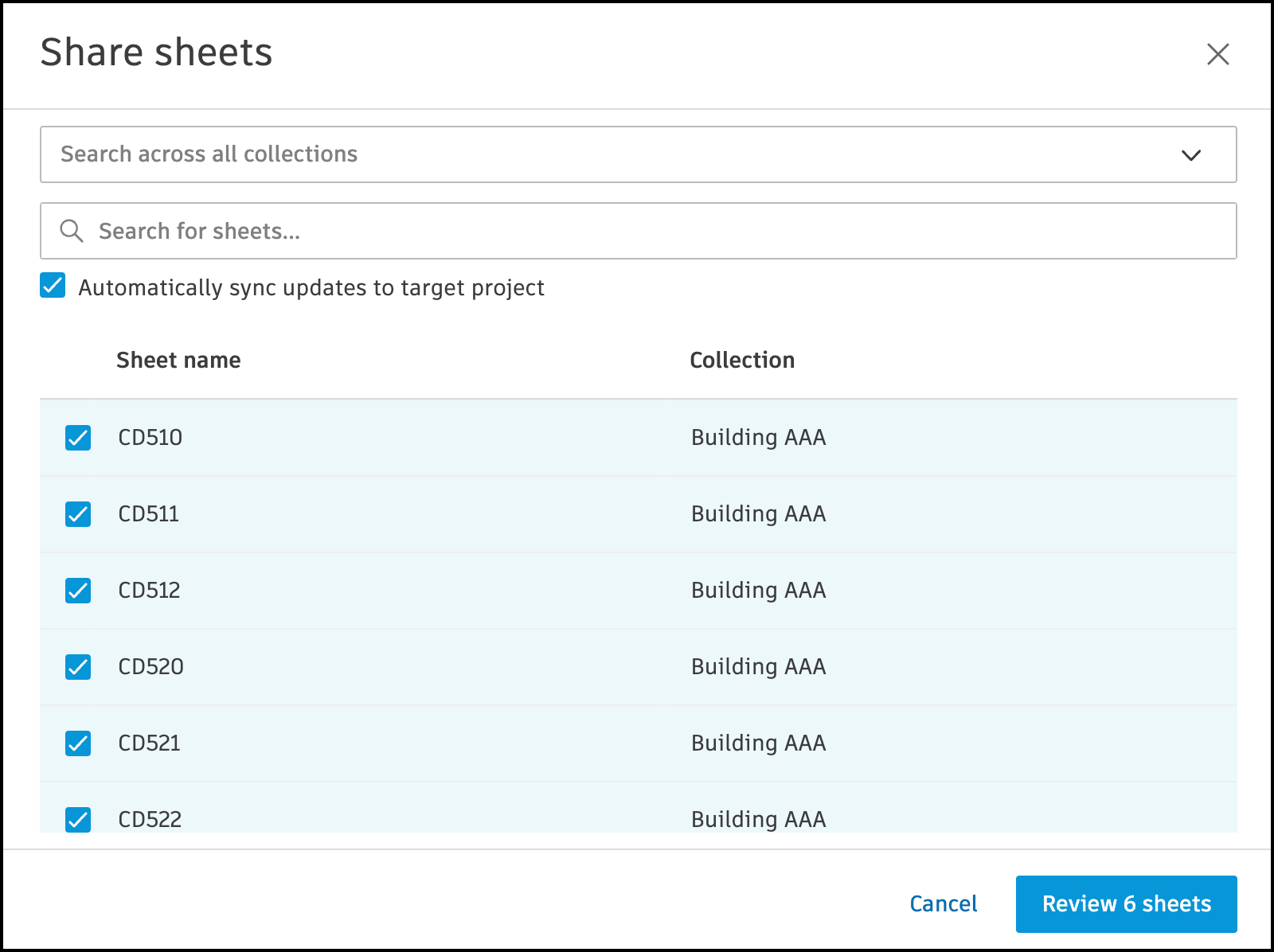
Click Review # sheets.
(Optional) Enter a title. A title helps you track what is shared in the Outgoing tab in the Bridge tool.
Select a target project.
Note: You must have Create + Upload permission or higher in the target project.(Optional) Enter a message to provide context for the recipients. The message appears in relevant emails and on the Detail page in Bridge.
Click Share # sheets or Share # sheets with automations as applicable.
An entry will be added to the Outgoing tab. The status will start In Progress and update to Accepted, Partially failed, or Failed once the share is complete. If a share partially fails, you can look into the Detail page to see which items failed to share and why. See Troubleshooting Bridge Failures for more information.