Share Files and Folders with Another Project from Bridge
You can share files and folders with another project directly from the Outgoing tab in the Bridge tool. The shared files and folders will appear in the target project's Files tool.
Navigate to the Bridge tool using the left navigation menu.
Click the Outgoing tab.
Click Share with a project.
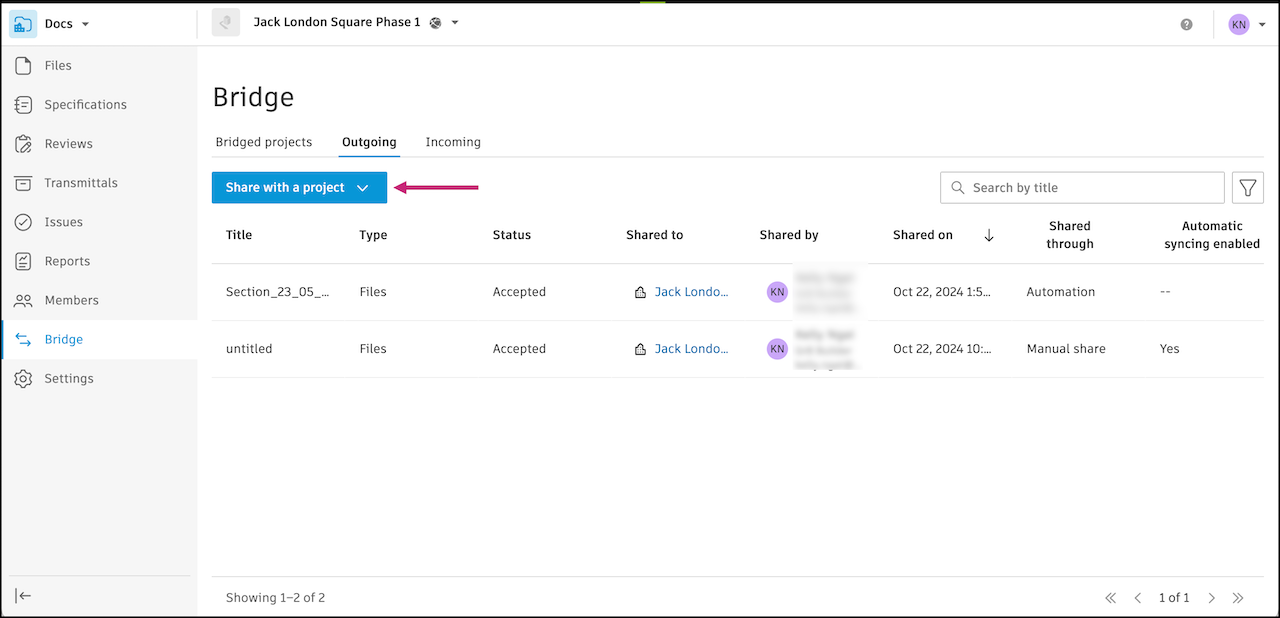
Select Files and folders.
Use the search field to search for files or folders by name.
(Optional for folders only) Select Automatically import folder updates into target project to create a folder automation. The target project receives updates when you make updates to the selected folders in the source project. This feature ensures that stakeholders you shared the folders with always have the most updated files automatically.
Note:- Automations can't be created on individual files.
- When you create a folder automation, a bridge will be created if the project you are importing from isn't bridged to the current project. The project will appear in the Bridged projects tab in Bridge. You can manage automations in the Bridge tool.
- New subfolders created in the source folder after the initial share won't be automatically synced to the target project. You will need to share those new subfolders separately if you want them to be synced.
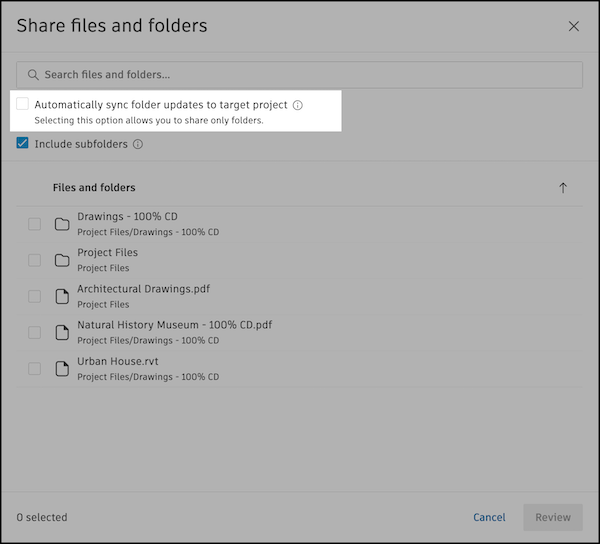
(For folders only) Include subfolders will be selected by default. All subfolders within the selected folders will be shared. You can deselect this option if you want to only share the parent folders you select.
Select files or folders that you want to share.
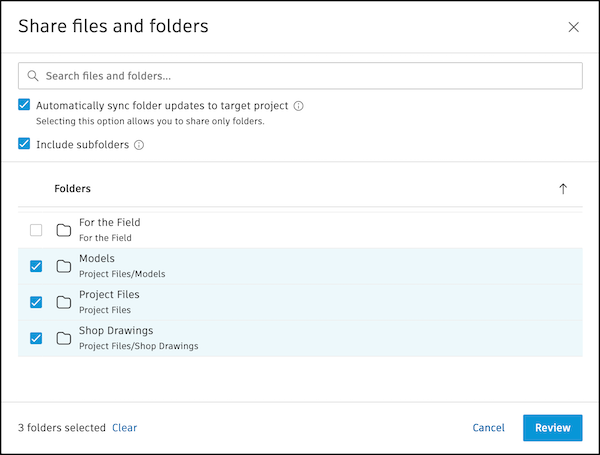
Click Review.
(Optional) Enter a title. A title helps you track what is shared in the Outgoing tab in the Bridge tool.
Select a target project.
- My projects: Projects where you are a project member with Edit permission or higher
- Bridged projects: Projects that are bridged to your current project
Note: Selecting a bridged project will require a project administrator in the target project to accept the content you share. Learn moreReview your selected items.
Note:- There is always an Attributes section in the selected items. File attributes can be shared when sharing files with another project.
- To add or remove which custom attributes can be shared, a project administrator can adjust the Attributes Settings in the Bridge tool. Custom attributes will be shared if they are applicable and meet the required criteria. Learn more
(Optional) Enter a message about the shared files or folders to provide context for the recipients. The message will appear in relevant emails and on the Detail page for this share in the Outgoing tab.
Select Share # items or Share # items with automation as applicable.
An entry will be added to the Outgoing tab. The status will start In Progress and update to Accepted, Partially failed, or Failed once the share is complete. If a share partially fails, you can look into the Detail page to see which items failed to share and why. See Troubleshooting Bridge Failures for more information.