Apply Markup Formula on Budget Columns
Project administrators define Budget Financial Markup Formulas in project settings, then project members apply them to the Budget view's Final Main Contract Amount column. When a formula is applied, the affected budgets become markup budgets and their Final Main Contract Amount values come from the formula calculation instead of the column's defined formula.
In this article:
- Concepts
- Set Up Budget Financial Markup Formulas
- Choose the Final Main Contract Amount Source
- Apply a Markup Formula
- Markup Indicator on Calculated Values
- Recalculate or Clear an Applied Formula
- Related Articles
Concepts
| Concept | What it is |
|---|---|
| Budget Financial Markup Formula | A formula configured in project settings that calculates markup amounts based on filter conditions and budget code mappings. Applied to the Final Main Contract Amount column in the Budget view. |
| Final Main Contract Amount | A system column in the Budget view (column group: Fee Analysis) that holds the markup-adjusted amount per budget. |
| Final Main Contract Amount Source | A budget attribute that controls which forecast curve drives the column for each budget: Cost Forecast (default), Budget Forecast, or Excluded. |
| Markup budget | A budget tagged as a markup target after a formula has been applied. Markup budgets ignore the column's defined formula; their values come from the markup formula calculation. |
Set Up Budget Financial Markup Formulas
Project administrators create and manage Budget Financial Markup Formulas in project settings. See the Budget Financial Markup Formulas section in Budget Settings for the configuration steps, including:
- Adding multiple formulas
- Mapping markup items to budget codes (required field; budget codes must be unique)
- Adding filter conditions on the budget value of the column where the formula is applied or on budget code segments
- Activating, deactivating, and deleting formulas (formulas already applied to a column cannot be deleted, only deactivated)
- Project-copy and template behavior for mapped budget codes
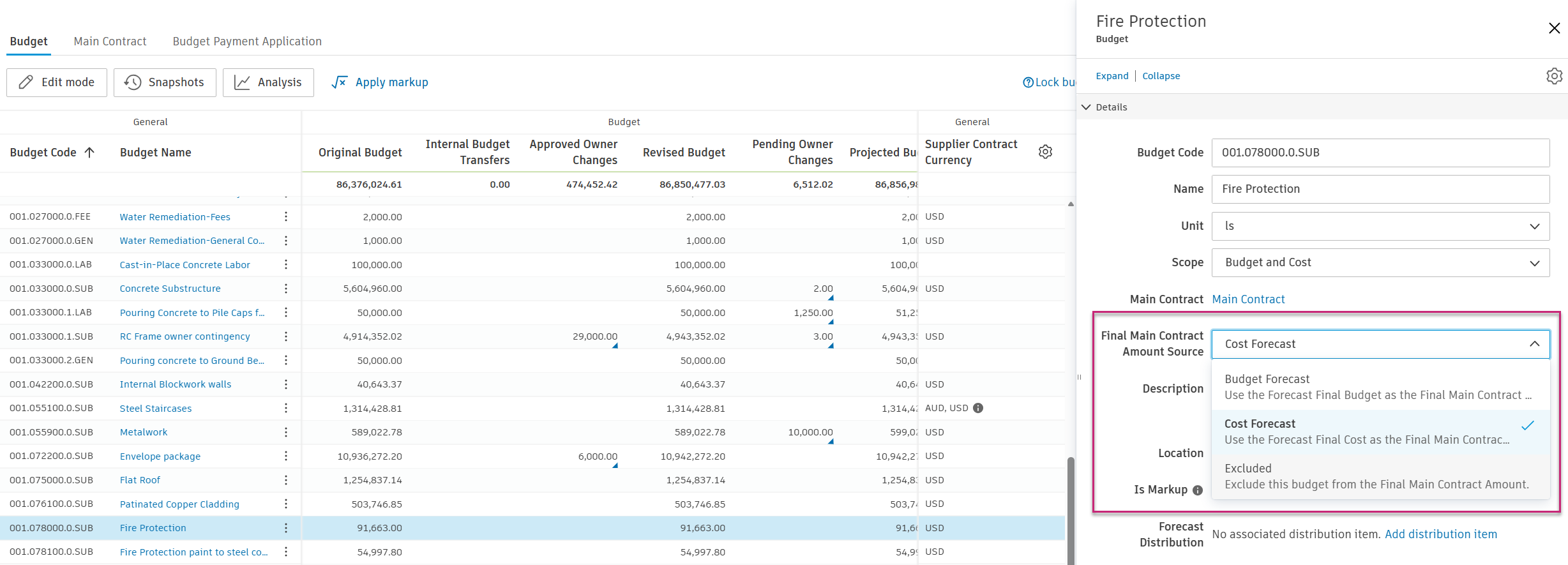
Choose the Final Main Contract Amount Source
Each budget has a Final Main Contract Amount Source attribute that decides which forecast value the budget contributes to the Final Main Contract Amount column:
- Cost Forecast (default) — Use the Forecast Final Cost amount.
- Budget Forecast — Use the Forecast Final Budget amount.
- Excluded — Exclude the budget from the column. The cell is empty.
To change the attribute on a budget:
- Open the Budget tool.
- Click the budget item to open its details panel on the right.
- Set Final Main Contract Amount Source to Cost Forecast, Budget Forecast, or Excluded.
Apply a Markup Formula
To apply a Budget Financial Markup Formula to the Final Main Contract Amount column:
Open the Budget tool.
On the toolbar, click the Apply markup button.
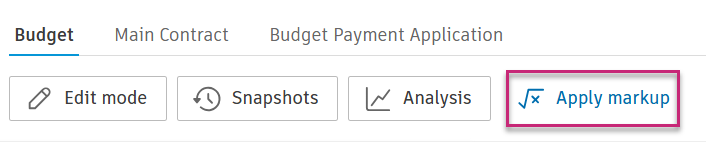 Tip: This button is hidden in edit mode and snapshots mode. If no formula is defined in project settings, the button is disabled with a message.
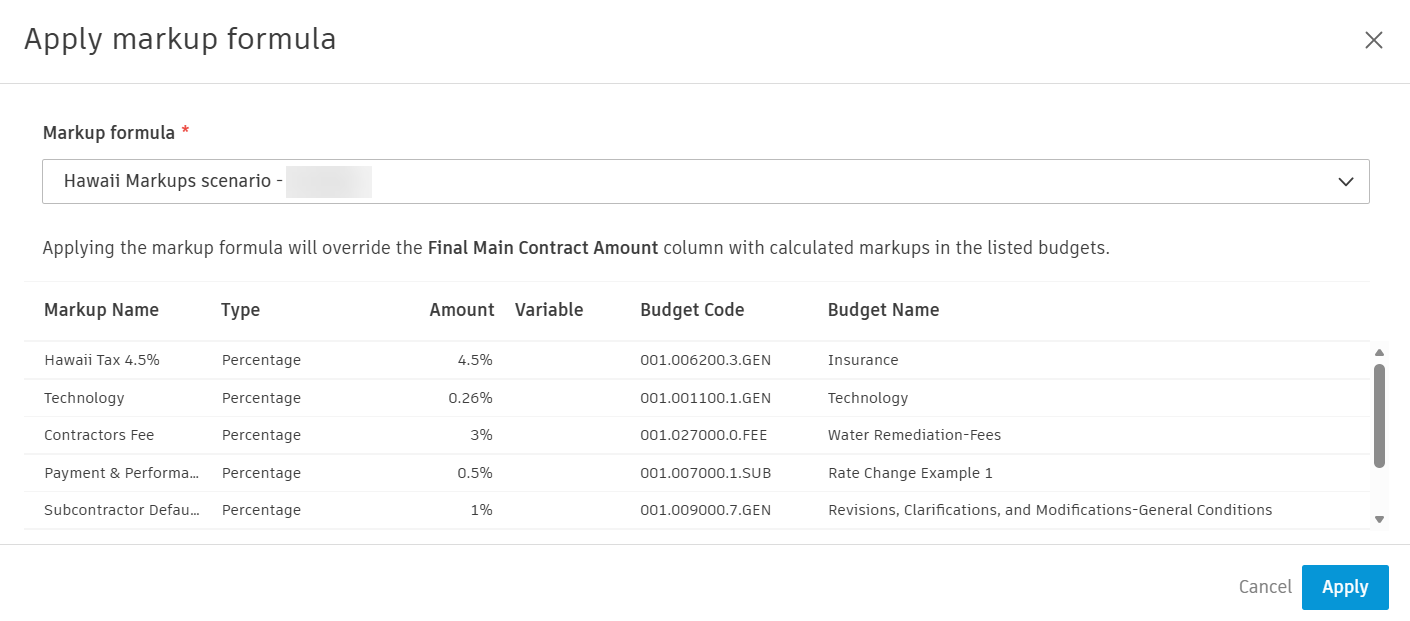
In the Apply markup formula modal, select an active formula from the list. Inactive formulas do not appear.
Review the description message and the mapped budget codes preview. If a mapped budget code does not exist in the project, a new budget is created automatically using the markup item name (Qty = 1, Unit = default, Unit Cost = 0, Amount = 0). If the master list is locked and a mapped code cannot be created, the Apply button is disabled with an error message.
Click Apply.
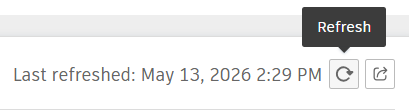
While the system calculates, the Budget view is locked and the Apply markup button is disabled. After the calculation completes, click Refresh on the Fee Analysis card to update the Analysis panel chart with the new markup-driven values.
Markup Indicator on Calculated Values
After a formula is applied:
- Affected budgets are flagged as markup budgets.
- Markup budgets do not use the column's defined formula. The column displays the calculated markup value instead.
- Each calculated cell shows a markup indicator. Hover to see which formula was used and when.

Recalculate or Clear an Applied Formula
After a formula is applied, the toolbar exposes:
- Recalculate markup — Reapplies the previous formula. If the original formula has since been deactivated, recalculate still uses that previous formula.
- Clear applied formula — Opens a confirmation modal: Clear applied formula? Clearing the markup formula will restore the original values in the following columns:
. After clearing, the markup-budget flag is removed and non-markup budgets use the column's defined formula again.
