Fee Analysis Snapshot
Fee Analysis values can be captured and compared across budget snapshots, so you can see how project fees evolved over time and compare different points in the project lifecycle.
In this article:
View Fee Analysis in a Single Snapshot
To open Fee Analysis for a single snapshot:
Open the Budget tool and click Snapshots in the overview toolbar.
In the Snapshots flyout, click a saved snapshot to enter snapshot mode.
Click Analysis to open the Fee Analysis table for that snapshot.
See Budget Snapshots for the full snapshot workflow.
The Analysis panel shows the Fee Analysis table populated with the snapshot's values:
- The Fee Analysis table displays values from the selected snapshot.
- Fee categories and the budget columns each cell points to come from the latest project settings — not from the snapshot. This means you always see the categories you currently care about, even when comparing to older data.
Compare Snapshots
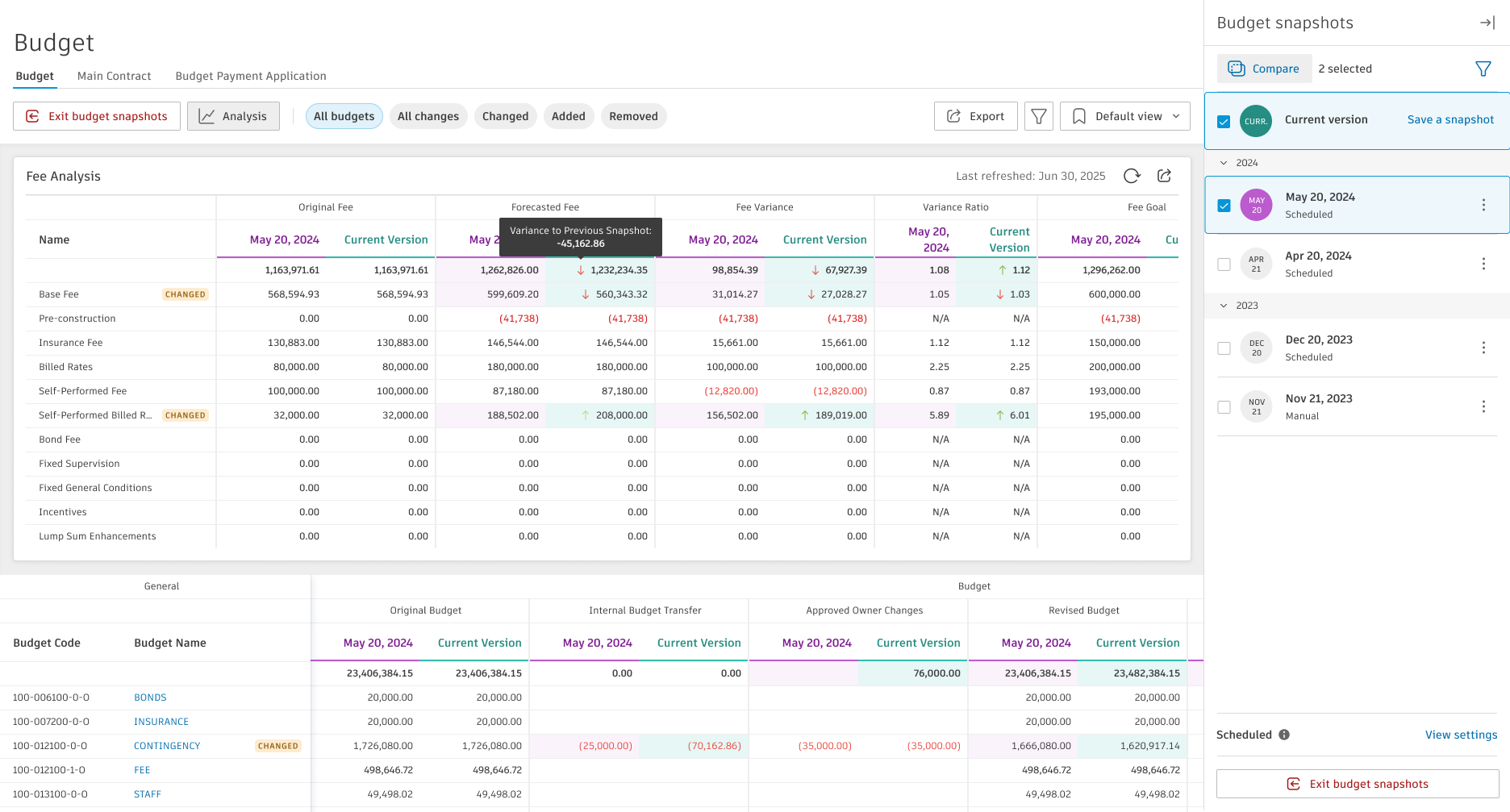
To compare Fee Analysis across snapshots:
Open the Budget tool and click Snapshots in the overview toolbar.
In the Snapshots flyout, click Compare.
Select up to three snapshot versions to compare.
Click Analysis to open the Fee Analysis comparison.
See Compare Snapshots for the full comparison workflow.
In compare mode, the Budget & Cost Trend chart is hidden, and the Fee Analysis table expands to show values from each selected snapshot side by side. The table supports:
- Additional column headers per snapshot.
- Change indicators in the Name column. Added and Removed indicators are not shown — Fee Analysis always uses the latest fee categories from project settings, so categories never appear or disappear in the comparison.
- Highlighting on cells whose values changed between snapshots.
- A snapshot variance tooltip when hovering on a changed cell.
- The Snapshot order setting (oldest first or latest first) controls the column order in the Fee Analysis table.
- Filters by change status (Changed, Removed, Added) do not affect the Fee Analysis table — all fee categories remain visible. Fee category values always show the project-level total and ignore any active filters.
- The comparison report does not include the Fee Analysis table.
Permissions
The same permissions that govern the Fee Analysis card govern its snapshot variants. See the Permissions section in About Fee Analysis.