Create Links to Model Objects
Creating links between schedule activities and model objects lets the team see where work is happening in the project.
Once a model is added to a schedule, you can create links manually or automatically with autolink or filters. Links created through autolink or filters also create a rule for the affected activities. These rules persist when the model is updated, and Schedule 4D rechecks the updated model for matching objects and automatically creates links.
- Limitations
- Create Links Manually
- Autolink - Create a Rule and Links
- Filters - Create a Rule and Links
Limitations
- You can check up to 10 activities each time you create links manually or with filters.
- You can link a maximum of 10,000 objects per activity.
- A project supports a maximum 50,000 links between activities and model objects.
- Autolink performs optimally on schedules with up to 1,500 activities.
Create Links Manually
Manual linking creates links between specific activities and model objects without creating a rule.
Select one or more model objects in the viewer, or check one or more activity rows — you can start from either side.
Repeat until you've selected the activities and objects you want to link.
Click Link in the floating action bar.

Autolink - Create a Rule and Links
You can use autolink to select an activity attribute and model property. We'll check for matching values and display the relevant model object results so you can link a large schedule in minutes instead of linking activities one at a time.
Creating links with autolink also creates a rule. When the file version updates, objects and activities that match the rule will link automatically.
Click autolink in the toolbar.

Select an activity attribute.
Select a model property.
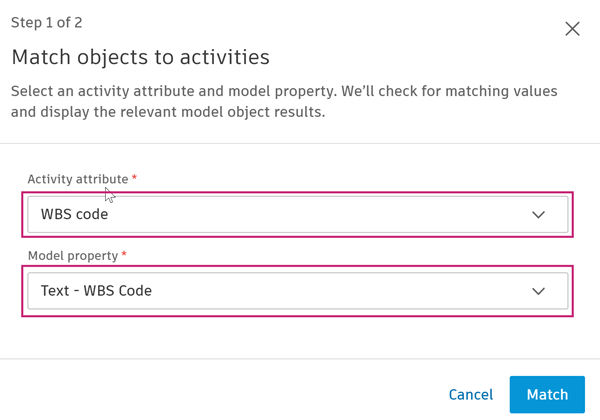
Click Match to find objects with matching values. Autolink matches exact values only.
Note: If the selected activity attribute has no values, you'll need to select a different one.
Review the results.
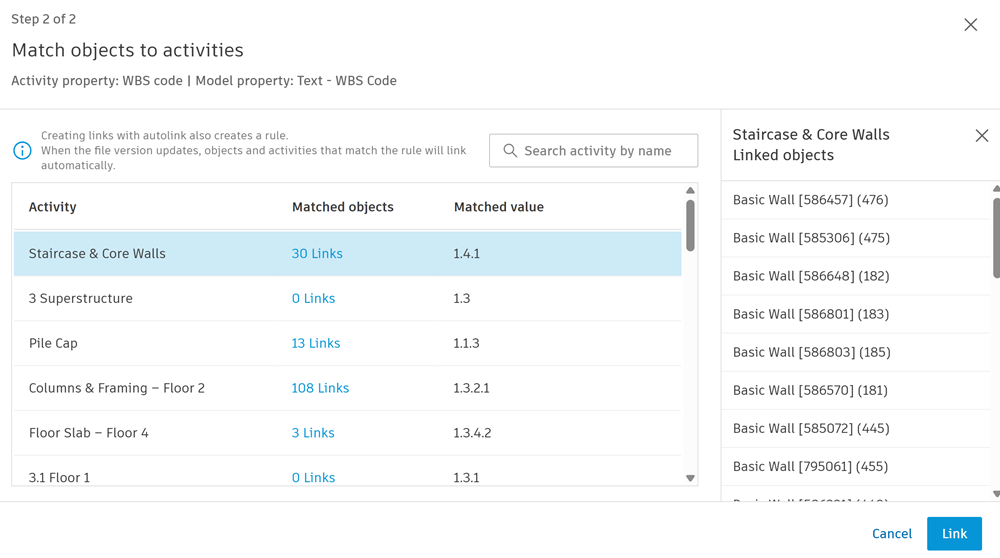
You can click an activity's links to view all the matched objects. If an activity has no matching objects then no links will be displayed or created. The rule will still apply to the activity so when the file version updates, any matching objects will link automatically.
Click Link to create the rule and any matching links.
Important: Replacing the model deletes all autolink rules. You'll need to recreate them for the new model. See About Links and Rules section for more details.
Filters - Create a Rule and Links
You can use filters in the Model Browser to select a number of filtered objects at once, without having to select each object individually. Creating links this way also creates a rule. When the file version updates, objects and activities that match the rule will link automatically.
You can also use filters to initially select filtered objects then further refine by selecting specific objects. This will create links manually without creating a rule.
Create Rules and Links
Click Model browser in the toolbar.
Apply filters to isolate the model objects you want to link.

Select one or more activity rows.
Click Link.
Create Links Only
Click Model browser in the toolbar.
Apply filters to isolate the model objects you want to link.
Click individual objects to refine the selection further.
Select one or more activity rows.
Click Link.
Note: Click the X next to Reset viewing changes and filters to reset the model back to its original view and remove all filters.