Best Practices working with Desktop Connector Version 17.x
Topics in this Section
- Overview
- Desktop Connector Best Practices Video Tutorials
- Ensuring Constant Visibility of Sync Status
- Why Select Projects?
- Working with large projects
- Navigating the New Home Screen
- Upload with References
- Understanding Status and Syncing Icons
- Tray Icons
- File Explorer Icons
- File Explorer Behavior in Desktop Connector
- Move/Copy Behavior and Deletions
Overview
Desktop Connector Best Practices Video Tutorials
The videos titled Desktop Connector Tray Icon and Recovering Deleted Items in Desktop Connector are prominently featured at the top of this page, but please note that some information may be outdated. Always refer to the current written content on this page for the most up-to-date instructions and features. It is crucial to also review the rest of the content on this page as it includes additional features and enhancements that are not covered in the videos.
Ensuring Constant Visibility of Sync Status
Once you have installed Desktop Connector, a tray icon  will be added to the overflow area of the Windows taskbar as shown.
After installing Desktop Connector, a tray icon
is added to the Windows taskbar's overflow area. We recommend moving this icon to the main status bar for constant visibility of your file sync progress.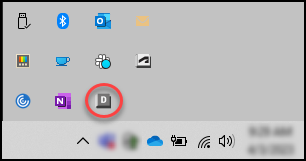
To move the icon to the main status bar area, left click and drag the icon to the desired location in the status bar. Once the tray icon is visible, left click it to view the Desktop Connector Home Screen. From the Home Screen you can access new and previous menu options previously available directly from the tray icon.

For additional information on the Windows taskbar refer to the Microsoft support article Customize the taskbar notification area.
Why Select Projects?
When you first sign in to a version 16.x or 17.x of Desktop Connector , you will be asked to make your initial project selection. This change was made to help speed up the process of accessing your data in Autodesk Forma and Autodesk Fusion. By adding only the projects you need, you can better manage your local storage space.
To select your projects, follow these steps:
Browse or search for your Projects by name, hub, cloud solution, or region. You can select up to 80 projects combined across Forma and Fusion.
Select the projects you want to work with.
Click

Working with large projects
If file sync seems to be stuck for a long time or the status column is showing the  it could be due to two main factors: the size of your project, or how your project's folder structure affects scanning behavior.
Managing project size
If a single project contains more than 300,000 files and folders, you may notice sync performance slowing down. To see how many files you have in your project:
Open File Explorer
Right-click on the Project folder and select Properties.
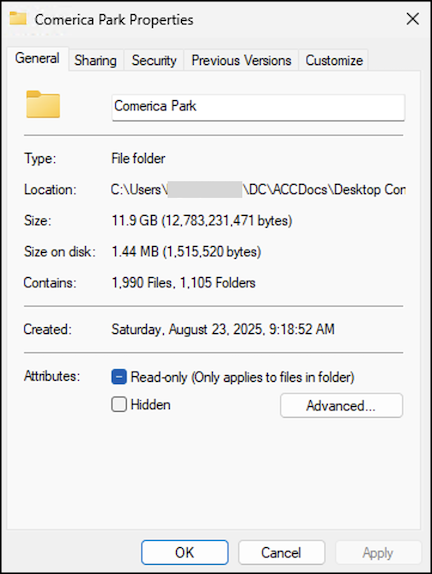
If the Contains number is more than 300,000 (files + folders) you should consider reducing the size or scope of the project using one or more of the following best practices:
- Restrict user permissions to only those folders that are needed within the project to reduce the scope of access
- Break large projects into multiple smaller Projects
- Use Free up Space to reduce the number of synced files
- Consider using Windows Storage Sense to free up local space for files that aren't needed
How folder structure affects scanning
Desktop Connector is designed to efficiently scan your project by focusing on areas where changes occur. When you make changes to files, Desktop Connector scans from the common root folder of all those changes. This means that how you organize your project structure can influence scanning efficiency. Changes made within the same folder area will scan more efficiently than changes spread across widely separated folders.
For more detailed information about scanning behavior, see Syncing behaviors and workplace scanning.
Navigating the New Home Screen
The home screen in Desktop Connector is the main display where all your connected drives are shown. It allows you to access multiple supported data sources (Forma, Fusion, and Drive). The Home Screen provides a centralized location to monitor all your connector activities and access key features.
To switch between seeing different activity by connector, click on the header drop-down as shown in the following image.
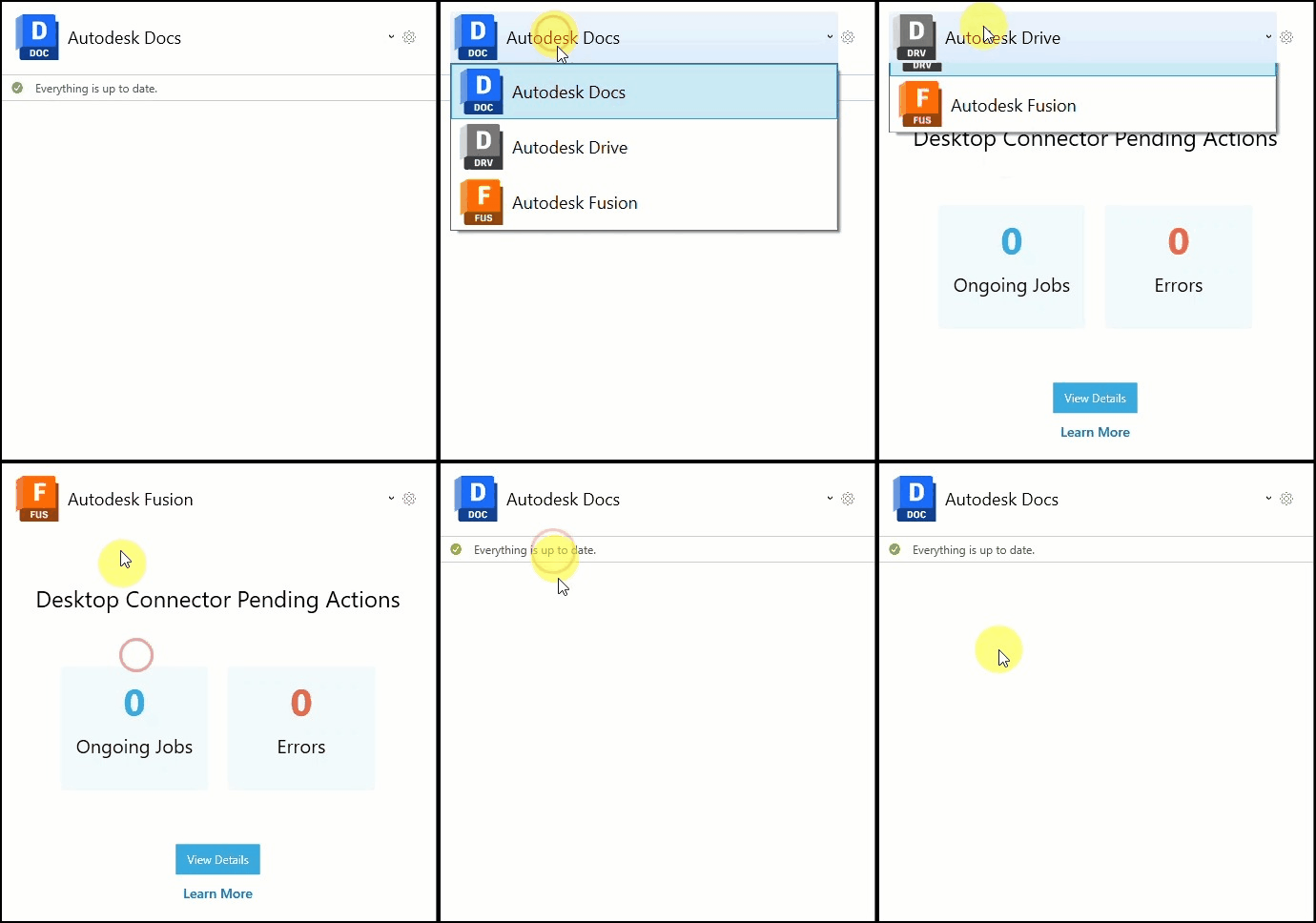
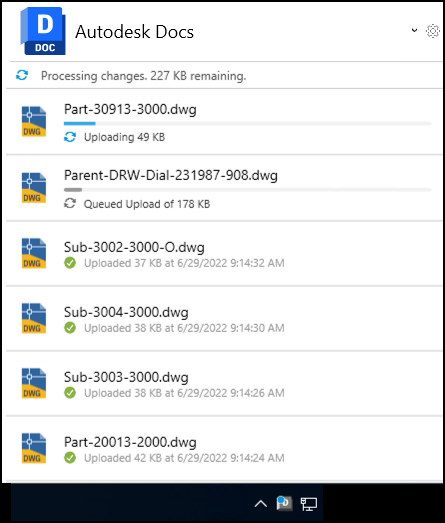
It is important to regularly check the home screen as it displays activities within Desktop Connector. Here, you can see the syncing status of projects, files, and folders. It is also where you can see more details about errors.
Upload with References
Version 17.x introduces a significantly improved upload experience with better control and visibility over your file uploads. The new enhanced workflow provides a unified experience across both Forma and Fusion connectors.
Automatic Upload with References
By default, Desktop Connector now automatically helps you upload files with their references. When you drag and drop CAD files or assemblies into your connector, Desktop Connector will:
- Automatically detect referenced files in your design
- Show you exactly what will be uploaded before proceeding
- Give you control over which files to include or exclude
- Handle missing references with clear warnings and options
How to Use the Enhanced Upload Workflow
Drag and drop your files directly into your Forma or Fusion connector in File Explorer
The Upload with References dialog will automatically appear, showing:
- All files that will be uploaded
- Any referenced files that were found
- A preview of where files will be placed in your project
Review and customize your upload:
- Select or deselect specific files
- Handle any missing references
- Confirm the destination locations
Click Upload to proceed with full visibility and control
Managing the Automatic Behavior
If you prefer the simpler upload method (single files only), you can turn off the automatic behavior:
Click the Desktop Connector tray icon
Click the Settings gear icon on the home screen
Uncheck "Always ask to include references"
Accessing Upload with References Manually
You can also manually trigger the upload workflow:
- From File Explorer: Right-click in your connector drive and select Desktop Connector > Upload with References
- From Home Screen: Click Upload with References from the Desktop Connector home screen
For detailed information about all the features in the enhanced workflow, see Upload with References.
Understanding Status and Syncing Icons
Status icons provide a quick way to understand the status and health of your files and folders in Desktop Connector. They are present on the Tray icon and in File Explorer. The Home Screen also has icons accompanied by additional written details.
Tray Icons
| Icon | Description |

| Desktop Connector is starting up |
 
| Desktop Connector is processing changes The tray icon color depends on your version of Desktop Connector. |
|
| Desktop Connector is Online |
 |
Desktop Connector is offline or you are not Signed in |

| Desktop Connector experienced an error while processing. Check for errors directly in the home screen in the Forma connector, or by clicking View Details in the Drive and Fusion connectors to see Pending Actions. or Desktop Connector requires an Update. You will need to update to the latest version of Desktop Connector to continue using your connector |
File Explorer Icons
| Icon | Description | Display Information |
|
Processing | Changes to the local file are updating |
 |
Always keep on this device | The file or folder will automatically update with the latest file versions from the cloud if always keep on this device is selected |
 |
Downloaded | A version of the file is downloaded on demand. The file will automatically update when a new version is added to the cloud if always keep on this device is NOT selected |
 |
Online | The file has not been downloaded locally. The file will be downloaded on demand |
 |
Locked by you | You have locked the file. Other members can open the file as read-only, however, they cannot modify its contents while it is locked |
 |
Locked by another member | This file is locked by another project member. You can open the file as read-only, however, you can't edit the content of the file while it's locked |
File Explorer Behavior in Desktop Connector
The following behavior applies to the Autodesk Forma connector.
Desktop Connector and the Forma web folders have a 1:1 relationship. Deleting a file or folder on the desktop or in the cloud will result in a deletion from the local workspace and in the cloud. That being said, in most cases you can recover these from the Deleted Items area of Forma.
Move/Copy Behavior and Deletions
Moving, Renaming, and Deleting Folders
- Users can no longer block moving, renaming, or deleting folders representing the Forma hub, project, and project files in File Explorer.
- Warning: Performing these actions while Desktop Connector is running may result in data being deleted in Forma.
Drag and Drop Behavior
- Within Desktop Connector: The default command when dragging and dropping files/folders within a Desktop Connector workspace is "Move," matching the default behavior of Windows File Explorer.
- Tip: Hold the Control (CTRL) key while dragging and dropping to copy the data instead of moving it.
Restoring Deleted Data
Moving deleted files and folders from your computer's Recycle Bin back into Desktop Connector will not update accurate version numbers. We recommend restoring from Forma.
Related Concepts:
- How to recover deleted files or folders in BIM 360 Document Management or Autodesk Docs
- Upload with References - Detailed guide to the enhanced upload workflow
- Desktop Connector Installation and Updates