Home Screen and Menu Options
- Home Screen Overview
- About the Home Screen
- Access the Home Screen
- Home Screen Activities by Connector
- Troubleshooting
- Shortcut Menu Options
Home Screen Overview
The following video  will highlight features of the Home Screen in Desktop Connector, but please note that some information may be outdated. Always refer to the current written content on this page for the most up-to-date instructions and features.
About the Home Screen
The Home Screen displays your Desktop Connector Activities and menu options.
Once you have installed the latest release of Desktop Connector, click the tray icon  to access the home screen.
The home screen experience is unified across Fusion and Forma connectors, sharing the same core interface, menu options, and workflows. However, the Drive connector maintains a distinct appearance.
- Forma Connector: Shows activities from the previous 24 hours with queued, processing, completed, conflict and error states
- Fusion Connector: Like Forma, shows activities from the previous 24 hours with queued, processing, completed, conflict and error states
- Drive Connector: Shows pending actions with current processing jobs and errors
Access the Home Screen
Click the Desktop Connector tray icon to access the home screen.
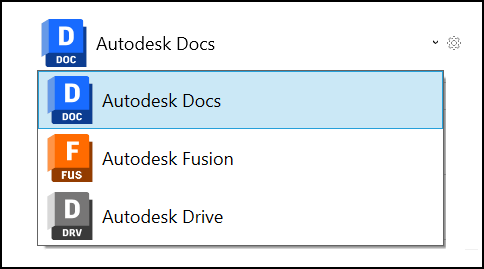
Desktop Connector allows you to access multiple data sources. If you want to switch between connector home screens, follow these simple steps:
- Look for the data source banner on the top of the Desktop Connector home screen.
- If you have access to multiple data sources, you will see a dropdown option on this banner.
- Click on the banner and select either
Forma,Fusion, orDriveto switch to the desired home screen.
Home Screen Activities by Connector
Forma and Fusion Home Screen
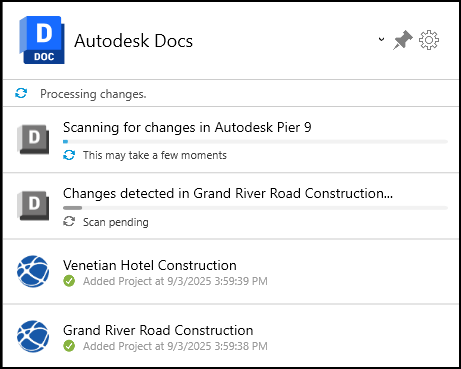
The Forma and Fusion home screen displays your activities from the previous 24 hours.
When you Add or Remove a Project, or modify files or folders in your connector, these activities will display in the home screen.
You'll also see "Scan" jobs in the Home Screen. These scanning activities:
- Appear when Desktop Connector starts up to check for changes made while it was not running
- Show when the system is actively scanning your workspace for file and folder changes
- Help provide more reliable sync behavior and better change detection
- Are automatically triggered as needed to maintain workspace integrity
- Provide better reporting when other activities are blocking or delaying the scanning process
Status Icons
Each file and folder activity has its own status and icon which mirrors their status in your connector.
| Icon | Description | Display Information |
|---|---|---|
 |
Queued before starting to sync to the cloud | Queued syncing action and size For example, Queued upload of 1 KB |
 |
Syncing to the cloud in progress | In progress syncing action and size For example, Uploading 1 KB |
 |
Syncing is complete | Completion timestamp For example, Deleted folder at 2023-08-30 15:21:03 |
 |
Syncing error or conflict | Refer to error resolution documentation |
When all your syncing activities are complete, Your files are synced to the cloud will display above your activities.
Smart Error Notification
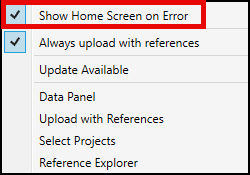
Starting with Desktop Connector v17.0, the Home Screen automatically appears when sync errors occur, ensuring you won't miss important job failures that need your attention. This helps you quickly identify and resolve sync issues.
To disable this feature:
- Open the Home Screen
- Click the Settings cog icon to access menu options
- Uncheck "Show Home Screen on Error"
Home Screen Delete Notifications
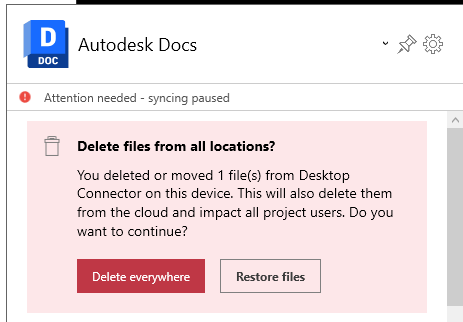
Desktop Connector highlights delete notifications on the home screen for Forma and Fusion connectors. Whenever you delete files, these notifications will appear to provide a clear confirmation, allowing you to choose whether to proceed with the deletion action or not.
The Home Screen will remain open and syncing will be paused when you have pending notifications that need to be resolved. For a full explanation of deletion workflows and recovery options, see Recover Deletions.
Resolve Errors and Conflicts
If there's a syncing error or conflict in Forma or Fusion connectors, there are automatic and manual workflows to attempt to resolve these. For full details, see:
Drive Home Screen
The Drive home screen displays a total of:
- Ongoing activities which are currently processing
- Activities where an error has occurred
You can view any in-progress activities by clicking View Details to access the Pending Actions screen.
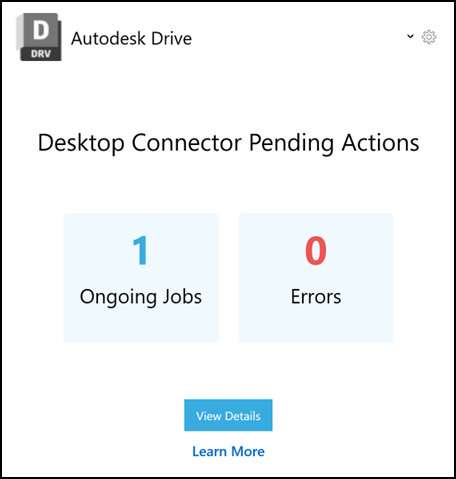
See the Drive - Home Screen and Pending Actions help topic for more information.
Troubleshooting
What if my Home Screen shows no connected drives?
If you don't see any connected drives on the home screen, it's typically due to one or both of the following:
- No entitlements — Contact your admin to verify you have the required product entitlements
- No project permissions — Contact your admin to confirm you've been added to a project
Starting with v2027.0.0, Desktop Connector displays a dedicated home screen explaining why no connected drives are available, with a Learn More button linking to relevant help content. The Select Projects dialog also no longer appears unexpectedly for users who have no entitlements or no available projects. For more details, see No connected drives available.
In versions earlier than v2027.0.0, you may see a blank home screen instead of the dedicated message.
Shortcut Menu Options
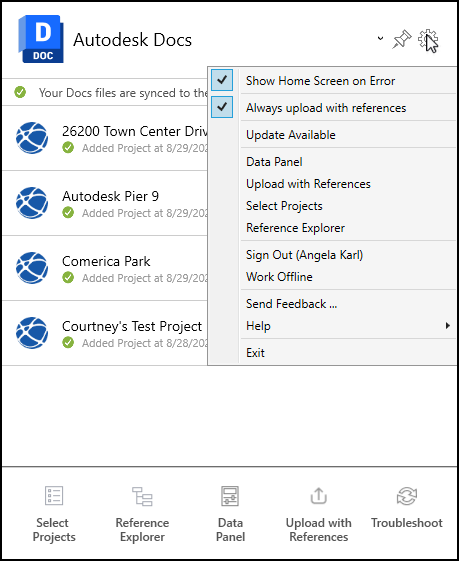
The following table details the available menu options including the scenario when they're only available in certain connected drives. Click the help topic links to learn more detail.
| Menu option | Action | Help topic link |
|---|---|---|
| Update Available | Enabled when there is an update for Desktop Connector available | Update Desktop Connector |
| Show Home Screen on Error | Checkbox setting to automatically show the Home Screen when sync errors occur (enabled by default) | Smart Error Notification |
| Always ask to include references* | Checkbox setting to trigger Upload with References workflow when dragging files into connectors | Automatic Upload with References |
| Data Panel* | View detailed file information and cloud-based properties for files in your Forma and Fusion connected drives from Windows File Explorer | Data Panel |
| Upload with References* | Enhanced workflow for uploading files and their references to Fusion and Forma connectors | Upload with References |
| Select Projects* | Add or remove projects from File Explorer | Manage Projects |
| Reference Explorer | Analyze and view references to troubleshoot errors including missing or circular references | About Reference Explorer |
| Work Offline | Work with your connector content without being connected to your cloud data | Forma - Work Offline Drive - Work Offline Fusion - Work Offline |
| Sign Out or Sign In | Sign in and out of Desktop Connector | Sign In and Out |
| Send Feedback | Rate your experience with Desktop Connector, and send the team a message about your experience | Send Feedback |
| Help | Access this help site | Desktop Connector Help |
| Exit** | Stops Desktop Connector running and removes the tray icon | Exit Desktop Connector |
| About | Software credits | Software Credits and Current Version |
| Check for Drives | Adds connectors if your access to data sources changes and you can't view the relevant drive yet | Connectors |
| Desktop Analytics | Opt in or out of data collection | Data Analytics Collection |
| Diagnostic Logs | Generate diagnostic logs to analyze any unexpected behavior of Desktop Connector | Reporting and Diagnostic Logs |
| Process for viewing* | Manually generate a viewable in Forma for selected files | Forma - Manage Files and Folders |
* These features work with Forma and Fusion connectors only.
** It is not recommended to work in your connectors if Desktop Connector is offline because changes may not be immediately reflected. However, the workspace will be scanned for changes once you are back online. See Workspace Scanning for more information.