Uninstall Desktop Connector
- Overview
- Uninstall Desktop Connector
- Verify Reset Utility success
- Manual cleanup (last resort only)
- Microsoft Uninstall Troubleshooter
Overview
If you are updating your version of Desktop Connector, refer to Update Desktop Connector for more information.
Uninstall Desktop Connector
To perform a clean uninstall:
Close all Autodesk software (for example, AutoCAD, Civil 3D, Revit).
Run the Reset Utility (starting with version 17.1, the Reset Utility will automatically close Desktop Connector if it's running):
- See Reset Utility for detailed instructions.
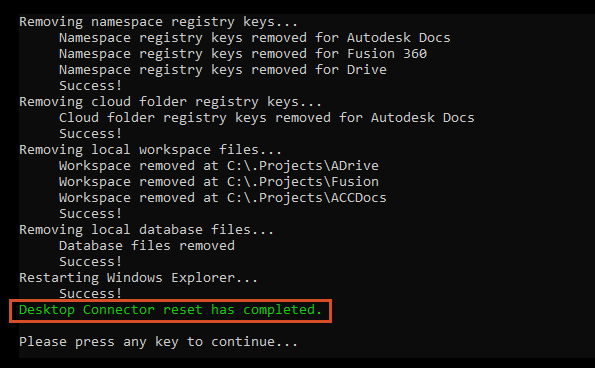
- Important: After running the Reset Utility, verify that you see the green success message.
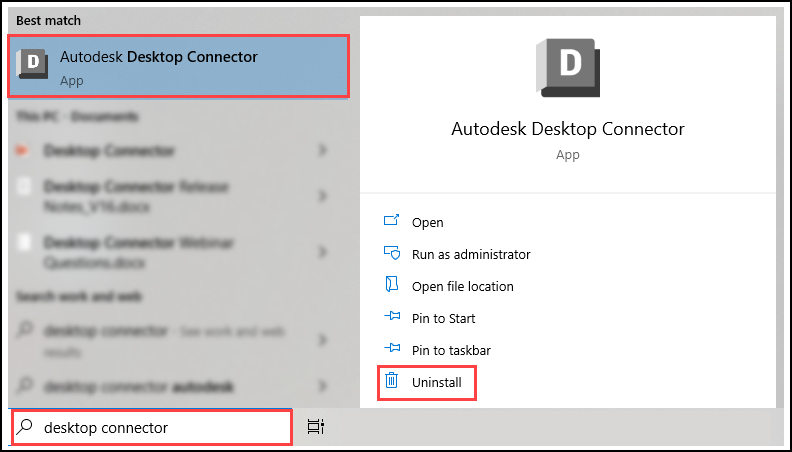
Uninstall Desktop Connector:
Go to Control Panel > All Control Panel Items > Programs and Features and Uninstall Desktop Connector.
Verify Reset Utility success
After running the Reset Utility, you can verify that it successfully cleaned up your system by checking the following locations. These locations should be automatically cleaned up by the Reset Utility.
Workspace folders
Verify the following folders have been deleted (to quickly navigate to your user profile folder type %userprofile% in the File Explorer address bar):
C:\Users\<username>\AppData\Local\Autodesk\Desktop ConnectorC:\Users\<username>\AppData\Local\Autodesk\Web Services\DesktopConnectorC:\Program Files\Autodesk\Desktop ConnectorC:\ProgramData\Autodesk\Desktop Connector
Local workspace
Verify the local Desktop Connector workspace has been emptied. The default workspace locations are:
For Desktop Connector v16.x and v17.x:
C:\Users\<username>\DC
For Desktop Connector v15.x:
C:\Users\<username>\ACCDocsC:\Users\<username>\FusionC:\Users\<username>\ADrive
If these folders still have files in them after running the Reset Utility and you did not see the green success message, you may need to run the Reset Utility again. If the issue persists, see the Manual Cleanup section below.
Registry Keys
Verify the following registry keys have been deleted:
HKEY_CURRENT_USER\SOFTWARE\Autodesk\Autodesk Desktop ConnectorHKEY_LOCAL_MACHINE\SOFTWARE\Autodesk\Desktop ConnectorHKEY_CURRENT_USER\SOFTWARE\Microsoft\Windows\CurrentVersion\Explorer\Desktop\NameSpace\...(find and delete the key indicating Desktop Connector).HKEY_LOCAL_MACHINE\SOFTWARE\Microsoft\Windows\CurrentVersion\Explorer\SyncRootManager\DesktopConnector...
To check, open the Windows Registry Editor (REGEDIT) and navigate to these locations. They should not exist after running the Reset Utility.

If these registry keys still exist after running the Reset Utility and you did not see the green success message, you may need to run the Reset Utility again. If the issue persists, see the Manual Cleanup section below.
Manual cleanup (last resort only)
Expand for Manual Cleanup Steps
Microsoft Uninstall Troubleshooter
Use the Microsoft Uninstall Troubleshooter only if the Reset Utility and standard uninstall through Control Panel has failed.
If Desktop Connector is not listed in Microsoft Uninstall Troubleshooter, select "Not Listed" in the tool, and use the following GUID code to force a cleanup (GUID code is unique for each version):
v2027.2.1.104: {5AEA717F-DFA4-47B8-B529-B24C9D9D10F9}v2027.2.0.85: {9772E7EC-2439-4FA1-824F-2D721EFE44B5}v2027.1.0.59: {0362B7B1-BE80-49B7-8698-85F1D6F61CF8}v2027.0.0.29: {AE585E29-AA44-3087-ABF6-E38502911B86}v17.1.0.16: {791AC994-EE42-4BA0-AE31-CC1E36833A5E}v17.0.2.3336: {D8D12431-207F-475F-B513-C1C88DB9865}v17.0.1.3021: {60C4A642-F79E-4766-8BAB-F75728AE8356}v17.0.0.2993: {A852A12C-6459-460C-B97F-1B7E442AA1A8}v16.16.0.2792: {137CA267-49CF-42D0-BCE3-B1A0709651A3}v16.15.0.2610: {A9D817C5-EF6D-42DD-B058-EF25CAEF64AC}v16.14.0.2573: {C6818905-89CA-477B-8C17-69EE3A8D5CE5}v16.13.0.2489: {9D992392-DA5D-48D0-925F-7C0E489F9EBC}v16.12.0.2384: {868F9047-0C6F-496A-A6CC-40EA00D18D88}v16.11.1.2320: {F182389B-2B11-4768-A572-8BB5CE9C1588}v16.11.0.2314: {8A0E2CD8-F7D3-47A1-ACE8-3EEB55A0E58D}v16.10.0.2252: {354C0B18-AA99-415E-8AF7-32ED88DFE3D7}v16.9.1.2222: {1354B93A-7608-4769-8B10-B35960302CF5}v16.9.0.2204: {67A80BCE-6EFA-448B-ACC2-2FBAAA90FC15}v16.8.0.2169: {A5A5008F-853B-430D-94D7-575B9425178A}v16.7.1.2164: {481EB775-4538-4EF3-9044-11E6CA88092E}v16.7.0.2155: {6FF4AA30-36C1-46D7-BE4B-DD6FEB6891D1}v16.6.1.2145: {69A283D7-A025-4C5E-A6FC-FE59A0CFF74D}v16.6.0.2138: {10381469-C68C-4F14-86B1-A5ED2DD1FA64}v16.5.0.2083: {247DDE42-EA33-4E74-88C1-ACF437A20DFF}v16.4.0.2062: {C99E6DD4-363C-378C-BC95-B5A24B893D54}v16.3.0.2035: {035A2621-35F0-4355-958A-FB30E458192D}v16.2.1.2016: {F46062D0-D6AD-412B-A0E6-CEEA44BA105C}v16.2.0.2007: {658D6069-5A3A-4367-9F62-8E9A18C89A90}v16.1.1.1950: {6F0FA931-6F78-4F76-B948-24AB67D0D371}v16.0.0.1902: {902F452E-36D0-4D90-9F6A-777C8A1621C0}v15.8.0.1827: {14FB458F-D4E6-4C7E-ACB5-24C9D2FFD85F}v15.7.1.1780: {C1F88E1B-2EED-41A3-B8BB-F33C2A36185D}v15.7.0.1767: {17E32016-1EE4-4E11-A31D-CF0719845482}v15.6.0.1752: {0A70E6F0-92FD-4775-84D6-13DDE0712B89}v15.5.0.1684: {7F90EA91-935C-43A8-8953-1D05AE1DB6D1}v15.4.0.1677: {5AA448FB-2B40-46CB-9428-4AF7407AA84D}v15.3.0.1657: {E2AA8B46-A753-4D42-92A2-38EAB6A97FB8}v14.13.0.1525: {3F11B982-D694-48AE-8418-6CD6B4CE39C0}
Manual workspace deletion
If the Reset Utility failed and you need to manually delete workspace folders:
Delete the following folders (to quickly navigate to your user profile folder type %userprofile% in file explorer address bar):
C:\Users\<username>\AppData\Local\Autodesk\Desktop ConnectorC:\Users\<username>\AppData\Local\Autodesk\Web Services\DesktopConnectorC:\Program Files\Autodesk\Desktop ConnectorC:\ProgramData\Autodesk\Desktop Connector
Delete the local Desktop Connector workspace:
For Desktop Connector v16.x and v17.x:
C:\Users\<username>\DC
For Desktop Connector v15.x:
C:\Users\<username>\ACCDocsC:\Users\<username>\FusionC:\Users\<username>\ADrive
DC while you are in the folder preceding the workspace.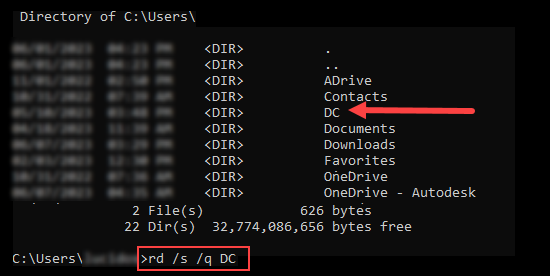
Manual Registry deletion
system.dat, and user.dat files as guided in the Microsoft Knowledge Base and Back up System Registry.Open the Windows Registry Editor (REGEDIT).
Delete the following registry keys:
HKEY_CURRENT_USER\SOFTWARE\Autodesk\Autodesk Desktop ConnectorHKEY_LOCAL_MACHINE\SOFTWARE\Autodesk\Desktop Connector
Restart the computer before reinstalling Desktop Connector.
Related Concepts:
- Autodesk Desktop Connector is not Removed Properly after Uninstalling.
- How to Perform a Clean Uninstall of Desktop Connector.
- Resetting Desktop Connector Version 16x to default resolving local cache issues.
- How to Clear the (hidden) local Autodesk Docs.
- Desktop Connector Cache for Troubleshooting Purposes.