Preparing projects for version 17
- Overview
- What do I need to do?
- Scenario 1: No reset needed
- Scenario 2: Reset needed
- Frequently asked questions
Overview
When upgrading from Desktop Connector version 16.x to version 17.1 or later, a one-time project preparation process runs automatically. This version includes improved scanning that catches changes previous versions could have missed, ensuring your local workspace matches your cloud data.
During this process:
- Your projects are checked to verify your workspace matches the cloud
- If a project has 20 or more files that don't match the cloud, the entire project is saved to a backup folder on your device
- The affected projects are removed and re-added so your workspace is clean
Avoid making changes to any files or folders in Desktop Connector until this process finishes.
What do I need to do?
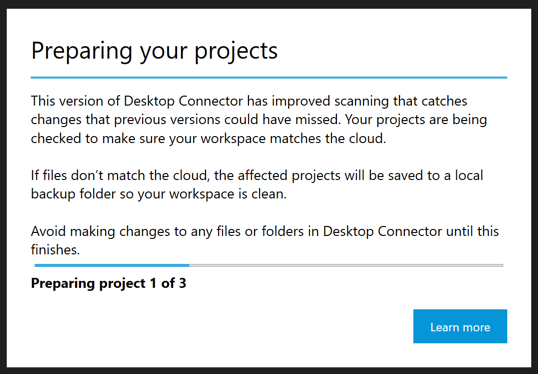
No action is required. When Desktop Connector starts for the first time after upgrading to version 17.1 or later, the preparation process begins automatically.
The dialog displays the progress and informs you how many projects need to be prepared.
Scenario 1: No reset needed
If all your projects are successfully prepared, you'll see a syncing dialog indicating that some files didn't match the cloud and have been saved to a backup folder. Your projects are then re-added automatically.
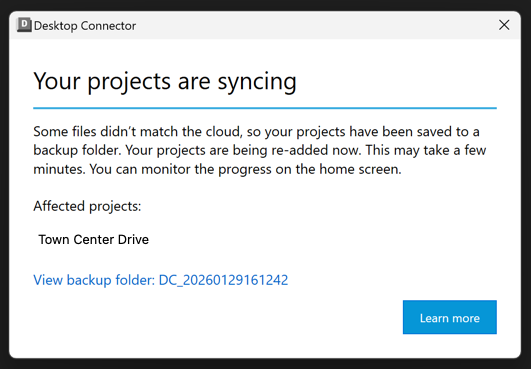
This process may take a few minutes. You can monitor the progress on the home screen.
What's in the backup folder?
The backup folder contains the entire contents of projects that didn't match what's stored in the cloud. This can happen when:
- Local changes weren't fully synced before the upgrade
- Previous versions missed certain file changes
To locate your backup folder, select View backup folder in the syncing dialog. Review the contents to determine if any files need to be manually uploaded to the cloud.
Affected projects
The dialog lists which projects were affected during the preparation process. Once syncing completes, you can resume working in Desktop Connector normally.
Scenario 2: Reset needed
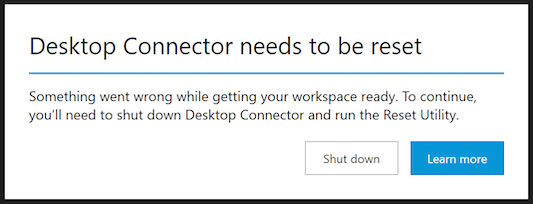
In some cases, something may go wrong during the project preparation process. When this happens, you'll see a dialog indicating that Desktop Connector needs to be reset.
What do I need to do?
- Select Learn more to open the Reset Utility help page.
- Follow the instructions to reset Desktop Connector.
- After the reset completes, restart Desktop Connector and reselect your projects.
If you select Shut down to close Desktop Connector, your files will not sync to the cloud until Desktop Connector is reset and your projects are re-selected.
Frequently asked questions
Why is this happening?
Version 17.1 includes improved scanning capabilities that detect changes previous versions could have missed. This one-time preparation ensures your workspace is in sync with your cloud data before you continue working.
Will I lose any files?
No cloud data is deleted during this process. If a project has files that don't match the cloud, the project is saved to a backup folder on your device. Review the backup folder after the process completes to check for any files that may need to be manually uploaded.
How long does this take?
The duration depends on the number of projects and files in your workspace. The dialog displays progress so you can track how many projects have been prepared.
What if I cancel the process?
If you close Desktop Connector during the preparation process, it will resume from where it left off the next time you start Desktop Connector.
Related Concepts: