Historical Releases
- Refer to Uninstall Desktop Connector and the Reset Utility for additional information on uninstalling and resetting Desktop Connector.
- March 25, 2026 (v2027.0.0.29)
- February 2, 2026 (v17.1.0.16)
- December 8, 2025 (v17.0.2.3336)
- October 8, 2025 (v17.0.1.3021)
- July 31, 2025 (v16.16.0.2792)
- May 28, 2025 (v16.15.0.2610)
- May 7, 2025 (v16.14.1.2577)
- April 30, 2025 (v16.14.0.2573)
- March 19, 2025 (v.16.13.0.2489)
- January 29, 2025 (v.16.12.0.2384)
- November 11, 2024 (v.16.11.1.2320)
- October 30, 2024 (v.16.11.0.2314)
- September 3, 2024 (v.16.10.0.2252)
- June 27, 2024 (v.16.9.1.2222)
- June 25, 2024 (v.16.9.0.2204)
- May 1, 2024 (v.16.8.0.2169)
March 25, 2026 (v2027.0.0.29)
Download Desktop Connector Version 2027.0.0.29
What's New
- Forma Document Management Essentials is now supported: Desktop Connector v2027.0 and later versions fully support Forma Document Management Essentials, letting you manage files directly from your desktop. Learn more about Forma Document Management Essentials.
Enhanced user experience
Helpful home screen for users without product access: If you sign in without the required entitlements, or without access to any projects, Desktop Connector now displays a dedicated home screen explaining why no connected drives are available, instead of showing a blank screen. The Select Projects dialog also no longer appears unexpectedly for users who have no entitlements or no available projects. Learn more about connected drives and access requirements.
Copy a shareable web link from File Explorer: You can now right-click a file, folder, or project in File Explorer and select Copy web link to copy a shareable link to its online location in Forma or Fusion. The link respects existing online permissions, so recipients with access can open it directly in the web.
Clearer error messages for locked files: When you try to move, rename, or delete a file that is locked by another user, Desktop Connector now shows a specific message indicating the file is locked, instead of a generic error. This makes it easier to understand why the operation failed and what to do next.
Diagnostics improvements
- Automatic detailed logging: Desktop Connector now maintains rolling detailed logs automatically, so diagnostic information is always available when you need support. Up to 100MB of log data is stored (approximately 1–2 weeks under typical use), and older logs are automatically removed to manage disk space. You no longer need to manually enable verbose logging before reproducing an issue.
File type support updates
Desktop Connector now supports automatic file locking for additional applications. Files automatically lock when opened and unlock when closed, preventing conflicts when multiple users work with the same file. Newly supported applications include:
- Adobe InDesign: InDesign files (.indd)
- Bentley OpenRoads / MicroStation: Sheet Index files (.dgnsi) and Workset files (.dgnws)
- Rhino: Rhino files (.3dm). Note that Rhino may automatically download files from its recently used list, even if you have not downloaded those files to your computer.
- Trimble SketchUp: SketchUp files (.skp). Backup files (.skb) are also added to the exclusion list and are not uploaded to the cloud. Note that SketchUp may automatically download files from its recently used list, even if you have not downloaded those files to your computer.
Revit known issues and behavior changes
If you use Revit with Desktop Connector, review the updated Revit known issues and behavior changes before upgrading.
Bug fixes and stability
Stability improvements
Fixed crash when deleting files: Resolved a crash that could occur while deleting a file.
Fixed crash during workspace scanning: Resolved a crash in the workspace scanner caused by case-sensitive path comparisons, which could prevent scanning from completing.
Fixed crash on startup with empty databases: Desktop Connector no longer crashes when it encounters a subscription database that has not been fully initialized.
Fixed a startup crash: Resolved an issue that could cause Desktop Connector to crash on launch in some situations.
Fixed crash with corrupt databases: Desktop Connector no longer crashes when a subscription database becomes invalid or corrupt. The application now handles these situations and continues operating.
Improved long path handling during scanning: Desktop Connector now better handles files and folders with very long paths when scanning your workspace for changes, reducing errors during sync operations.
Improved installer safety: The installer now handles situations where Desktop Connector folders in AppData have restricted permissions, preventing installation failures caused by permission issues.
Sync reliability
Fixed sync failures when file names change case in Forma: Renaming a file in Forma to change only its capitalization (for example, "report.txt" to "Report.txt") now syncs correctly to your local workspace.
Fixed rename operations involving case changes: Resolved an issue where renaming multiple files or folders in a cycle that involved case changes (for example, "X" to "y", "Y" to "z", "Z" to "x") could fail because Desktop Connector did not detect the rename cycle correctly.
Fixed scan failures with folder restructuring: Resolved an issue where deleting a folder and its subfolder, then re-adding them, could cause workspace scanning to get stuck and prevent sync from completing.
Fixed misleading error for restricted folders in Forma: When you tried to move, rename, or delete a file in a folder where you only have view access, Desktop Connector incorrectly reported that the file extension was not allowed. The error now correctly indicates insufficient permissions.
February 2, 2026 (v17.1.0.16)
Download Desktop Connector Version 17.1.0.16
What's New
16.x to 17.x migration improvements
- Smoother upgrade experience: When upgrading from version 16.x to 17.x, Desktop Connector automatically checks your workspace and backs up any files that don't match what's stored in the cloud. If many files need attention, Desktop Connector will archive your files and resubscribe to your projects automatically, giving you a fresh start.
Learn more about Preparing Projects for Version 17.x.
Performance improvements
Reduced memory usage with many projects: Desktop Connector now uses significantly less memory when subscribed to many projects. This improvement makes Desktop Connector more efficient on systems with many project subscriptions.
Faster project scanning: Desktop Connector now spends less time scanning for changes in projects you haven't recently interacted with, resulting in faster overall performance.
Enhanced user experience
Windows 11 context menu improvements: Desktop Connector menu items now appear directly in the Windows 11 context menu without requiring users to click "Show more options." This improvement makes it faster and easier to access Desktop Connector features when right-clicking on files and folders.
Renamed "Create viewable" to "Process for viewing": The right-click menu option has been updated to align with Autodesk Docs terminology.
Administrator controls for delete notifications: Admins can now disable delete notifications or configure the deleted file threshold that triggers a delete notification for a specific machine or user through the registry. By default, users are notified when 1 or more files are deleted, but administrators can adjust this threshold to any number or turn off notifications entirely.
Free Up Space now works on folders: The "Free Up Space" option is now properly enabled for folders that contain downloaded files, making it easier to free up disk space at the folder level.
Duplicate filename detection: Desktop Connector now notifies you in the Troubleshooter when it detects duplicate file name entries from long and short 8.3 filename variants in your workspace, helping you understand why certain sync operations may be failing.
Reset Utility no longer requires exiting Desktop Connector first: The Reset Utility can now safely shut down Desktop Connector when it runs, eliminating the need to manually exit Desktop Connector before running the utility. Learn more about the Reset Utility.
Upload with References improvements
Improved upload settings clarity: The "Always upload with references" setting has been renamed to "Always ask to include references" with a helpful tooltip that explains when files are uploaded with or without the upload with references dialog, making it easier to understand this option.
Show only files with issues: A new toggle on the Select page allows you to filter the file list to show only files with missing references or other issues. This makes it easier to focus on resolving problems before uploading. The toggle can be turned on or off as needed, and is disabled when no issues are found.
Circular and self-reference detection: When resolving missing referenced files, Desktop Connector now detects if the file you choose would create a self-reference (a file referencing itself) or a circular reference (files referencing each other in a loop). If detected, you'll see a warning icon with a clear message explaining the issue so you can choose a different file.
See parent files of missing references: When a file is missing, the tooltip now displays both its parent files and the missing file's path, making it easier to understand file dependencies and resolve missing reference issues.
Change resolved file references: After resolving a missing referenced file, you can choose a different file if needed, giving you more flexibility to correct file references.
Warning when unchecking files: If you uncheck files in the Select page and click Next, a warning dialog will appear explaining that unselected files will not be uploaded and may create missing references that could prevent others from opening or viewing the complete assembly.
See all files in folders: When dragging folders into the Upload with References dialog, all original files contained in those folders are now displayed even if you cancel the Inventor Project File selection, making it easier to see what will be uploaded.
Better error messages for long paths: When the Upload Dialog cannot retrieve referenced files because a file path exceeds the Windows OS path length limit, you'll now receive a clear, appropriate error message explaining the issue.
Learn more about Upload with references.
Bug fixes and stability
Stability improvements
Responsive project additions: Desktop Connector now remains responsive when errors occur during the initial sync while adding a project, instead of freezing.
Safer file and folder operations: Desktop Connector now handles the combination of creating files and renaming parent folders without crashing.
Clean application exit: Exiting Desktop Connector while the Reference Explorer or Upload wizard dialogs are open now closes both the dialog and application properly.
Long path handling in upload dialog: Dragging files with paths that exceed the Windows path length limit into the Upload wizard no longer causes a crash.
Locked file scanning: Desktop Connector no longer crashes when scanning files that are locked by another application (such as temporary files created by Office applications).
Temporary file handling: Desktop Connector no longer crashes when a temporary file (such as an AutoCAD .tmp file) is deleted by the authoring application during scanning.
Remote sync stability: Desktop Connector no longer crashes during remote sync after creating placeholder files but before completing the database update.
Sync reliability
Workspace scanning loops: Workspace scanning no longer gets stuck in a loop when a remote sync fails but modifies the workspace in some way.
Lock icon display: Desktop Connector no longer gets stuck applying a lock icon to read-only files, which previously prevented sync from completing.
Remote move operations: Unexpected failed jobs no longer appear on the Home Screen when a remote sync bulk move is interrupted.
Move sync errors: Users no longer see unexpected failed move jobs for files they didn't touch, with errors indicating duplicate files.
Remote delete for long paths: Remote sync of file or folder deletions now works correctly for long paths. Desktop Connector also detects and remediates duplicate placeholders caused by this issue.
Upload reliability
File integrity during upload: Editing and saving a file while its upload is in progress now correctly captures all changes, preventing discrepancies between local and cloud versions.
Re-uploading assemblies: Uploading the same assembly with references multiple times no longer fails due to existing read-only files in the destination.
Clearer read-only error messages: When uploading files that would replace existing read-only files, the error message now clearly explains the issue.
Solibri file uploads: Solibri files no longer fail with "failed to copy file to temporary folder" errors during upload operations. Desktop Connector now correctly handles Solibri temporary files (~$...smc).
File and folder operations
- Folder replace operations: Moving a folder and replacing it with a new folder of the same name now completes as expected without unexpectedly deleting the original folder.
User interface
Delete notifications after reinstall: Desktop Connector no longer shows delete notifications for files after uninstalling and reinstalling the application.
Troubleshoot button visibility: The Troubleshoot button no longer disappears from the Home Screen toolbar. Disabled toolbar buttons also no longer show a blue hover effect.
Troubleshoot download action: The "Fix All" action in the Troubleshooting tool now correctly triggers download operations for files that need to be downloaded.
December 8, 2025 (v17.0.2.3336)
Fusion Connector users (versions 15.x or 16.x): You must uninstall your current version of Desktop Connector before installing v17.x. Docs connector users can upgrade directly and should not uninstall first. For complete instructions, see Update Desktop Connector.
Download Desktop Connector Version 17.0.2.3336
What's New
Reset Utility improvements
- Reset Utility now performs preflight checks: The Reset Utility now verifies it can complete the reset operation before making any changes, ensuring the reset will complete correctly and preventing partial cleanup operations.
- Reset Utility now removes shell extensions: The Reset Utility now properly removes shell extensions such as drag and drop handlers during the reset process, ensuring a more complete cleanup.
Stability & reliability enhancements
- Fixed false delete notifications after reinstalling: Resolved an issue where Desktop Connector would show delete notifications for all files after uninstalling and reinstalling the application. The uninstaller now properly cleans up databases and detects invalid workspace states to prevent this issue.
- Fixed workspace rename functionality: Resolved an issue where Desktop Connector could not properly rename corrupted workspaces. The application now correctly checks if databases are empty rather than just checking if they exist.
- Fixed rare crash during workspace scanning: Resolved an edge case crash that could occur when the application was unable to process certain detected changes during a workspace scan.
October 8, 2025 (v17.0.1.3021)
Important Update Note: This update resolves an installer issue that caused some users to receive an "Error 5000" when installing version 17.0.0.2993. If you have already successfully installed version 17.0.0.2993, you do not need to upgrade to 17.0.1.3021. Both version 17.0.0.2993 and 17.0.1.3021 are no longer available.
What's New
Enhanced Upload with References
- Redesigned upload workflow with intuitive multi-step wizard (Select → Review → Upload)
- Automatic reference detection enabled by default when dragging files into Fusion or Docs connectors
- Enhanced file tree visualization showing file structure before upload
- Smart missing reference detection with automatic resolution options
- Destination preview showing exactly where each file will be uploaded
- Drag & drop support with intelligent reference gathering for all supported CAD file types
- Cross-format compatibility supporting Inventor, SolidWorks, AutoCAD, 3ds Max, Alias, Civil 3D, and more
- Learn about the new workflow: Upload with References
New and Improved Fusion Connector
- Major connector upgrade bringing the Fusion connector to feature parity with the Docs connector
- Enhanced stability and performance for navigate, move, copy, and rename operations
- New File Explorer location: Fusion folder relocated from "This PC" to persistent Navigation Pane for easier access
- Unified experience: Same home screen interface and project management as the Docs connector
- Improved CAD support with better Inventor Project Files (.ipj) and assembly reference handling
- Enhanced web integration with improved "View Online" option
- Get started: About Autodesk Fusion Connector and Manage Files and Folders
Improved Workspace Scanning
- Better change detection by scanning workspace state instead of relying solely on Windows system events
- Automatic startup scanning detects changes made while Desktop Connector was not running
- Visible scan progress with "Scan" jobs displayed on Home Screen to indicate workspace activity
- Enhanced scan job reporting provides visibility into activities that may be blocking or delaying workspace scans
- Enhanced bulk operations with significantly improved performance for creating sync jobs after large file operations
- Improved sync reliability with better handling of file conflicts and interrupted operations
- Offline workflow support where scan jobs queue when offline and run when back online
- Learn more about scanning: Workspace scanning
Faster Downloads - Up to 8x Speed Increase
- Downloads are now 2-8x faster depending on your environment, with the most dramatic improvements when downloading large files or multiple files simultaneously. This major improvement comes from several coordinated enhancements, including optimized transfer buffer sizes, a smarter download process, and automatic connection management.
Experience Improvements
- Smart Error Notification: The Home Screen now automatically appears when sync errors occur, preventing users from missing important job failures. This feature can be disabled in Settings if you prefer the previous behavior
- Improved Responsiveness: The Home Screen now appears more quickly when clicking the Desktop Connector icon, with reduced lag and faster performance when there are many active jobs
- Memory Optimization: Fixed memory leaks that could slow down Desktop Connector during extended use, resulting in lower overall memory usage and better long-term performance
File Type Support Updates
- AutoCAD pattern and color files now sync automatically:
.pat(pattern) and.pcp(color) files are now supported, making it much easier to share custom AutoCAD patterns and color definitions across your team - Cleaner sync experience:
.FCBak(FreeCAD backup) files are now excluded from syncing to prevent unnecessary backup file uploads
Stability & Reliability
- Fixed Data Panel crashes: Resolved crashes that could happen when selecting files while the Data Panel was open
- More reliable startup: Fixed crashes that could occur when Desktop Connector found unexpected leftover files from previous installations
- Compatibility with SafeNet IDPrime Virtual: Resolved an issue where Desktop Connector would crash on startup when enterprise software SafeNet IDPrime Virtual is installed and configured.
July 31, 2025 (v16.16.0.2792)
Download Desktop Connector Version 16.16.0.2792
What's New
Data Panel
- A new Data Panel feature displays detailed file information when you select files in your Autodesk Docs connected drive in Windows File Explorer. You can now view cloud-based properties like version numbers, descriptions, lock status, and thumbnails directly from your desktop without needing to open individual files. For detailed information, view the Data Panel help article.
Faster File Transfers
- File uploads are now faster when uploading multiple files at once (increased from 3 to 4 simultaneous uploads)
- File downloads are now faster with improved parallel downloading (increased from 1 to 2 simultaneous downloads)
Improved Shutdown Performance
- Fixed crashes that could occur when closing Desktop Connector while files were being downloaded
- Significantly improved shutdown times when working with large files by allowing cancellation of current downloads during shutdown. These downloads will automatically resume when Desktop Connector is restarted and internet connection is re-established
Workflow Fixes
- Fixed the "Desktop folder needs to be cleared" error that could incorrectly appear when Desktop Connector is launched
- Fixed an issue where right-clicking to lock .RVT files would incorrectly show the "Upload Files with References" dialog instead of locking the file
- Improved thumbnail display in AutoCAD App Home when viewing files through Desktop Connector
Expanded File Type Support
- Added support for .dat files to improve Revit workset workflows and collaboration
- Streamlined file management by excluding unnecessary file types (.tmi, .axmb, .rap, .~afr) that don't need cloud synchronization
- Fixed FormIt backup file handling to eliminate unnecessary "Delete files from all locations?" prompts when saving
Better Upload Experience
- Fixed crashes in the "Upload Files with References" dialog when dragging invalid items like network folders
- Resolved an issue where DWG reference files weren't being found during upload, ensuring all referenced drawings are properly discovered and uploaded for complete file viewing
Viewable Creation Changes
- Files uploaded through Desktop Connector will soon no longer automatically generate viewables. Use the new "Create Viewable" right-click command (available from v16.15) to generate viewables on-demand when needed.
Regional Support Enhancements
- Fixed thumbnail display issues for users in Australia and India regions where thumbnails would fail to load with "resource moved/deleted" errors
- Fixed the "Link Topography" workflow in Revit that was broken for UK+4 regions by updating regional routing support
Enhanced System Stability
- Fixed crashes that could occur in the background as a result of network connectivity issues
May 28, 2025 (v16.15.0.2610)
Download Desktop Connector Version 16.15.0.2610
What's New in Version 16.15.0.2610
Naming Standards Support
This release includes major improvements for managing file and folder naming standards with Docs, making it easier to ensure ISO 19650 or project-specific compliance across your projects. Learn more about Naming Standards.
New enhancements include:
- The Naming Validator checks file and folder names against project-specific standards and enables quick fixes for non-compliant names, including bulk editing.
- Compliance status is shown directly in File Explorer with a dedicated column and custom icons.
- Subfolders inherit naming standards from their parent folders automatically.
- Compliance status updates automatically, even for remote changes made in Autodesk Docs.
- If the Holding Area is off, non-compliant files are blocked from upload, ensuring only compliant files are uploaded.
- Clear, actionable error messages and guidance help you meet ISO 19650 and project-specific requirements.
- Existing folders are updated in the background to reflect the naming convention status, with no user action required.
Create Viewable Command
- A new "Create Viewable" right-click command is now available in File Explorer for Autodesk Docs files. This lets users manually generate viewables as needed, such as to help retry failed viewable creations.
May 7, 2025 (v16.14.1.2577)
Download Desktop Connector Version 16.14.1.2577
Resolved Issues
- Crash when using the Upload Files and References utility with Inventor file types. This crash was not observed on the first time use of the Upload Files and References utility and only observed on subsequent use with Inventor files.
FAQ
If I am already on 16.14.0.2573 do I need to upgrade to 16.14.1.2577?
While you will not be forced off of the original release (16.14.0.2573), we encourage users to upgrade to the latest version (16.14.1.2573) if you are a user of Inventor file types. If you do not use Inventor file types you may choose to remain on the 16.14.0.2573 build.
This release contains all the enhancements and fixes mentioned in the 16.14.0.2573 release notes below.
April 30, 2025 (v16.14.0.2573)
This download is no longer available
If you are already using Desktop Connector v16.x, do not uninstall it to upgrade. Simply close the application and install the new version on top. For detailed instructions, see Update Desktop Connector.
What’s New in Version 16.14.0.2573
Enhanced File Management
- Simultaneous Uploads and Downloads: You can now upload files to the cloud while downloading files to your local device at the same time.
Resolved Issues
"Always Keep on this Device" Fix: Allowing simultaneous uploads and downloads resolves known workflows where the "Always Keep on this Device" operation could prevent files from syncing properly or leave files stuck in a pending sync state. Also resolved a crash that could occur when "Always Keep on this Device" is enabled on many files and folders.
Improved Sign-In Stability: Reduces unexpected sign-outs and "Cannot access Autodesk" errors by upgrading to IDSDK 1.14.0. This upgrade includes enhanced credential management and token refresh processes.
New Resource
- CAD Software Compatibility Chart: We now have a CAD Software Compatibility Chart available to help you check Desktop Connector compatibility with various CAD software. This chart includes 16.x and 15.8 version compatibility.
March 19, 2025 (v.16.13.0.2489)
Download Desktop Connector Version 16.13.0.2489
Experience improvements
Workspace auto-rename upon reinstallation
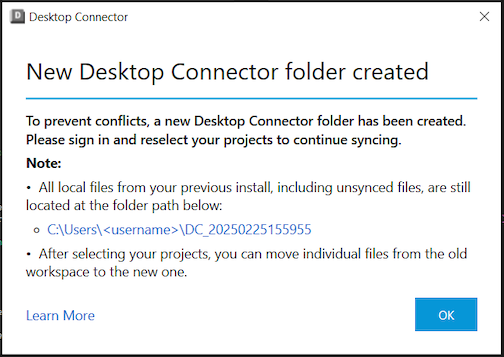
If you reinstall Desktop Connector and still have files from a previous installation on your device, the old Desktop Connector folder will be renamed to prevent conflicts with the new installation. This renamed folder does not sync with the cloud. A dialog box will display the new folder name for affected users. For more information about this new workflow, view Managing Leftover Workspace Files after Reinstallation. (CDX-25676 & CDX-25676)
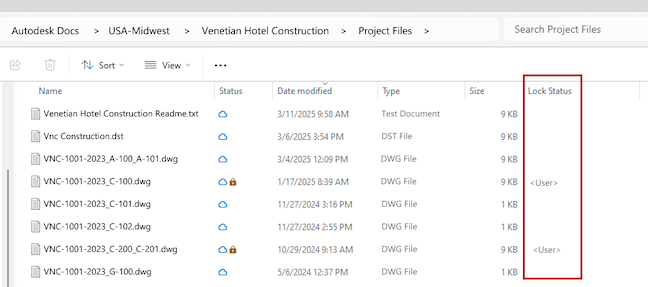
Display “Lock Status" in File Explorer
Users can now see who has locked a file directly within File Explorer. This feature provides greater transparency and helps users understand file access and editing restrictions. (CDX-25665)
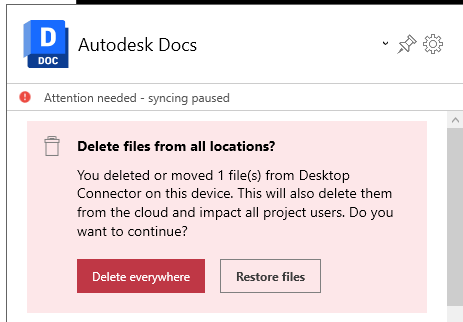
Clearer delete notification
The delete notification messaging on the home screen has been improved to ensure that users are fully aware of the implications of deleting files. (CDX-25635)
Improved ISO 19650 error message
- Improves error messages for failed file uploads or file renames due to non-compliant file names related to ISO 19650 naming standards. (CDX-25784 & CDX-25640)
Resolved issues
- Resolved unintended file activity
- Resolved some cases where one user's actions created jobs on other users' home screens. It also fixed a known workflow where work could be lost when Desktop Connector was not running. (CDX-25584)
- Removed unnecessary deletion and sync warnings for HEC-RAS files
- Addressed an issue where users received deletion or sync warnings when updating files created in HEC-RAS software. Desktop Connector will now exclude .tmp.hdf and rasmap.backup files created by HEC-RAS. (CDX-24786)
- Resolved troubleshooter crash
- Resolved cases where the troubleshooter could crash if 'Fix all' was selected after other users had made changes to files in the project. (CDX-26127)
- Allows shut down while in offline mode
- Ensures that Desktop Connector now shuts down correctly in offline mode. (CDX-25772)
- Resolved Rhino “Export” to DWG failure
- Rhino "Export" or "Save As" to DWG format was failing because a temporary file (.dwgbak) was created during the save operation. Desktop Connector now excludes the .dwgbak filetype to allow for a successful Export/Save from Rhino. (CDX-26124)
January 29, 2025 (v.16.12.0.2384)
Download Desktop Connector Version 16.12.0.2384
Syncing Improvements
As of release 16.12, jobs will now process in batches of three, an increase from the previous of two. This change aims to improve efficiency and throughput. (CDX-25514)
Removed a condition that could cause failed jobs to not retry automatically or new jobs to not appear on the Home Screen. (CDX-25356)
An issue was resolved where files with extensions like .#172 were failing to upload. This fix ensures that such files can now be uploaded successfully, addressing the problem when using PLS-CADD. (CDX-25252)
Experience Improvements
A bug was fixed where Desktop Connector was preventing Windows from shutting down cleanly. This issue has been addressed for both Windows 10 and 11 in this release. (CDX-24970)
A new separator has been added to the context menu to distinguish the "Troubleshoot" option from other menu items. This enhancement improves the user interface by providing a clearer separation of options. (CDX-24761)
Users can now set Update Notification suppressions from both HKEY_LOCAL_MACHINE and HKEY_CURRENT_USER registries. This change provides more flexibility in configuring Desktop Connector settings to apply to either the current user or the entire machine. Learn more in the Admin Update Suppressions Guide. (CDX-24429)
Resolved Issues
Resolved a crash that occurred after pressing "Fix All" in the Troubleshooter utility. This crash could happen if changes were made to the workspace before the user pressed ‘Fix All.’ Now, this event is detected, and the user is provided the option to rerun the Troubleshooting utility. (CDX-23879)
For users of PLS-CADD, Desktop Connector will no longer prompt users to delete .TIN files during a save operation. This change addresses a significant issue for users of the PLS-CADD application, ensuring that all updates are pushed to ACC without prompting for deletions. (CDX-24656)
November 11, 2024 (v.16.11.1.2320)
Download Desktop Connector Version 16.11.1.2320
Resolved Issues
Revit: Resolved an issue where adding a link to a newly created and uploaded file would result in the link not being created, "It looks like the requested service is currently unavailable, Please try again."
Revit: Resolved an issue where the message "Could not load issues" was displayed when loading a Revit model into the Revit Issues Add-in.
Lock Status: Resolved an issue where files locked by others may not show the lock icon in File Explorer.
FAQ
If I am already on 16.11.0.2314 do I need to upgrade to 16.11.1.2320?
While you will not be forced off of the original release (16.11.0) we encourage users to upgrade to the latest version (16.11.1) to avoid any disruptions in Revit and file locking workflows.
This release contains all the enhancements and fixes mentioned in the 16.11.0.2314 release notes below.
October 30, 2024 (v.16.11.0.2314)
This download is no longer available.
Improved Performance
The 16.11.0.2314 release introduces the following performance improvements by optimizing Desktop Connector database communications:
- Reduced CPU and machine resource consumption
- Create/Edit Jobs display faster in the Desktop Connector home screen
- Delete Notifications displaying faster in the Desktop Connector home screen
- Improved file upload times
- Improved open performance (Revit/C3D)
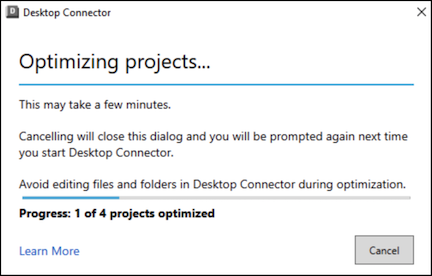
These optimizations are applied during the first startup of the 16.11.0.2314 and greater releases. Users will see a dialog communicating progress as all selected projects are moved to the optimized technology. When additional projects are selected, they are automatically optimized without any dialogs. See Project Optimization for more details. (CDX-24872, CDX-24913)
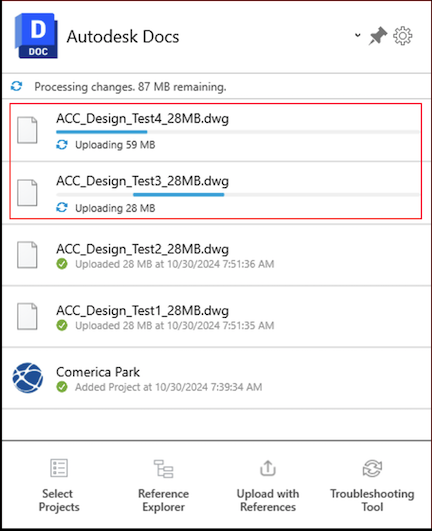
Jobs in the Home Screen will now be applied in parallel to improve processing time. This means that starting in 16.11.0.2314 you may see two jobs running at the same time. This configuration is applied in the cloud by Autodesk. Initially the configuration will allow for two parallel jobs and this value may be increased in the future (CDX-23318)
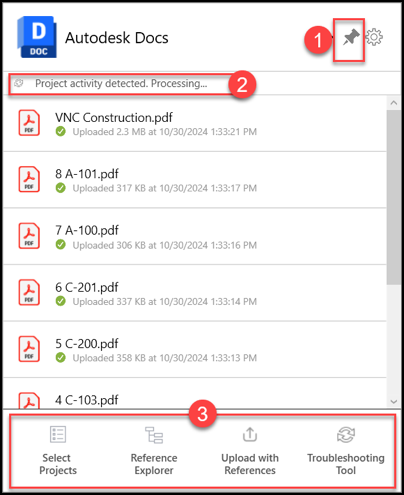
Home Screen Improvements (CDX-24693, CDX-24659, CDX-24931)
The Home Screen window can now be pinned open to gain visibility of Desktop Connector activity
Now there is immediate visibility in the Home Screen status bar when Desktop Connector is actively processing new work and creating jobs
Commonly used commands from the menu are now visible at the bottom of the Home Screen for easy access
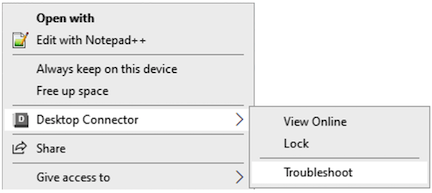
Troubleshooting Tool Improvements (CDX-24773):
Troubleshooting Tool is now available in the rt-click menu on files. When selected the troubleshooter will automatically scan the project you are in.
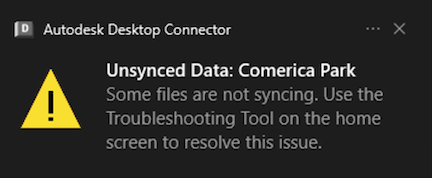
Desktop Connector will recognize during startup if files aren't syncing and automatically prompt the user to use the Troubleshooting Tool
Application Workflows Enhancements
- Included .DGN support for automatic locking when using Microstation to open the .DGN file. (CDX-24948)
- Included .PPTX support for automatic locking when using PowerPoint to open the .PPTX file. (CDX-24673)
- Included .PDF support for automatic locking when using Bluebeam, Acrobat, Foxit, & Nitro applications to open the .PDF file. (CDX-24673)
Resolved Issues
When Inventor data is added (for example with Upload files and Ref's tool) Desktop Connector generates a new IPJ file to use for cloud activity. The presence of this ipj was improperly presenting the user with the dialog "Desktop Connector folder has contents that need to be cleared" (CDX-24818)
Excluding the .~TMP file extension to allow Microsoft Photos application to save files properly without presenting the user with Delete Notification (CDX-24873)
Excluded the .L$0 file extension to allow surveying software (LSS) by DTM to save files properly without presenting the user with Delete Notification (CDX-24615)
Resolved a crash while closing an open and locked file after unselecting the project the file is located in (CDX-23028)
Resolved an issue where running the Troubleshooter did not result in the Home Screen refreshing to show the newly created jobs. Those jobs would have only appeared after other jobs were created (CDX-24979)
September 3, 2024 (v.16.10.0.2252)
Download Windows Version 16.10.0.2252
If you are already running Desktop Connector v16.x, do not uninstall Desktop Connector to upgrade – close Desktop Connector and install the new version on top. For more details, see the Update Desktop Connector article.
New Features and Enhancements
We have Documented how to configure Desktop Connector in a Virtual (VDI) environment. Refer to this article for details.
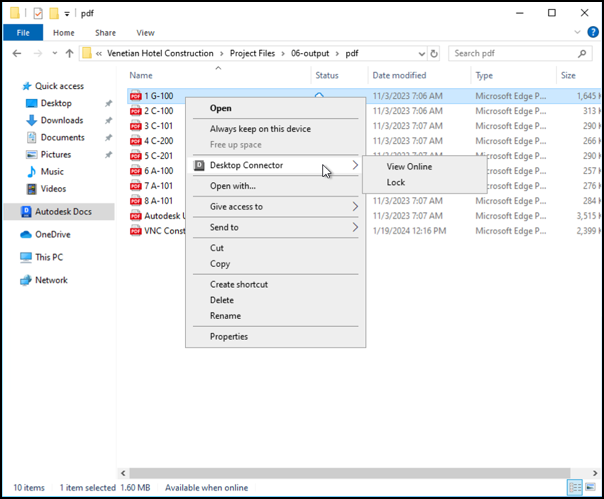
The Desktop Connector Rt-Click commands are returning to File Explorer! In the File Explorer you can now Rt-Click on Files and Folders and see a Desktop Connector flyout menu presenting commands added back to the Autodesk Docs connector for View Online and Lock/Unlock. Image below shown in Windows 10. (CDX-24467)
Files generated during the Revit Export operation (.PCP, .PAT) will no longer upload to the cloud. This means the user will no longer be required to confirm a delete notification for those files. This change also applies to all releases greater than 16.6.x. (CDX-24624)
Resolved a crash when the 'check your browser' popup dialog is left open while Desktop Connector is Exited and restarted. (CDX-24396)
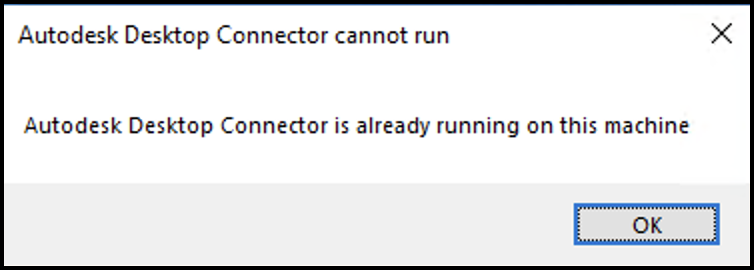
This release of Desktop Connector will allow more than one (non-admin) user to start Desktop Connector on the same device. (CDX-24384)
- User will see the following message when more than one Desktop Connector instance is started on the same device by the same user. (CDX-24384)
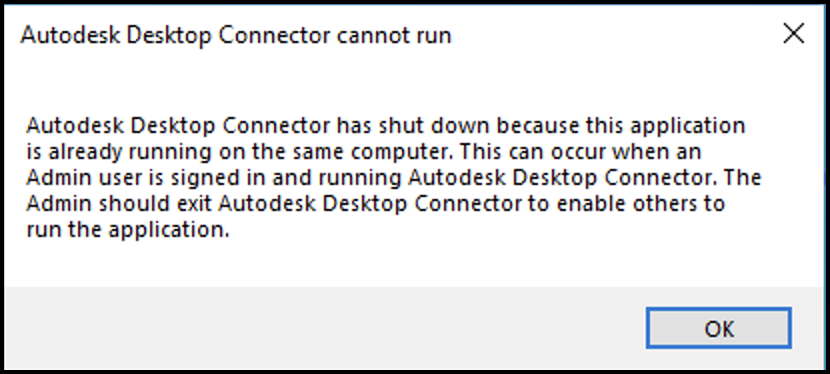
- Multiple users can be logged into the same device and run Desktop Connector as long as no user is running Desktop Connector elevated (ie. administrator permissions). If any user is running Desktop Connector elevated the following message will be shown. (CDX-24456)
Users will only see an automatic dialog prompt to Select Project when there are no current projects selected and the logged in user only has entitlement for Autodesk Docs. If the logged in user has multiple entitlements, the Select Projects dialog will not pop automatically. (CDX-23883)
Adjusted the color of the highlighted row in the Troubleshooter to make the highlighted text more readable. (CDX-24319)
Resolved a crash during startup resulting in the logged message "C:\ProgramData\Autodesk\CDX\Logging.config does not exist" when specific resources are not available. (CDX-24336)
Revit Workflows
- Improved file handling in Revit to avoid uploading extra file versions created during file Open operation. Some applications (like Revit) will mark a file modified on Open. User may still see an upload job created in the Home Screen when a file is Opened. When Desktop Connector executes the job and determines the file bytes have not changed then the job will be deleted. If the file content actually changed it will be uploaded. This results in files versioned only when the file has been modified. Other filetypes resolved by this improvement (.doc). Other filetypes known to not be resolved because the authoring application actually modifies the file contents on Open (.ppt, .xls, .mpp). (CDX-24625)
June 27, 2024 (v.16.9.1.2222)
Download Windows Version 16.9.1.2222
If you are already running Desktop Connector v16.x, do not uninstall Desktop Connector to upgrade – close Desktop Connector and install the new version on top. For more details, see the Update Desktop Connector article.
New Features and Enhancements
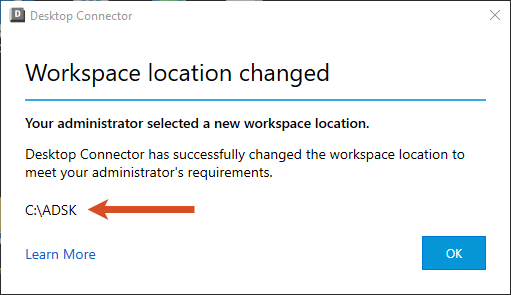
Administrators now have the ability to set the local workspace location during install/deployment of Desktop Connector. This capability allows admins to enforce a company standard workspace. (CDX-24152)
There are some key changes that can affect users who already have a version of Desktop Connector installed. Before upgrading, review the content on the Admin Change Workspace page to determine if deploying an enforced workspace is the right decision for you.
The following image is an example of what you will see when your administrator has enforced a change workspace showing you the location of the new enforced workspace.
Autodesk has changed the way that the installers are extracted and files are downloaded before installation. Refer to Install Walk-Through for Version 16.9 and Above and Install Walk-Through for Version 16.8 and Below for specific installation instructions.
Stability fixes have been implemented primarily enhancing the Autodesk Identity Service and Desktop Connectors sign-in/sign-out workflows. (CDX-24020)
CAD Workflows
- Fixed an issue that generated an empty viewable for Inventor assembly files when using the Upload Files and References tool. (CDX-24069)
- Fixed an issue where saving a Revit model directly into Desktop Connector caused a File Not Saved error to appear in Revit and a Remove files from all locations warning to show in Desktop Connector. (CDX-24067)
June 25, 2024 (v.16.9.0.2204)
- We fixed a bug where in large project files were opening with a slow performance using Desktop Connector. Refer to the latest release and notes and update to Desktop Connector 16.9.1.2222 to resolve this issue.
May 1, 2024 (v.16.8.0.2169)
Download Windows Version 16.8.0.2169
New Features and Enhancements
Desktop Connector v16.8.0.2169 now supports Inventor files for Autodesk Docs. Inventor files have always been supported for the Fusion and Drive connectors. For additional information refer to Troubleshooting Inventor.
- Project support for Inventor files was enhanced. Inventor files can now be used with Desktop Connector. (CDX-23960, CDX-23959)
- Resolved an issue with Inventor that led to original part files being deleted and backup files being uploaded when saving. (CDX-21726)
- We added a feature to prompt for an IPJ file (Inventor Project File) to resolve references when using the Upload Files and References Tool. (CDX-23958)
- An issue has been resolved where Desktop Connector could not identify a reference while using Inventor and Vault, despite both functioning properly. (CDX-21808)
- The Inventor OldVersions folder was set to be uploaded. However, the Desktop Connector no longer uploads temp files into the OldVersions folder. (CDX-23128)
- The feature to edit/save from Inventor to Desktop Connector v16.x project workspace was enhanced to maintain file history. (CDX-23959)
- Included support for Inventor 2025 and Solidworks 2024 files. (CDX-23946)
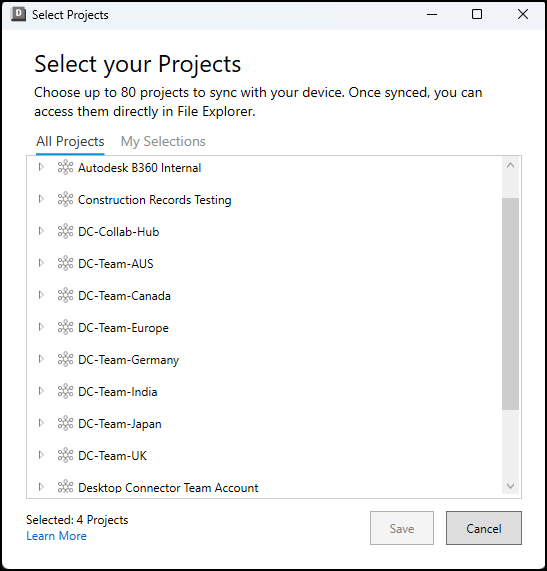
The project selection limit was increased to 80 Projects. This change occurred outside the release context, so users of versions 16.6.0.2138 and above will receive this enhancement. (CDX-23922)
Fixed a bug where the issue of the Welcome Screen creating multiple instances was resolved. (CDX-22467)
Prevented
.savefiles from uploading which resolved an issue with ArcGIS. This will take effect in all versions after v16.6.0.2138. (CDX-23974)Prevented
.ai.bakfiles from uploading which resolved an issue with Adobe Illustrator. This will take effect in all versions after v16.7.1.2164 (CDX-23905)Resolved an issue where uploading changes to a file may result in conflicts in the home screen when there are no conflicts on disk. This occurs more frequently with uploads of many files in your workflow. (CDX-23994)
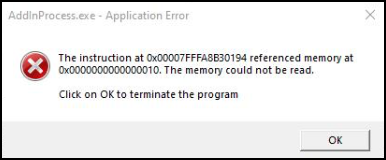
Fixed a bug where an "Application Error" dialog was being displayed when interacting with AutoCAD DWG files. (CDX-23738)
CAD Workflows
The Autodesk 2025 global launch required changes in some products which now require Desktop Connector v16.x. The products we have confirmed that will only work with Desktop Connector v16.x are AutoCAD, Civil, Plant 3D, ReCap, and Revit.
- Refer to your product-specific documentation for additional information.