Drive - Permissions
- Overview
- Accessing Shared Folders
- 'Can Edit' Permission
- 'Can Download' or 'Can View' Permission
- Naming Conflicts
- File Reference Considerations
Overview
Autodesk Drive allows you to share folders and its content with individuals. Folders that are shared with you can be accessed through Desktop Connector.
Accessing Shared Folders
- Navigate to your Drive connector in File Explorer.
- Access My Data which contains all of your folders and files.
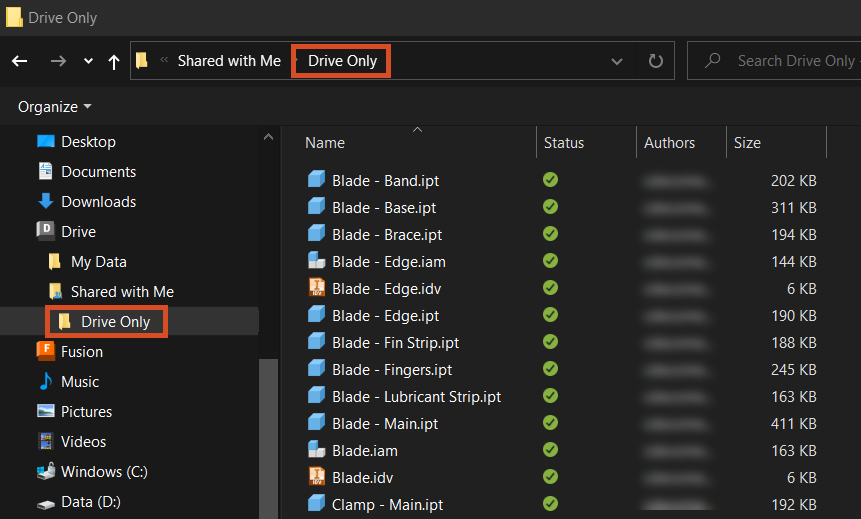
- If others have shared folders from their Autodesk Drive, you can access them by going to Shared with Me. Shares are displayed by the person whose name shared the folder with you followed by the folder name. (For example, Jane Smith - Site Plan)
The types of actions you can take when using a shared folder will depend on the level of permissions that are assigned to you.
'Can Edit' Permission
The following actions can be performed on the shared folder itself:
- Open
- Sync
- Free Up Space
- View Online
- Copy Link
The following actions can be performed on the files and folders within the Shared Folder:
- Add and update files through authoring application or by dragging and dropping them into the folder
- Open, Sync, Free Up Space, View Online, Copy Link, Export, Delete, Rename
- Move files using drag and drop within the shared folder structure
'Can Download' or 'Can View' Permission
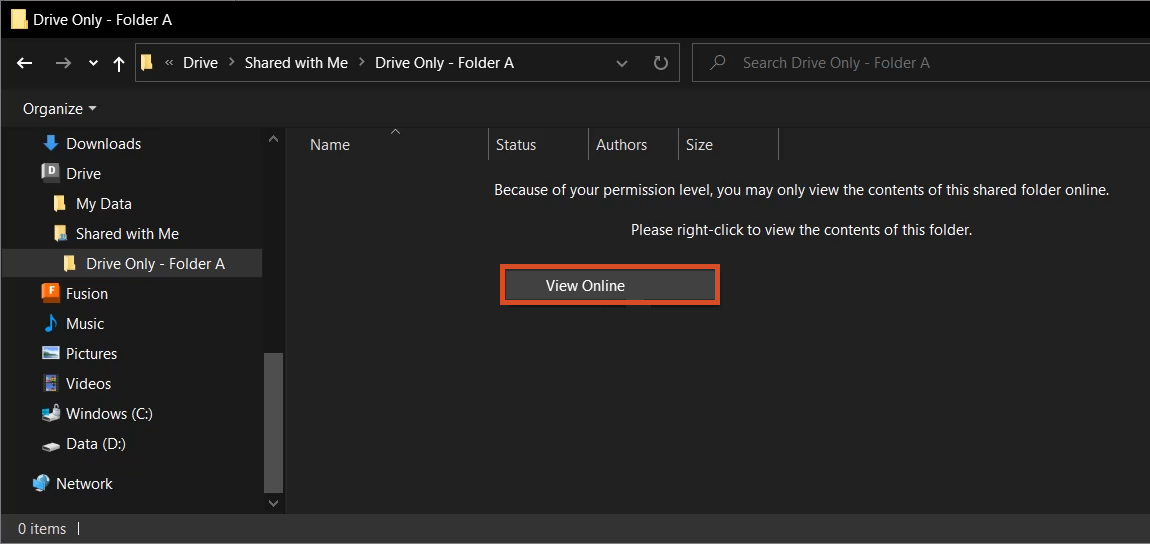
Shared folders with these permissions types will be listed under 'Shared with Me' but they will have limited capabilities within Desktop Connector. To prevent files from being edited that will lead to upload failures, due to not having edit permission the contents of the shared folder will not be shown to the user.
- A message is shown informing you that due to your permission level you can only view these files through Autodesk Drive online.
- You can quickly view these files in Autodesk Drive online by right clicking and choosing "View Online"
- Attempting to drag files into the folder will be blocked and a blocked icon will be shown
Naming Conflicts
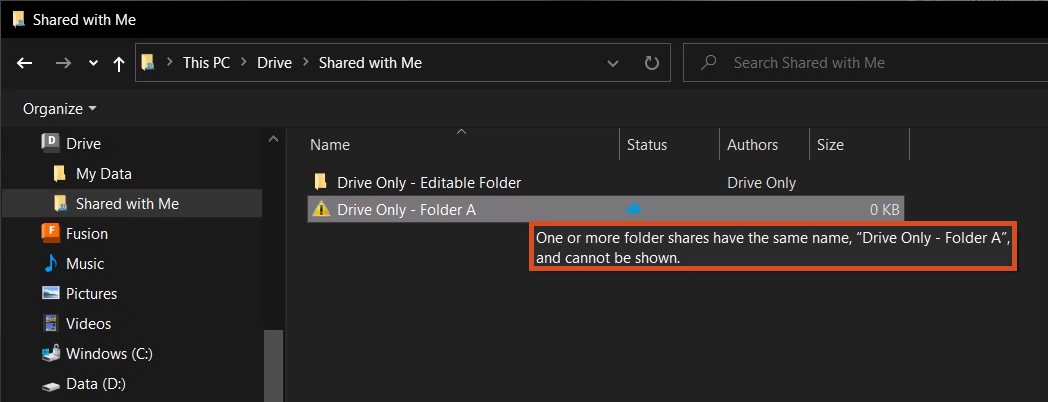
Shared folders which have an identical name will follow the existing behavior for duplicate folder names and appear with the error icon next to the name.
- You will not be able to navigate into those folders until the name conflict is resolved.
- Request that one of the shared folders is renamed to resolve the name conflict.
- You can still access folders with name conflicts through Autodesk Drives online
File Reference Considerations
- For file relationships to be maintained, all related data needs to be contained within the shared folder structure. File references cannot span across multiple shared folders.
- When working with Inventor data in an Autodesk Drive Shared Folder it is recommended that each share contains its own Inventor project file (ipj).