Revit
 This guide covers using Revit with Desktop Connector, including integration workflows, best practices, and troubleshooting solutions.
- What's New in Revit 2027
- Known issues and behavior changes
- Working with Revit
- Troubleshooting
- Support of Revit Worksharing and the Revit Accelerator
What's New in Revit 2027
For additional information about the new features in Revit visit What's New in Revit 2027.
Known issues and behavior changes
IFC links not loading correctly in Revit 2026 and earlier
Revit 2026 and earlier versions (2023–2025) do not correctly handle IFC link paths when used with Desktop Connector 2027.x. This is a known Revit issue that has been resolved in Revit 2027.
Symptoms:
- IFC links appear missing or unloaded
- Revit reports invalid or malformed link paths (the linked file path may appear much longer than expected, with two paths merged together)
- Users are prompted to reload the link
Cause: Desktop Connector 2027.x updated a product label in link paths (from "Autodesk Docs" to "Autodesk Forma") as part of a platform rebranding. Revit 2027 handles this correctly, but Revit 2026 and earlier versions have a bug that prevents them from interpreting the updated IFC link paths.
Resolution: The recommended solution is to upgrade to Revit 2027, which includes the fix for IFC link path handling. If upgrading is not immediately possible, you can roll back Desktop Connector to a previous major release (for example, version 17.1) as a temporary workaround until your team is ready to move to Revit 2027. For step-by-step instructions, see IFC Links not loading in Revit with Desktop Connector 2027.
Having different Desktop Connector versions on different machines is generally supported. The issue described here is specific to IFC links in Revit 2026 and earlier versions. However, it is good practice to keep all users on a consistent, up-to-date Desktop Connector version. Using matching release-year versions of Revit and Desktop Connector (for example, Revit 2027.x with Desktop Connector 2027.x) is recommended for cloud linking workflows.
Improved "Reload From" performance for topography links
Desktop Connector 2027.1 resolves slow or stalled "Reload From" operations on topography links. In earlier versions (17.x and 2027.0), these operations could take 20–30 minutes or fail to complete entirely.
If you encounter this issue, update to Desktop Connector 2027.1 or later.
Autodesk Forma naming in Revit link paths
Due to a product naming update, Forma Data Management (formerly Autodesk Docs) is reflected in newer link paths.
What to expect:
- Revit 2027.x with Desktop Connector 2027.x: paths display as
Autodesk Forma://... - Earlier Desktop Connector versions: paths display as
Autodesk Docs://...
Impact: This is a display-only change and does not affect functionality, file access, or link stability.
Compatibility: Users on different Desktop Connector versions can continue working together without breaking links, even if path prefixes differ.
Working with Revit
Will you need to re-path the links in all the Revit models or are there any issues to be aware of?
- In most situations, there is no need to re-path links. However, there have been a few isolated cases where a team member may need to use the "Reload From" feature and point to the same files.
- Desktop Connector is responsible for link handling. As long as there is a proper GUID for each link, which is stored in the Revit model, Desktop Connector will pass that information to Revit. The version of Desktop Connector running does not affect Revit's functionality.
- We recommend conducting a test upgrade on one workstation and opening the same Revit model. This will allow you to check if the links reconcile successfully. If the test is successful, you can proceed with the rollout to other team members.
Troubleshooting
Files download unexpectedly when using Revit
There are two known Revit behaviors that cause files to download automatically, even when you've used "Free up Space" to remove them from local storage. These behaviors also occur with OneDrive and are not specific to Desktop Connector.
Recent Files download on Revit launch
When you launch Revit, any files that appear in the Recent Files list on the Revit Home page are automatically downloaded by Desktop Connector. You don't need to open any model for this to occur. Simply launching Revit triggers the downloads.
Workaround: Clear unwanted files from Revit's Recent Files list before using "Free up Space" on those files.
Files download when selected in file browser
When browsing for files to link or insert (such as RVT, CAD, or image files), Revit automatically downloads any file you select in the file navigation dialog, before you click Open or commit the action.
Linked CAD files not loaded
When attempting to link CAD files that are hosted on BIM 360 into a Revit model, the CAD links show as Not Loaded or Not Found in the Manage Links dialog.
Revit shared parameter txt files are not officially supported through Desktop Connector. Revit only supports cloud referencing for keynote txt files, and assembly code txt files. No special handling will be taken for shared parameter files by Revit. For a current list of supported file types you can refer to this list.
- For additional information refer to Linked CAD Files in Revit not Loaded.
Files not syncing/downloading (from cloud)
An error message appeared when you attempted to download, open, or store a .RVT file on your device. This is recognized as a Tag Error and you will receive the following warning:
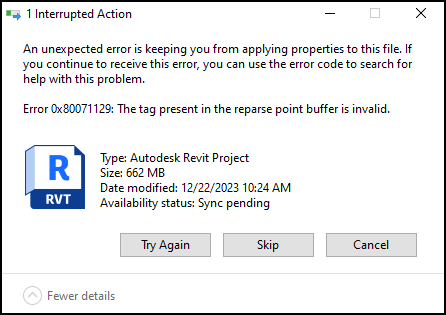
You may try these steps to resolve the error:
- Run
chkdsk C: /f /rto fix the file properties. - Perform a "Free up Space" and then "Always keep on this device"
- Remove the project and re-add the project.
The Revit (_backup) folder
When you open linked files in Revit, it automatically creates a _backup folder. If you also have View + Download permissions in Forma there can be issues. Desktop Connector will try to create and upload this backup folder but Forma may prevent it, causing upload errors.
To resolve you will need to delete the backup folder on the local machine to clear the upload error. The following steps will guide you on how to delete the _backup folder.
- Click on the the failed
_backupfolder job in the Home Screen. - Select "Go To Folder" which takes you to the location in File Explorer.
- Delete or Move the folder and its contents out of the local desktop connector workspace.
- When Desktop Connector attempts to run the jobs again, the
_backupfolder job will be removed.
All file types (.dat, .dmp, .txt) that are created by Revit and are placed in that folder will be ignored by Desktop Connector. Resulting in Desktop Connector not attempting to upload these specific file types
Support of Revit Worksharing and the Revit Accelerator
Only for versions after Revit 2020 are supported. Desktop Connector will be unresponsive on the initial install of Revit (after reboot issue, should not occur). We don't have additional information regarding this topic, except that it is a known issue for older versions of Revit (2019 and earlier).
Related Concepts:
- Troubleshooting Desktop Connector using Autodesk Revit.
- The link model on the connected drive cannot be loaded: Desktop Connector is NOT Installed.
- Revit update required: Content around how a Revit update may be required to access the files on the connected drives.
- Desktop Connector Update: You need to update Desktop Connector. Go to the latest release page and notes or your Autodesk account to verify that you have the latest version installed.
- Desktop Connector is Not Running: Check your internet connection and verity that Desktop Connector is running.
- Why a Revit RVT model is (sometimes) downloaded as ZIP from BIM 360.
- "Failed to open document" when working with Revit cloud model containing Desktop Connector links.