Inventor
 This guide covers using Inventor with Desktop Connector, including integration workflows, best practices, and troubleshooting solutions.
- What's New in Inventor 2027
- What's New for Inventor in Desktop Connector v17.x
- Working with Inventor
- Best Practices
- Troubleshooting
What's New in Inventor 2027
For additional information about the new features in Inventor visit What's New in Inventor 2027.
What's New for Inventor in Desktop Connector v17.x
Desktop Connector version 17.x introduces several enhancements specifically designed to improve Inventor workflows:
Enhanced Upload with References
- User-friendly IPJ selection dialogs that automatically detect when Inventor files are being uploaded and prompt for the appropriate Inventor Project File (.ipj)
- Smart reference resolution that can automatically locate and resolve missing references during upload
- Automatic reference discovery that finds and includes all referenced Inventor parts, assemblies, and related files
- Multi-step wizard interface that provides full visibility and control over your assembly uploads
Improved Inventor Workflow Integration
- Automatic workflow triggering when dragging Inventor assemblies (.iam) or parts (.ipt) into your Forma or Fusion connector
- Project-aware analysis using IPJ settings to ensure accurate reference gathering
- Missing reference handling with clear warnings and tools to locate and resolve broken links before upload
Better File Organization
- Related Data folder structure for complex Inventor assemblies with references outside the main folder hierarchy
- Preserved project structure that maintains your Inventor project organization in the cloud
- Cross-format support for mixed CAD environments that include Inventor files alongside other formats
These improvements make it easier to work with complex Inventor projects and ensure that all assembly references are properly maintained when moving data to the cloud.
Working with Inventor
Are Inventor workflows supported with Desktop Connector?
Desktop Connector can sync any version of Inventor files. Starting with v17.x, the enhanced Upload with References workflow includes improved Inventor Project File (.IPJ) handling with user-friendly selection dialogs and automatic reference resolution to ensure all files for a data set are uploaded.
The Forma and Fusion connectors supports Inventor workflows that require the use of an Inventor project file.
Desktop Connector creates a new Inventor project file (.ipj) at the root of the cloud project when Inventor data is added to that cloud project. That project file can be found at:
C:\Users\<username>\Documents\Inventor\ACCDocs\HUB\Project NameDrag and drop of an Inventor Assembly file (.iam) will automatically trigger the enhanced Upload with References workflow in both Forma and Fusion connectors. You can disable this automatic behavior by turning off "Always ask to include references" in the Desktop Connector settings.
File Locking for Inventor Files
When working with Inventor files connected to Autodesk Construction Cloud (ACC), automatic (implicit) file locking is not supported. You must manually lock Inventor files before editing to prevent conflicts with other users.
- See Forma - File Locking for instructions on manually locking files.
Best Practices
Configure Inventor file library paths
When you add Inventor data to a connector, it automatically creates a project file for that data. Desktop Connector does not specify a library path for the data, which may result in a Resolve Dialog in Inventor.
- Inventor library paths can be found at this location:
C:\ProgramData\Autodesk\Inventor 2025\Content Center\Libraries
To configure library paths, update the library location in the .ipj file Desktop Connector created.
Open Inventor Project Editor and select the project file Desktop Connector created.
Right-click Libraries and select one of these options:
- Add Path. Enter a library name and its location.
- Add Paths from File. Browse to and select a project (.ipj) file. Click Open.
- Paste Path. Paste a copied path.
- Delete Section Paths. Delete all paths in the Library section.
Click Save.
Troubleshooting
Save workflows in Inventor
When saving a new Inventor assembly or using the Save As command for a local file (a file not in the cloud) and selecting a save location in the cloud, the user will be presented with the following dialogs. These dialogs are only for Drive connector users and do NOT represent an accurate workflow for Forma or Fusion users.
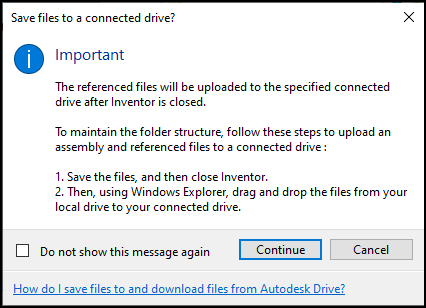

If you are saving to a Drive cloud location you should continue the workflow and your files will be uploaded with all the references when Inventor is closed.
If you are saving to a Forma or Fusion location you should:
- Select Cancel
- Save the file(s) locally
- Use the Upload with References workflow to bring Inventor files into Forma or Fusion with full control over assembly references and file organization.
When you use Fusion and Drive connectors in any version of the Desktop Connector, the same dialog box will be displayed and you can follow the instructions to resolve your files and references.
Related Concepts: