Model Coordination Frequently Asked Questions
- Which file types are supported in Model Coordination?
- Why can't I see all the files that are displayed in Forma Data Management?
- Why doesn't Model Coordination show the latest models from my coordination space folder in Forma Data Management?
- How is the content that is included in my coordination space defined?
- Why has my coordination space been deactivated?
- Why is my coordination space empty?
- Where should I go if I have questions about clash detection?
- How are administrator, member, and folder permissions controlled in Model Coordination?
- We have a firewall setup, do we need to add any domains to the allow list for Model Coordination to work correctly?
- How do I find my project and model-set IDs?
- Why do my exported IFC or DWG models from Revit appear misaligned in Model Coordination, even though they looked correct when linked in Revit?
- What are the limitations of Model Coordination?
- Are there any known issues in Model Coordination?
Which file types are supported in Model Coordination?
See the Supported Files topic for information on the types of files supported for aggregation and clash detection.
Why can't I see all the files that are displayed in Forma Data Management?
File types which are supported for uploading to Forma Data Management but which are not listed in the Supported Files in Model Coordination topic are not displayed in Model Coordination.
Why doesn't Model Coordination show the latest models from my coordination space folder in Forma Data Management?
Models not updating can happen for different reasons depending on whether the coordination space has automatic clash detection turned on or off. You can check what might be causing this by looking at the information shown by the coordination space picker in the top right of the screen in Model Coordination.
Coordination spaces with clash on
In coordination spaces with automatic clash detection turned on, uploading new files or file versions to the corresponding folder in Forma Data Management will trigger a new automatic clash check. Once the clash check has finished, the new models or model versions will be displayed in Model Coordination, along with their clash results.
If you can't see the latest models, this could be due to the following:
| Reason | Details | Solution |
|---|---|---|
| The files are still processing in Forma Data Management | Before Model Coordination can start a new clash check, the files must finish processing in Forma Data Management. If you've uploaded new files and a clash check hasn't started after a few minutes, check the files in Forma Data Management. | If the files have failed to upload or process in Forma Data Management, you can retry the processing or you may need to upload the files again. |
| The clash check on your latest models is still processing | Clash checks can take from between a few minutes to a few hours, depending on the coordination space version you are using and the amount of model content being checked for clashes. 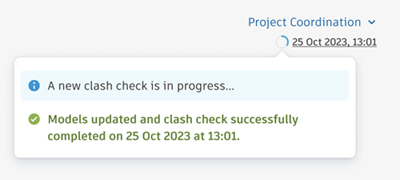 |
If you have a clash check that is processing for more than eight hours, consider reducing the amount of model content being checked by deleting or moving files out of the coordination space folder in Forma Data Management, opting models or objects out of clash, or creating multiple coordination spaces with fewer models in each in Model Coordination. If the problem persists, contact support. |
| The latest clash check was unsuccessful | 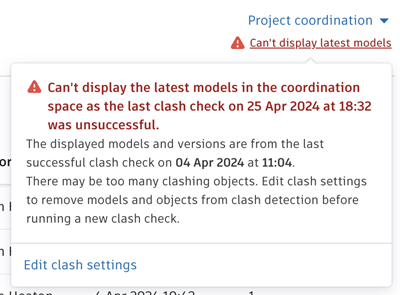 |
See the Clash FAQ topic to learn more about unsuccessful clash checks and how to address them. |
| You've reached the limit of 1000 models* in a coordination space | Clash checks can't run when there are more than 1000 models* in the coordination space. This applies to all models, including those not supported for clash and those that are turned off for clash. When there are more than 1000 models, Model Coordination will display the same models as before the limit was exceeded. If there were more than 1000 models before the coordination space was created, no models are displayed. 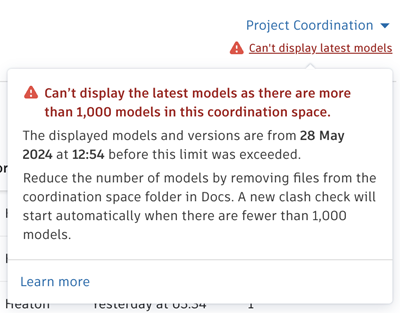 |
Reduce the number of models in the coordination space by deleting or moving files out of the coordination space folder in Forma Data Management, or creating multiple coordination spaces with fewer models in each. For example, create a coordination space for each building in a project, or for each level of a building, or phase of a project. You can also change the coordination space settings to include fewer subfolders. A new clash check will trigger automatically when there are fewer than 1000 models in the coordination space. |
* Note: Each 3D view in a Revit file is considered as one model in Model Coordination. There may be more than 1000 models in a coordination space even though there are fewer than 1000 files in the coordination space folder in Forma Data Management.
Coordination spaces with clash off
In a coordination space with automatic clash detection turned off, new models or model versions will show in Model Coordination once the files have finished processing in Forma Data Management. If you have uploaded new files or file versions and they are not showing in Model Coordination even after waiting a few minutes, this could be due to the following:
| Reason | Details | Solution |
|---|---|---|
| The files are still processing in Forma Data Management | Before Model Coordination can display your models, the files must finish processing in Forma Data Management. If you've uploaded new files and your models aren't displayed after a few minutes, check the files in Forma Data Management. | If the files have failed to upload or process in Forma Data Management, you can retry the processing or you may need to upload the files again. |
| There are too many models in the coordination space | Coordination spaces with clash turned off can't display models corresponding to more than 5000 files. This limit refers to the total number files in the included folders. Only file types that are supported for aggregation in Model Coordination count toward the limit. Model Coordination will display the models corresponding to the first 5000 files from Forma Data Management (by alphabetical order of file name). | Reduce the number of models in the coordination space by deleting or moving files out of the coordination space folder in Forma Data Management, or creating multiple coordination spaces with fewer models in each. For example, create a coordination space for each building in a project, or for each level of a building, or phase of a project. You can also change the coordination space settings to include fewer subfolders. |
How is the content that is included in my coordination space defined?
You can control what content is included in your coordination space in two main ways:
By selecting which folders and subfolders are included. The possible folder selections are:
- Parent folder and all subfolders
- Parent folder only
- Specific subfolders only
- None
By selecting which file formats are included from those folders. File formats can be defined at two levels:
- Global - determines what file formats are included from all of the selected folders.
- Folder-level - determines what file formats are included for that specific folder.
When a new folder is created or added within the main folder path of a coordination space, the folder and file format selections specified for its parent folder determine whether its contents are automatically included. See the table below for more details:
| Parent folder selection settings | New folder included in coordination space? | Parent folder-level file format settings | Content from new folder included in coordination space? |
|---|---|---|---|
| Parent folder and all subfolders included | Yes | No - using global settings | Based on the global settings |
| Parent folder and all subfolders included | Yes | Yes | Yes - based on the parent folder-level settings |
| Parent folder included explicitly (subfolders not included) | No | n/a | n/a |
| Parent folder not included | No | n/a | n/a |
Why has my coordination space been deactivated?
Any coordination spaces that are inactive for 60 days or more are automatically deactivated. This reduces resource usage on projects with limited activity. When a new model or version is uploaded to the folder associated with the coordination space, it is automatically reactivated.
A coordination space can also be manually deactivated by project administrators.
Why is my coordination space empty?
Coordination spaces are configured against folders in Forma Data Management. If a folder in Forma Data Management gets deleted, and it was the only folder in the coordination space folder selection, the space still exists but appears empty. If you want to rename, or activate or deactivate the coordination space, you can edit the folder selection for the space.
Where should I go if I have questions about clash detection?
See the dedicated Clash FAQ help topic for specific questions and answers about clash detection.
How are administrator, member, and folder permissions controlled in Model Coordination?
See the Administration help topic for general information about administration in the Autodesk Forma.
The Manage Account Members topic describes how to add a member as an administrator for your project.
Project administrators can then control project member product access.
Project administrators and project members with Manage permission can also control access to individual folders in Forma Data Management. Project members need at least View permissions for the root folder of the coordination space folder to be able to work in Model Coordination. To check the folder that a coordination space is configured against:
- In Model Coordination, click the Settings tool.
- In the Coordination spaces tab, you can find the Main folder path for each coordination space, and also check that the coordination space is active.
We have a firewall setup, do we need to add any domains to the allow list for Model Coordination to work correctly?
Model Coordination makes API calls to developer.api.autodesk.com. If this domain is blocked by your firewall, your models and clashes might not load. For Model Coordination to work correctly, you'll need to add developer.api.autodesk.com to your allow list.
How do I find my project and model-set IDs?
When you open Model Coordination and select a coordination space, your project and model-set IDs are shown in the page URL:
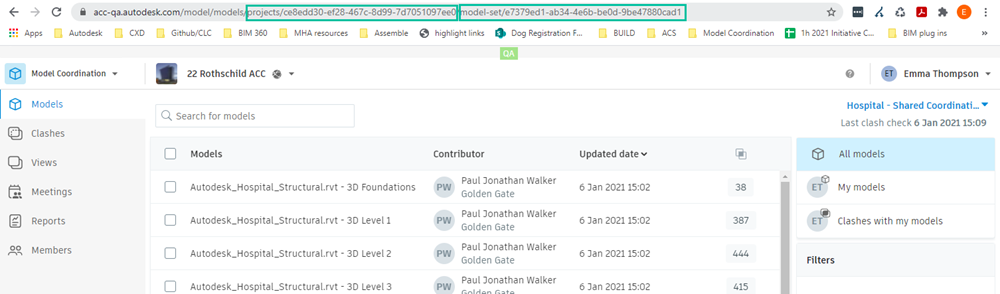
Provide the whole URL when reporting problems using the online Contact Support form to give our team a starting point for investigation.
Why do my exported IFC or DWG models from Revit appear misaligned in Model Coordination, even though they looked correct when linked in Revit?
This issue may be caused by shared coordinates either not being published to the linked files, or not being saved into the exported file.
- For example, an architectural Revit model (Arch.rvt) has a linked structural model (Struct.rvt) and MEP model (MEP.rvt). The architectural model has shared coordinates including a rotation to True North. The linked models all appear aligned in Revit. The structural model is exported to DWG (Struct.dwg) and the MEP model is exported to IFC (MEP.ifc).
- When viewing Arch.rvt, Struct.dwg, and MEP.ifc in Model Coordination, both the structural and MEP models are rotated in relation to the architectural model. This is due to the shared coordinates being respected in the architectural model but not existing in the DWG and IFC. In this example, the misalignment can be resolved by publishing the shared coordinates in Revit from Arch.rvt into the linked files Struct.rvt and MEP.rvt.
What are the limitations of Model Coordination?
The following are technical and system limitations in Model Coordination:
| Item | Limit |
|---|---|
| Maximum models that can be displayed in the clash grid | 100 |
| Maximum contents of a coordination space* | With automatic clash detection turned on: 1000 models. With automatic clash detection turned off: 5000 files. |
| Maximum models in a view | 1000 |
| Maximum active coordination spaces with clash detection turned on at any one time (combined across Model Coordination and Design Collaboration)** | 20 |
| Maximum number of unique folders that coordination spaces can be configured against | 150 |
| Maximum number of classified clashes | 400,000. A classified clash is a clash that is either marked as not an issue, or has an issue create against it. See the Classify and Manage Clashes help topic for more information. |
| Maximum number of models open in the viewer when creating an issue | 200 |
| Maximum number of model object exclusions | 50. This includes active and inactive exclusions. |
* Each Revit file counts as one file. File types not supported by Model Coordination don't count toward this limit. Note: Each 3D view in a Revit file counts as one model.
** Other than the above, there is no limit on the total number of coordination spaces (active and inactive) you can have in a project.
Are there any known issues in Model Coordination?
There are a few items that have been reported as issues by customers, which are either expected behavior or are not currently planned to be addressed:
- The program may freeze or crash when attempting to display views in a project where all the models from the views have been deleted.
- When clashes or clash groups are selected in the viewer, there is no tooltip or other indication in the Clashes panel about whether there are any duplicates or, if so, how many.
If you notice any other issues, you can report them using the online Contact Support form.