Object Table
The object table allows designers and contractors to validate aggregate model data in table form when new files are uploaded to the coordination space. This includes property naming conventions, model property values, and object quantities.
When used with custom column configurations, property groupings, filters, and object colors, members can curate powerful dynamic views for use in various downstream preconstruction activities, like model checking, estimation, and model data analysis.
The object table can also be used with the Clashes and Issues tabs in the viewer. This enables project members to view properties associated with model objects that are involved in clashes and issues.
- Access the Object Table
- Search the Object Table
- Edit Object Table Display Mode
- User Preferences
- Default Object Table Groupings
- Custom Object Table Groupings
- Change the Object Table Units
- Edit Extended Property Values
- Example Uses for the Object Table
Access the Object Table
Access the object table in the viewer by clicking the Object Table  icon at the bottom left corner:
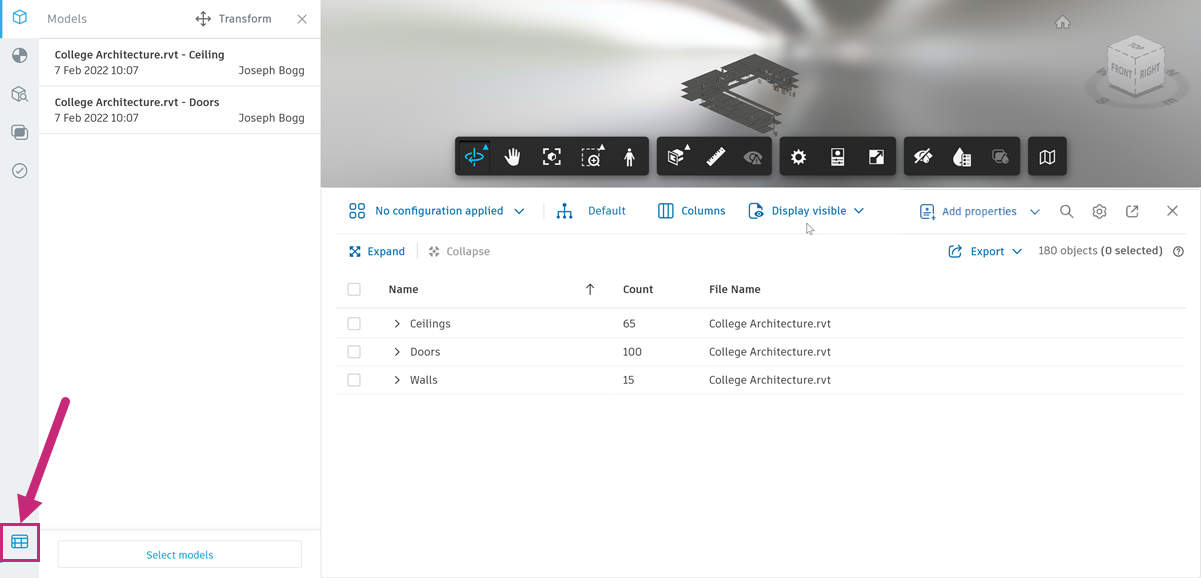
The table lists the objects for all models open in the viewer. If you select an object in the viewer, this will automatically select the object in the object table, and the other way round. The object table will dynamically change in response to any applied filters which allows you to verify the results of the filter. If you turn on object colors, a dot in the relevant color will display next to each object.
You can also click the expand icon  at the top right of the object table to open it in a new browser window, maximizing data visualization.
Search the Object Table
You can quickly find and highlight any objects in the table with a value that matches your search term, provided the property has been added as an object table column or grouping. As you type in the search bar, a dynamic drop-down list displays three types of option:
[All properties] All [Search term] - Finds all matching objects across all properties currently used in the object table.
[Property Name] All [Search term] - Finds all matching objects for only the property shown in [Property name], using the value entered in the search bar.
[Property Name] All [Value name] - Finds all matching objects for only the property shown in [Property name], containing the exact value in [Value name].
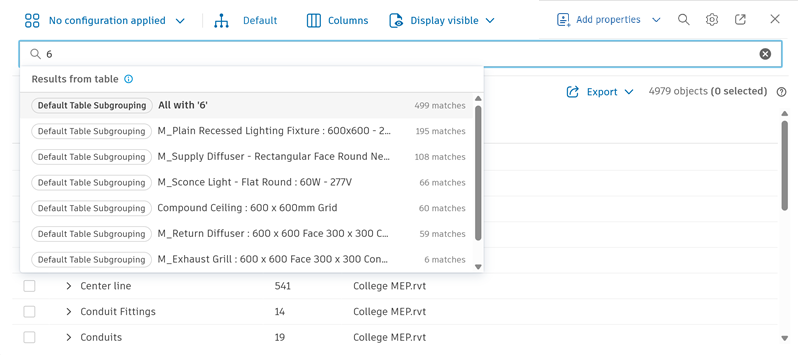
When you select an item from the drop-down list, the object table temporarily filters to show only objects matching the search value.
To quickly hide all nonmatching objects in the viewer, select all objects in the table after searching, right-click anywhere in the view, and then click Isolate. To reverse this, right-click again and click Show all objects.
Edit Object Table Display Mode
Choose which display mode to use for the object table, to determine which rows are shown. Choose from:
All objects - displays all objects in the viewer, according to any filters applied in the Model browser tab.
Note: Objects that have been hidden in the Model browser tab, or isolated using the object context menu, are visible but grayed out.Visible objects - displays only the objects that are visible in the viewer. For example, objects that have been hidden using the Model browser tab, or isolated using the object context menu, are not shown.
Hidden objects - displays only the objects that are hidden from the viewer. For example, only objects that have been hidden using the Model browser tab, or isolated using the object context menu, are shown.
Selected objects - displays only the objects that are currently selected in the viewer.
Tip: Hold the Shift key and click to select multiple objects in the viewer.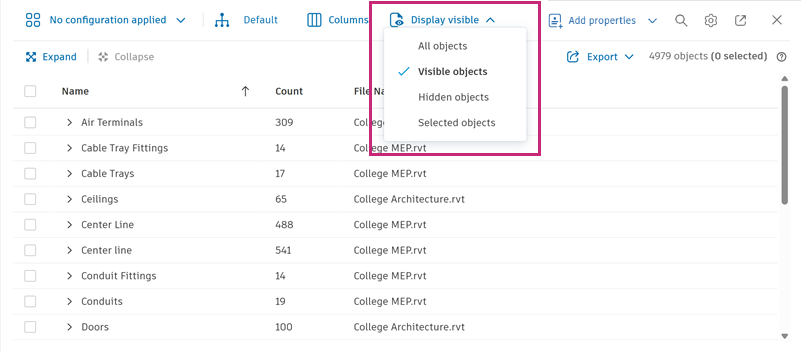
User Preferences
Specify your preferred behavior when navigating the object table.
Click the User preferences
 icon at the top right of the object table.
Hover over the Viewer selection behavior option to see the two settings that control what happens in the viewer when you select objects in the table:
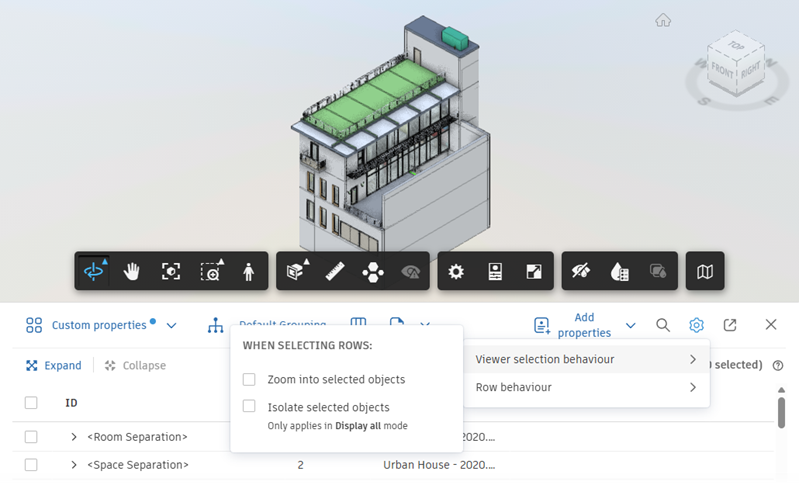
Select the Zoom into selected objects checkbox to zoom into objects in the viewer when you select them in the object table.
Select the Isolate selected objects checkbox to isolate objects in the viewer when you select them in the object table.
Note: The Isolate selected objects option is only available when the display mode is set to All objects.
Note: These settings can be used independently or in combination.Hover over the Row behavior option to choose between the settings that control what happens to the rows in the table when you select objects in the viewer:
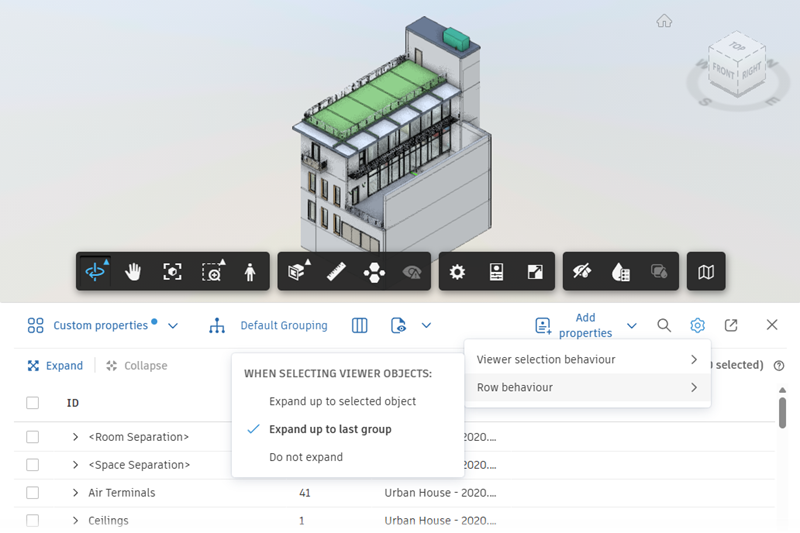
- Expand up to selected object - the object table expands the rows to the level of the selected object.
- Expand up to last group - the object table expands the rows to the level of the group that the selected object is in.
- Do not expand - the rows in the object table don't expand when objects are selected in the viewer.
Note: These settings don't apply when using Shift+Select to select multiple model objects.
Default Object Table Groupings
By default, objects are grouped depending on their file format. The following table maps the object table default grouping and default subgrouping to the properties that they derive from in RVT, IFC, DWG, NWC, and other file formats.
| File format | Default Table Grouping | Default Table Subgrouping | Default Object ID |
|---|---|---|---|
| RVT | Category | Family | Type |
| IFC | IfcClass | IfcName | GUID |
| DWG (Plant 3D) | Class Name | Layer | Handle |
| DWG (Civil 3D and generic) | File Name | Layer | Handle |
| NWC | Element/Category | Element/Family | Element/Type |
| Other file formats | File Name | Name | svf2Id |
All grouped rows will display a summary of child values. The way the data is summarized depends on the type of data:
- Numbers: Total of all child property values.
- Strings: Total if the values of all child values match. If not, the column will show Various.
Common Properties
There is a Common properties collection which contains a list of the most useful and frequently used properties. Some of these behave in a particular way:
| Grouped by | Description |
|---|---|
| Level | Contains the Revit level of the object, based on an aggregate of the properties named Level, Base Level, Reference Level, Schedule Level, Bottom Constraint, and Base Constraint. |
| Category | Contains the Revit category of the object. |
| Default Table Grouping | Contains the first-level grouped properties as detailed in the preceding table. Useful for exporting views containing multiple file formats. |
| Default Table Subgrouping | Contains the second-level grouped property as detailed in the preceding table. Useful for exporting views containing multiple file formats. |
| Family / Type | A combination of the Revit family name and family type name with : |
Custom Object Table Groupings
Members can create custom groupings up to ten levels deep using any available model property as a grouping property, including extended properties.
Click Default at the top of the object table.
All available properties are displayed on the left in groupings. These include a grouping of Common properties that you can add.
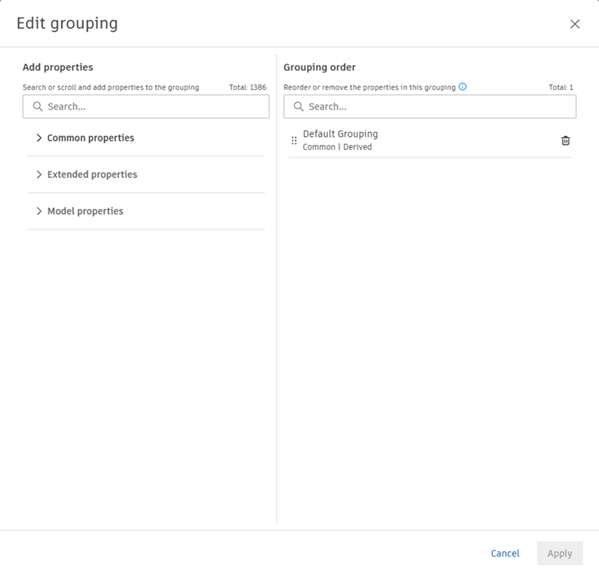
You can scroll or search for properties.
Click to expand groupings and click the + next to a property to move it to the right and add to the grouping.
Click the trash can icon to remove a property from the grouping as necessary.
Drag properties you've added to reorder the grouping hierarchy.
Click Apply.
Note: If you remove all properties from the grouping and click Apply, the object table will revert to a flat list named Not grouped.
Edit Object Table Columns
You can add and reorder the object table columns from a list of all model properties available in the current view, including extended properties:
Click Columns at the top of the object table.
All available properties are displayed on the left in groupings. These include a grouping of Common properties that you can add. All properties currently added as columns are displayed on the right.
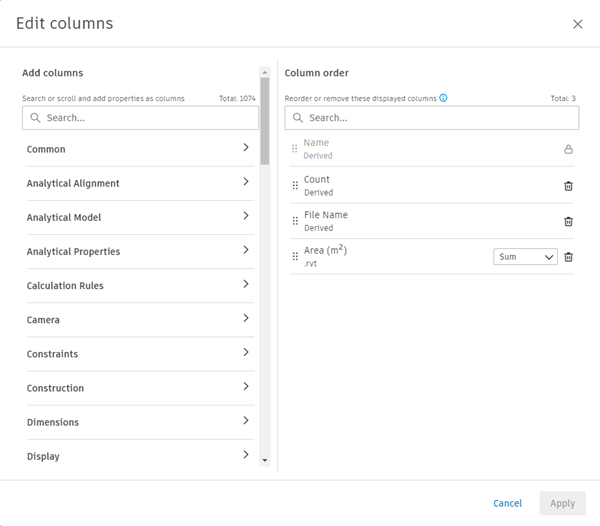
You can scroll or search for properties.
Click to expand groupings and click the + next to a property to move it to the right and display it as a column.
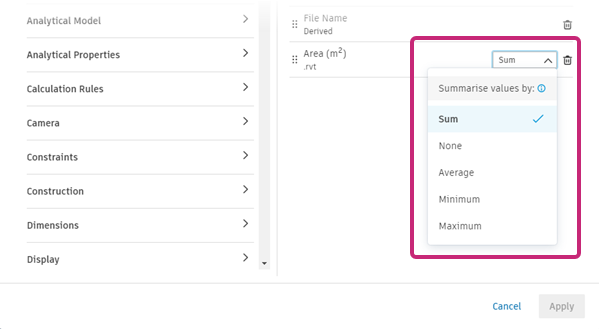
For properties that contain numerical data, optionally select the way the data is summarized in grouped rows. Click the drop-down list next to the property name and choose from:
Sum - displays the sum of all the values in the grouping.
None - the values are not summarized. If all the values in the grouping are the same, then that value is displayed. If the values are distinct, then 'Varies' is shown.
Average - displays the average of all the values in the grouping.
Minimum - displays the smallest value in the grouping.
Maximum - displays the largest value in the grouping is displayed.
Click the trash can icon to remove a property as a column as necessary.
Note: You can't remove the Name property from the object table.Drag columns vertically in the list to reorder them.
Click Apply.
Export the Object Table
Click Export and choose from a flat list or grouped format:
- Export as CSV: If you don't select Include groupings, this exports a flat list of objects in rows. Grouping rows are included as columns.
- Include groupings: If selected, this will include grouping rows with a Group Level column.
The file is exported to your local downloads area.
Change the Object Table Units
You can change the display unit and precision of numerical values in the object table using the viewer settings:
- Click Settings
 on the Viewing toolbar at the bottom of the viewer.
 - On the Configuration tab, scroll down to the Display section.
- Use the Display Units drop-down list to select whether the display units are taken from the model settings, or to use a preferred unit.
- Use the Precision drop-down list to select whether the precision setting is taken from the model settings, or to use a preferred setting.
When exporting to CSV or XLSX, the selected display unit will be used, but with the maximum available precision (file precision).
Display unit and precision settings are specific to your browser session and are not saved with the current view. Each project member must modify these settings individually.
Edit Extended Property Values
When extended properties have been added to a file, applied to model objects, and had values added to them, project members with Publish markup permission for the file can edit the property values using the object table.
- Check that the properties you want to edit have been added to the Object Table as columns.
- Select either a single or multiple rows in the object table that correspond to the objects you want to edit the values for.
- Click in the column corresponding to the property that you want to edit.
- Search for, select, or add a value, to edit the property as required.
Example Uses for the Object Table
- Open the object table while building an advanced filter to dynamically verify the results.
- Quickly find the location of an object or group of objects by selecting an instance or grouped row.
- Review specific properties by adding them as columns in the table.
- Validate model quantities by adding numerical model properties as columns and inspecting total values.
- Find missing or incorrect property values by adding key properties as a column and using Contains/Does not contain/Is null advanced filter operator.
- Build an analysis of model data by exporting to CSV or XLSX and opening in third party visualization software such as Excel or PowerBI.