Member Management
Enable Member management in Account Admin to let project members invite and manage other members. When you enable Member management for a role, members with that role can manage members who hold any of the configured roles in projects where they are added. This includes inviting new members, assigning roles, and removing members who hold the configured roles.
Member management is enabled per role and operates in real time. For example, if you enable Member management for the Project Engineer role, all Project Engineers can manage members in projects where they are added. To prevent Project Engineers from managing members, do not enable Member management for that role.
- Member management is available only for roles that have the Project member access level.
- Only configured roles can be added or removed. These configured roles are the only roles available during the invite process.
Configure Member Management for Roles
- In Account Admin, click Roles.
- On the left, select the role you want to configure for Member management.
- Click Set up member management.
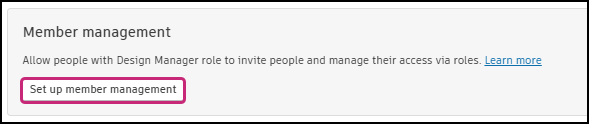
- In the role configuration modal, select the roles that members with this role can manage. Use the Enable all or Disable all button at the top left.
Turn Off Member Management
Member management is configured per role. To turn off Member management for a role, remove all configured roles in the role configuration modal.
- In Account Admin, click Roles.
- On the left, select the role you want to change.
- Click Configure manageable roles and then Disable all at the top left of the modal.
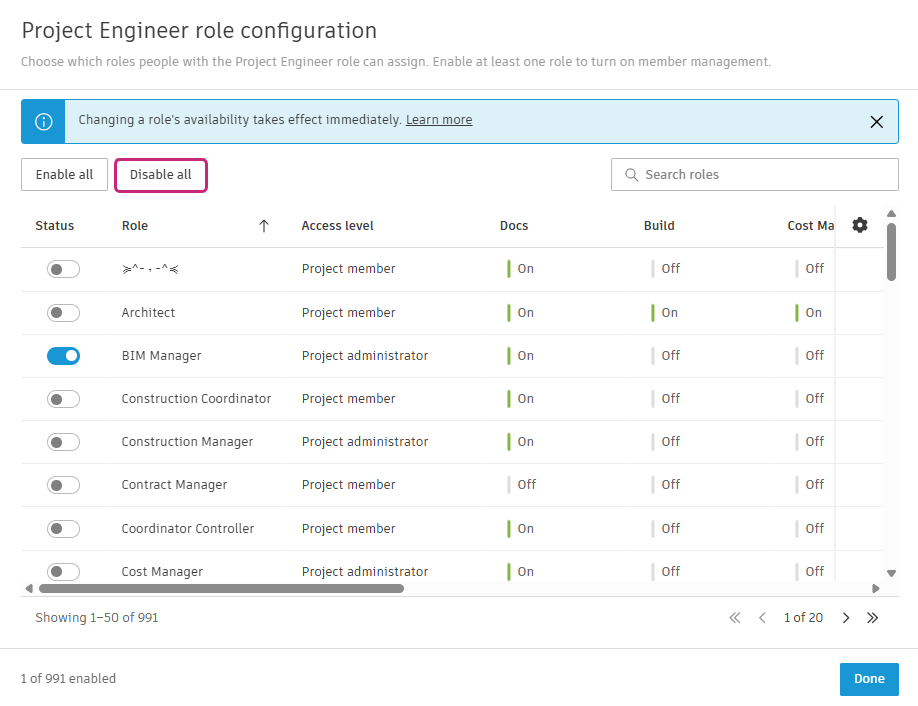
The Role Configuration Modal
Use the table to select which roles member managers can manage. You can:
- Search for roles by name using the search bar at the top right.
- Sort roles alphabetically by clicking a column header.
- View the access level and product access for each role.
- Change visible columns using the gear icon at the top right.
- If you have more than 50 roles, use the pager at the bottom right to move between pages.