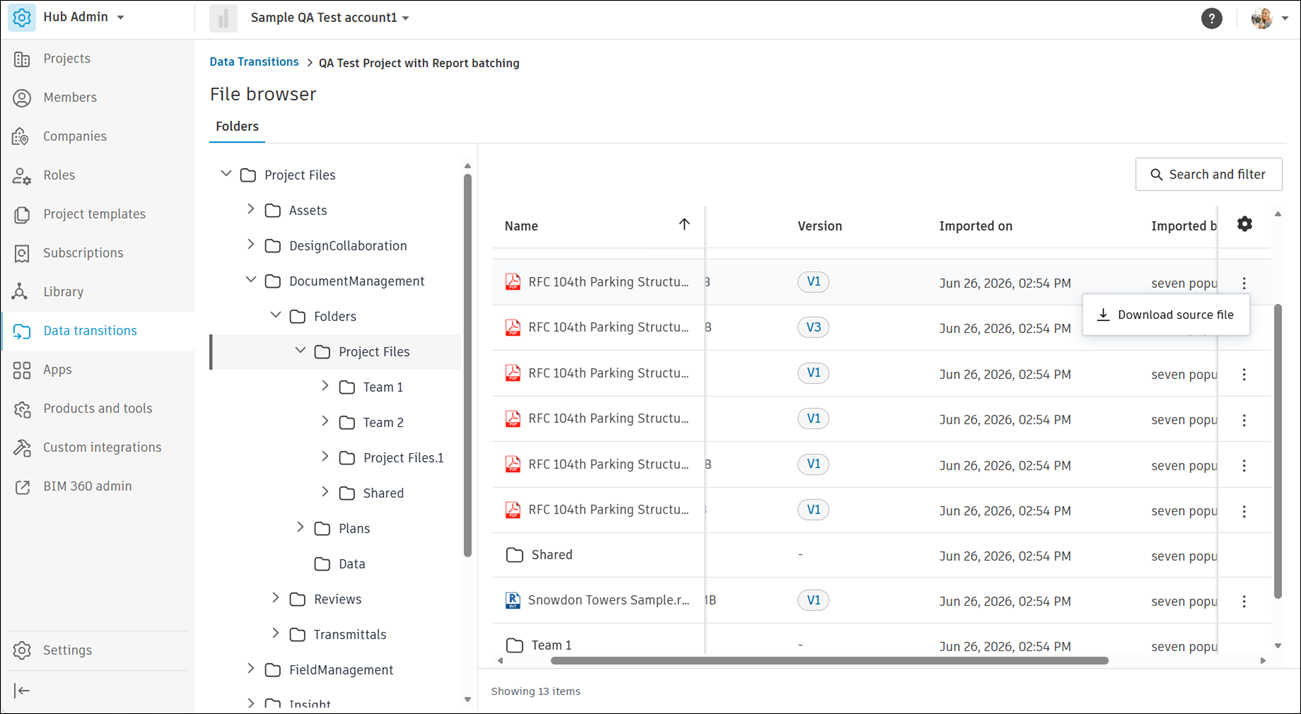
About File Browser
File browser stores the data of projects imported with the Data Transitions tool. Use File browser to browse a project's folders, locate summary reports, and download source files and JSON files. You can't view files in File browser. Download a file to open it.
Where the project data is stored depends on how you bring the project in:
- Imported projects: File browser stores the project data.
- Transitioned projects: Forma Data Management stores the project data in the Files tool, where you can view files in the supported viewers.
Access File Browser
Go to the Project data column and click File browser, or click View-in > File browser.
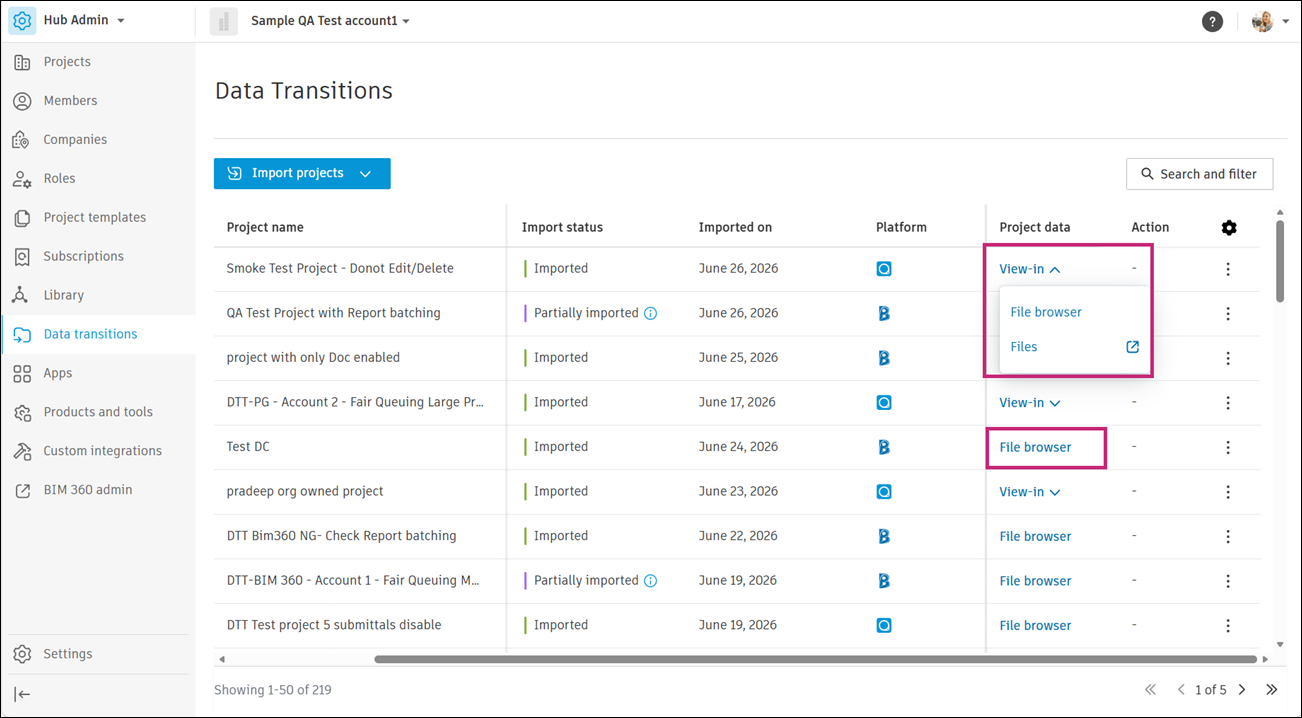
File browser opens with a navigation tree of the project's folders. Select a folder to view its files and details, such as size, version, and import date.
Data Folders and JSON Files
Each imported or transitioned item has a corresponding Data folder in File browser. The Data folder stores the JSON files that contain the item's metadata from the source project.
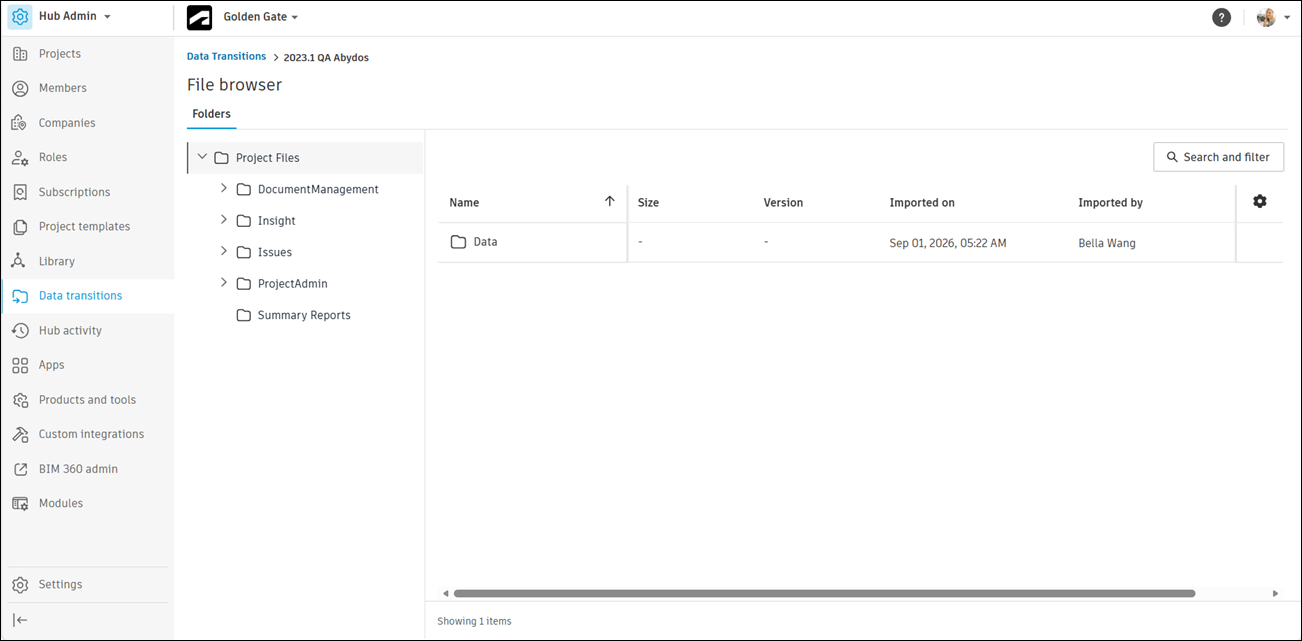
JSON files are for developers and integration partners, not for direct reading. See Project Metadata in JSON Files.
To download JSON files:
In the File browser navigation tree, expand the folder of the imported or transitioned item.
Click Data.
Click the More menu
 for the JSON file, then click Download source file.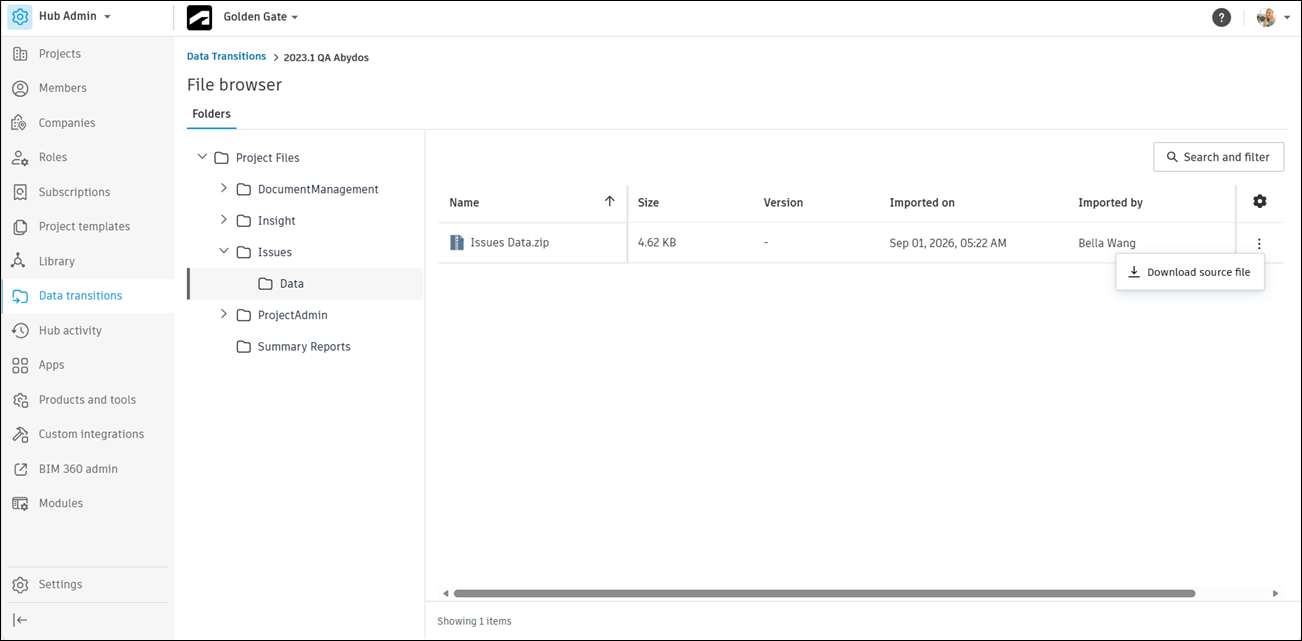
Download Summary Reports
Click Summary Reports in the File browser navigation tree.
Click the More menu
, then click Download source file.