Data Transitions
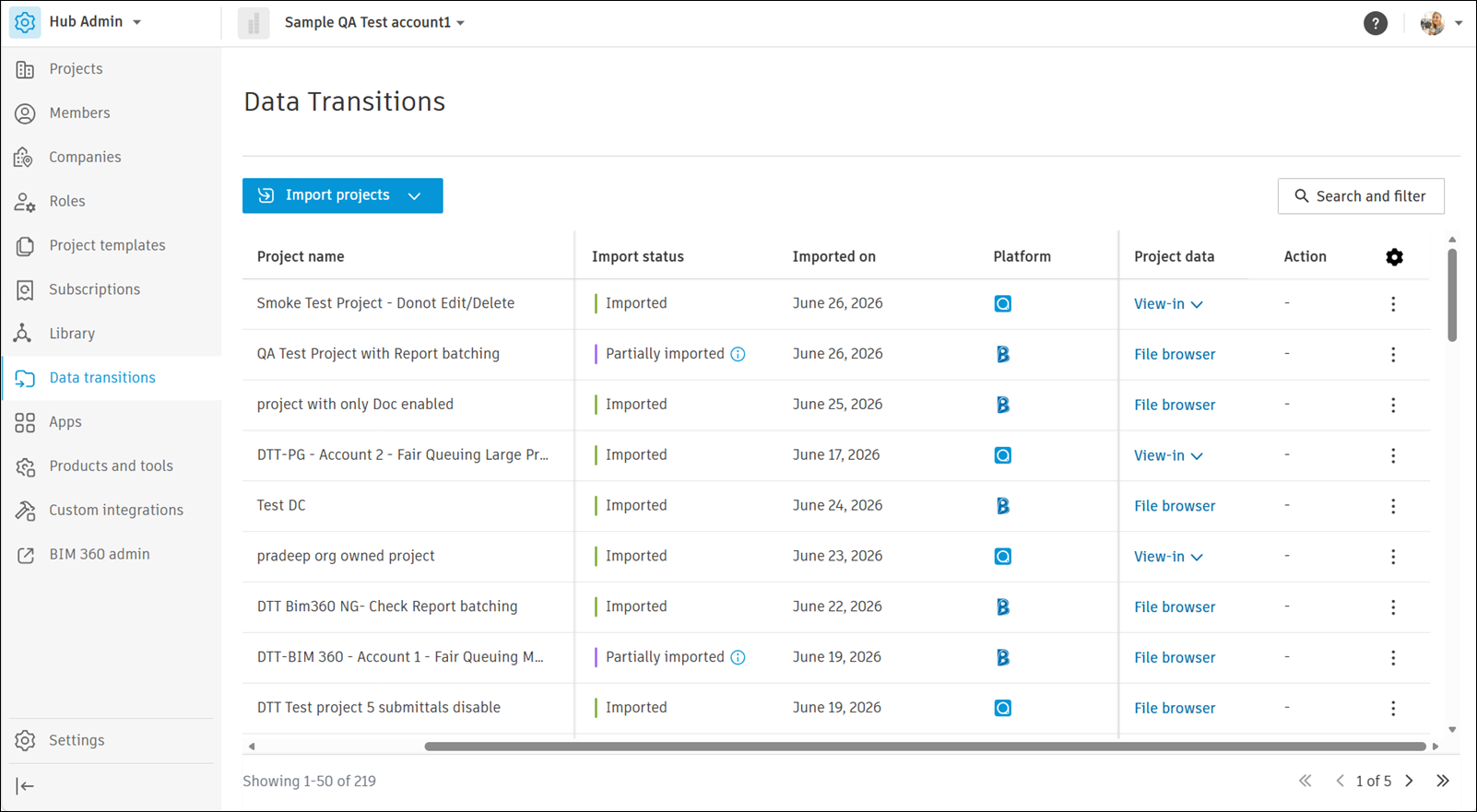
Data Transitions lets you transition BIM 360 and PlanGrid projects into Autodesk Forma.
- Data Transitions Features
- Requirements for Using Data Transitions
- Best Practices for Using Data Transitions
- Project Metadata in JSON Files
Data Transitions Features
The tool helps hub administrators transfer project data accurately, so work continues without disruption during the transition. Data Transitions includes these key features:
- Data transition: Transition project data, such as files and issues, from BIM 360 Next Gen and BIM 360 Classic to Autodesk Forma.
- Error handling and reporting: Use detailed error logs and reports to find and resolve issues during transition.
- User-friendly interface: Work through the transition with an intuitive interface, even with limited technical experience.
Requirements for Using Data Transitions
You must be a member of the project you want to transition. You must also be a hub administrator for the destination hub.
If Data Transitions isn't enabled for your hub yet, you can request access.
Best Practices for Using Data Transitions
Plan ahead. Review the data and include only what you need.
Test first. Run a test transition with a small dataset to find issues early.
Resolve errors promptly. Use the error logs to address any issues during transition.
Project Metadata in JSON Files
When you import a project, Data Transitions also imports a snapshot of the project's metadata as JSON files. The snapshot shows the source project as it was at the time of import. Changes made later in the source project don't appear in the files.
What the JSON files contain
The JSON files include metadata from the source project, such as:
- Issues
- RFIs
- Markups
- Design Collaboration data
- Model Coordination data
- Other project data, where it applies
Who the JSON files are for
JSON is a machine-readable format that software can process. Developers can use the files to build custom integrations and AI tools that access the original project data. These tools can present the data in the views and formats your team needs.
You aren't expected to open or read the JSON files directly. To work with the metadata, share the files with your developer or integration partner.
Human-readable metadata
Autodesk Forma doesn't show imported metadata in a human-readable format yet. For example, you can't view imported issues or RFIs as a PDF report. Autodesk plans to release a separate metadata viewer for imported and transitioned projects.