Request Access to Data Transitions
You don't need an Autodesk representative to get Data Transitions. Any hub administrator can request access directly. You choose the products you want to move project data from, and Autodesk enables the tool for your hub.
Autodesk enables Data Transitions one hub at a time. After you submit a request, Autodesk schedules an enablement date for your hub and emails it to you.
Before You Request Access
You must be a hub administrator for the destination hub. Data Transitions must also be available in Hub Admin for that hub.
You can request access for these source products:
- PlanGrid
- BIM 360 Next Gen
- BIM 360 Classic
Data Transitions checks your access to each source product and marks the ones you're eligible to request. Products you don't administer are marked as not eligible.
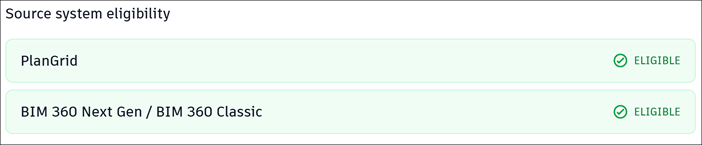
Choose projects to import
Decide which projects to move before you request access. The best candidates are projects that are closed, inactive, or archived. Projects with an active status but no activity beyond viewing are also safe to import.
Avoid projects with active collaboration or incoming data. Start with a few small projects to learn the workflow, then scale up.
Request Access for Your Hub
In Autodesk Forma, open the project list and select Hub Admin.
Select Data Transitions.
The landing page explains how import and transition work, and marks the source products you can request. For more about the tool, see Data Transitions.
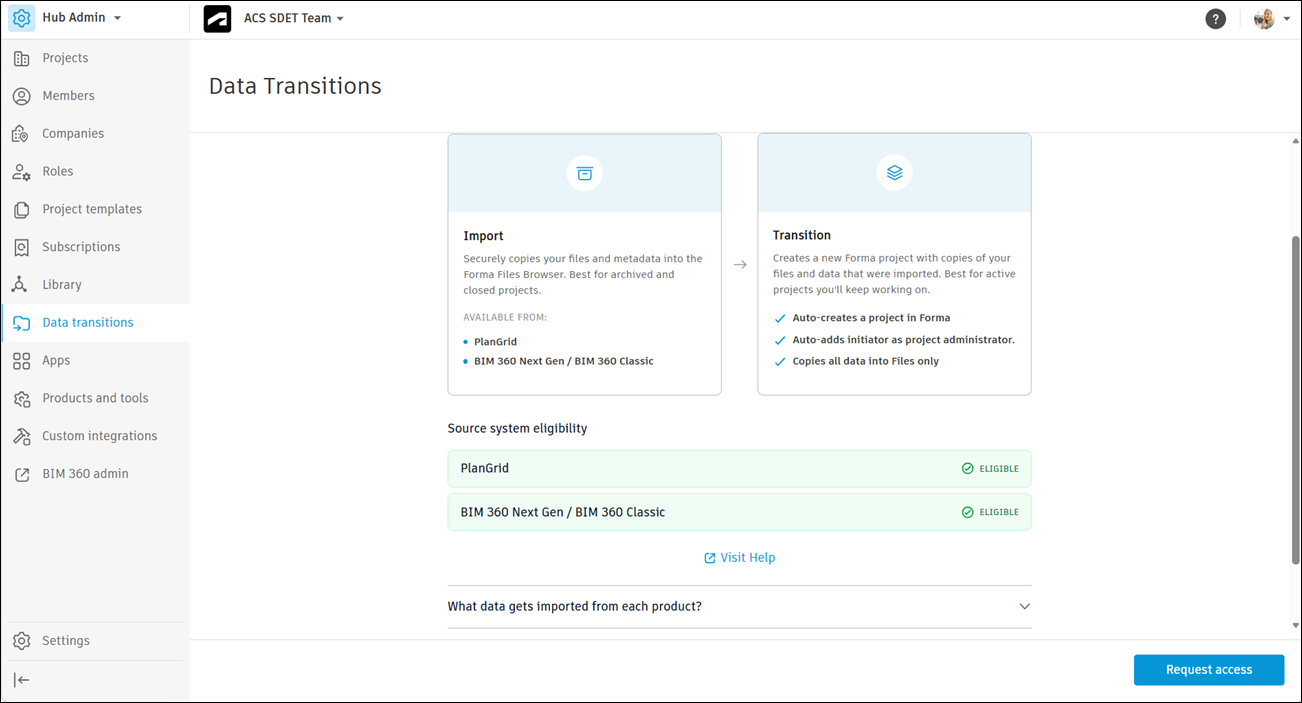
Click Request access.
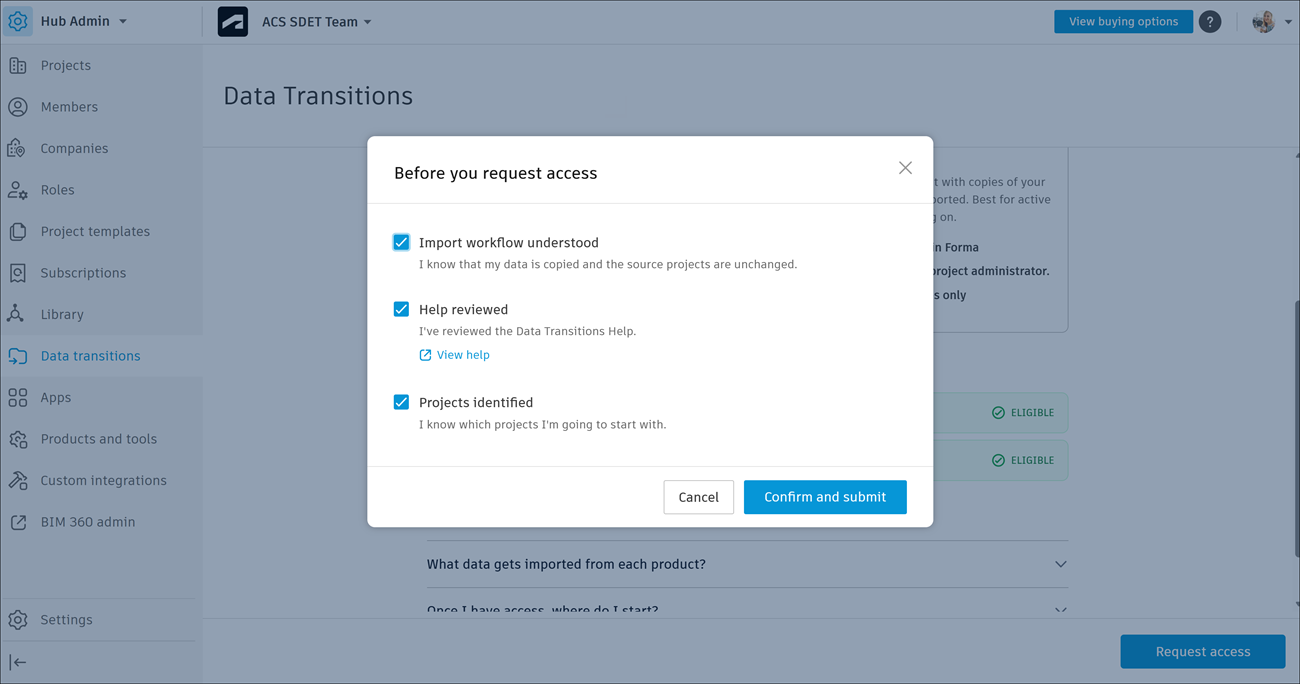
Confirm each item in the Before you request access dialog, then click Confirm and submit.
Review information about the submitted request, then click Done.
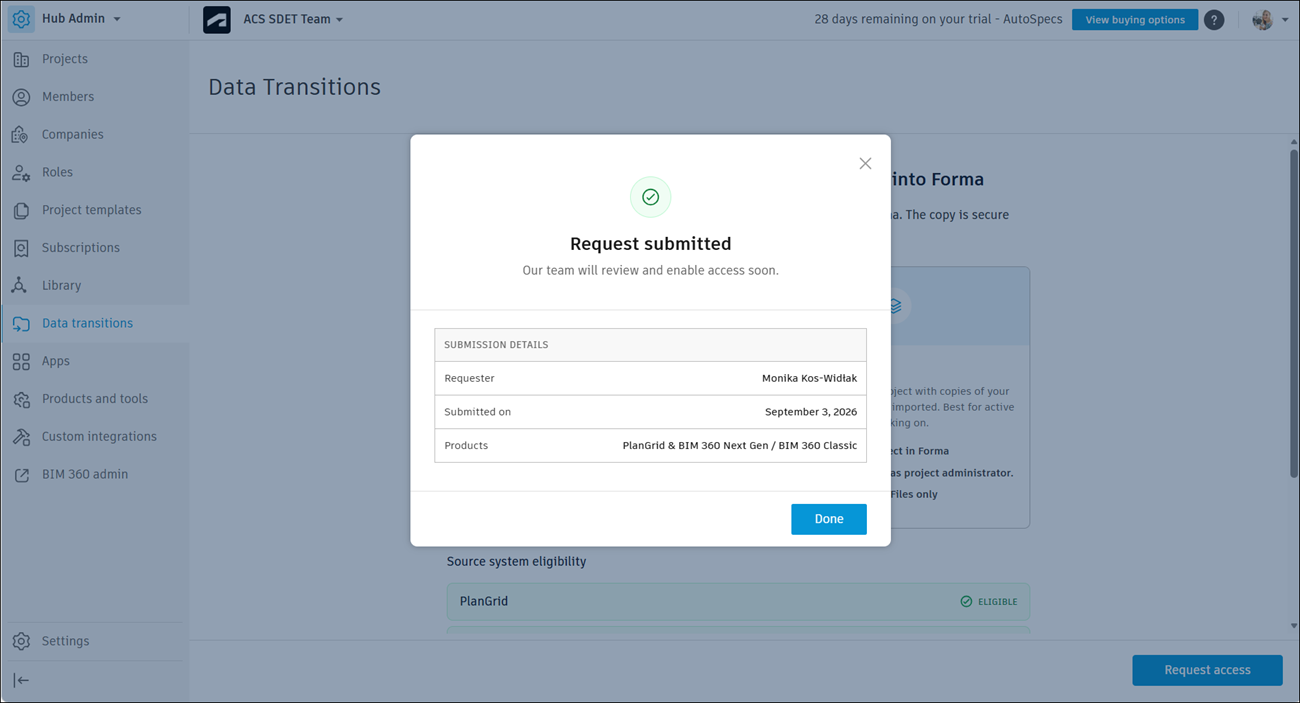
After You Submit Request
After you submit a request, Autodesk schedules a date to enable Data Transitions for your hub. Until then, open Submission details in Data Transitions to review the hub name, requester, submission date, and products.
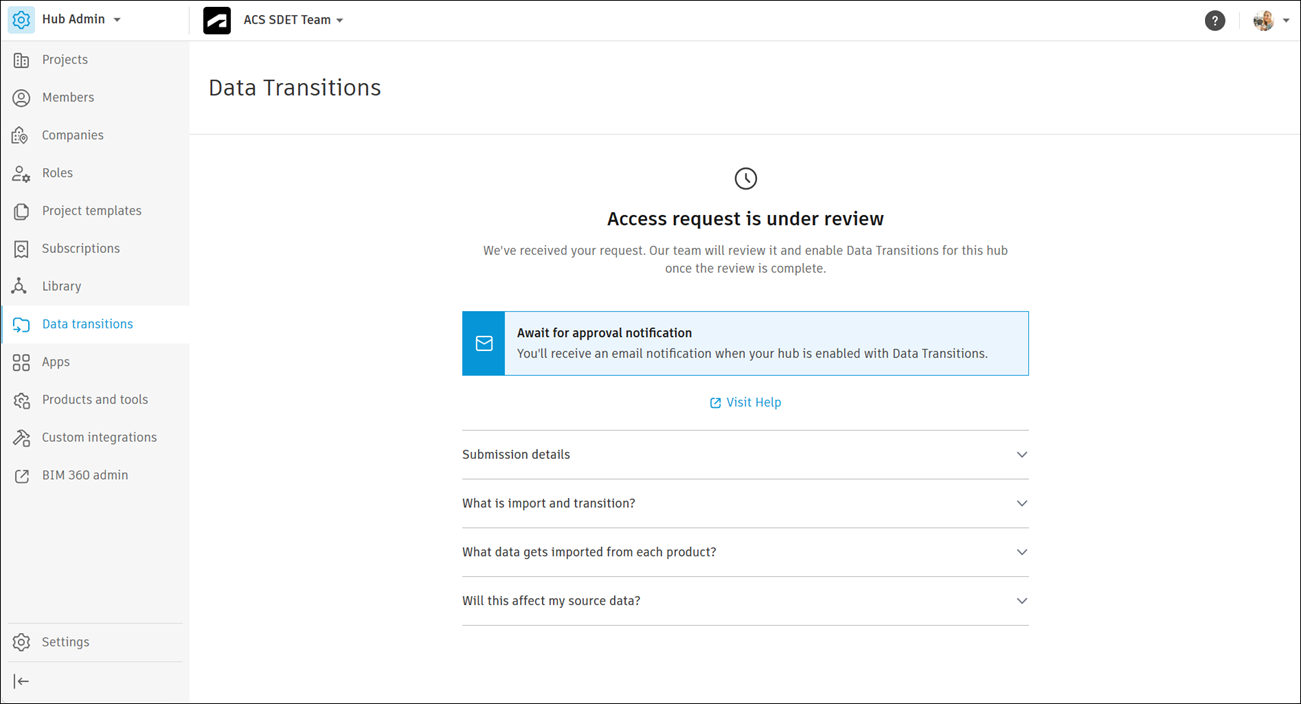
When Autodesk schedules your request, you get an email with your enablement date and tips for choosing projects to import. Data Transitions also shows the scheduled date.
You get another email when Autodesk enables access. It lists every product you requested and shows whether access is enabled for each one. Click Go to Data Transitions in the email to open the tool.
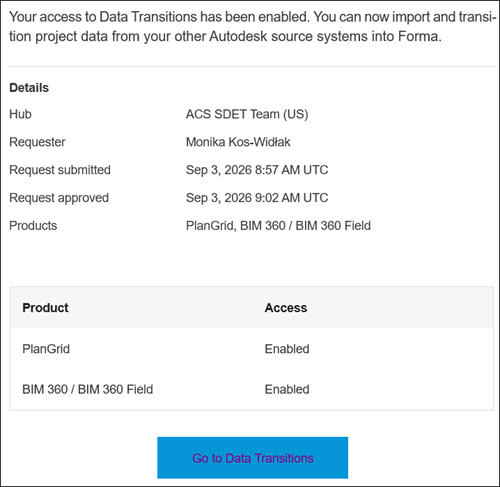
Autodesk can enable some products before others. Products still under review stay listed in your request status.
Each request covers one hub, and you can submit only one request per hub. To use Data Transitions in another hub, repeat these steps in that hub.