Sample Project Templates for Hub Administrators
Kick off projects faster with sample project templates that are preconfigured based on different firm types and project needs. Sample project templates contain prepopulated information like a suggested folder structure, relevant form templates, issue settings, report templates, and more.
In this topic, you'll learn how to:
- View Sample Project Templates in Hub Admin
- Save Sample Project Templates to Your Hub
- Create Projects From Sample Project Templates
View Sample Project Templates in Hub Admin
Hub administrators or standards administrators can access the sample project templates in Hub Admin.
Navigate to Hub Admin.
Click Project Templates on the left navigation.
Click Sample Templates to open the collapsible list of available sample templates.
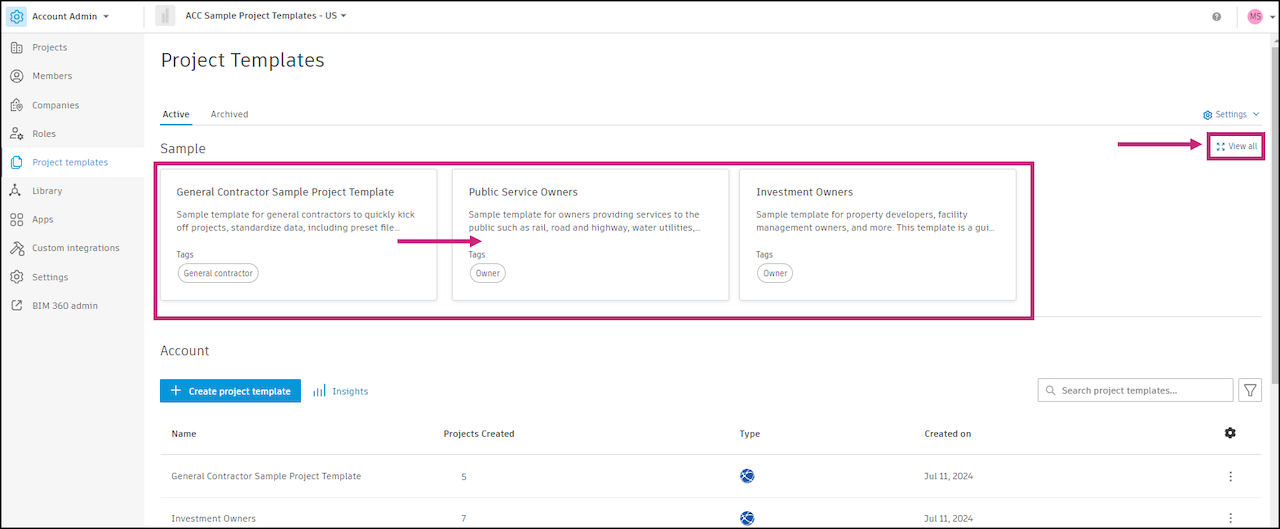
Click a project template card to view more details about the template, or click View all to see all the available templates and then click a project template.
A flyout panel will open with a description of the template, tags identifying the template like firm type or project need, and a list of what is included.
EU Sample Templates
Hub administrators in the EMEA region can now use new sample project templates tailored to their specific needs or firm type, enabling them to kick off projects faster and smarter.
The following sample project templates are available in the EU data storage region:
- EMEA Buildings Sample Template (English)
- Sample template for buildings project type, making it easier to get started in Autodesk Forma, standardize data collection, and run a best-in-class project. Built based on customer feedback.
- EMEA Roads Sample Template (English)
- Sample template for the roads infrastructure project type, making it easier to get started in Autodesk Forma, standardize data collection, and run a best-in-class project. Built based on customer feedback.
- EMEA Buildings Sample Template (English and Arabic)
- Sample template for buildings project type, making it easier to get started in Autodesk Forma, standardize data collection, and run a best-in-class project. Built based on customer feedback.
- Tailored to the needs of the Middle Eastern market.
- EMEA Roads Sample Template (English and Arabic)
- Sample template for roads infrastructure project type, making it easier to get started in Autodesk Forma, standardize data collection, and run a best-in-class project. Built based on customer feedback.
- Tailored to the needs of the Middle Eastern market.
To use the matrices:
- Save the sample template to your hub.
- In the template, navigate to the product you are configuring this template for. Learn more in:
- Navigate to Files.
- Apply the appropriate permissions to the folders using the matrix.
- Use the template for all relevant projects from now on.
These best practices will minimize the manual effort required to apply permissions to each project so that your projects run smoothly and efficiently with the provided templates.
Save Sample Project Templates to Your Hub
You can save a sample project template to your hub to make it your own and customize it further to make it available for your team to use.
- Click a project template card.
- Click Save to hub in the flyout panel.
- Enter a name for the project template.
- Click Save as template.
The template you created will now be available in the Hub templates section in Project Templates. If you publish it, it will be available for all your hub members to use it to create projects. Learn more about configuring project templates.
Create Projects From Sample Project Templates
You can quickly create a project from a sample project template.
- Click a project template card.
- Click Create project in the flyout panel.
- Enter the required information: Name, Hub, and Project type. Learn more about creating projects.
- Click Create project.