Project Templates
Project templates allow administrators to streamline the process of creating multiple projects with similar configurations. Administrators can configure project settings for various products and tools in project templates including setting up members, standard files, and much more.
Project templates can be configured for the following products and tools:
- Data Management
- Design Collaboration
- Preconstruction
- Build
- Cost Management
- Design
- Hub administrators can restrict project administrators from creating projects and templates. Learn how in Hub Settings.
- Standard administrators can access Project Templates in Hub Admin.
Project Templates in Hub Admin
Project templates can be created from the:
In this topic, you'll learn how to use the Project templates tool in Hub Admin to:
- Create Project Templates
- View and Manage Project Templates
- View Project Template Insights
- Archive Project Templates
Create Project Templates in Hub Admin
Navigate to Hub Admin.
Click Project templates on the left navigation.
Click Create project template.
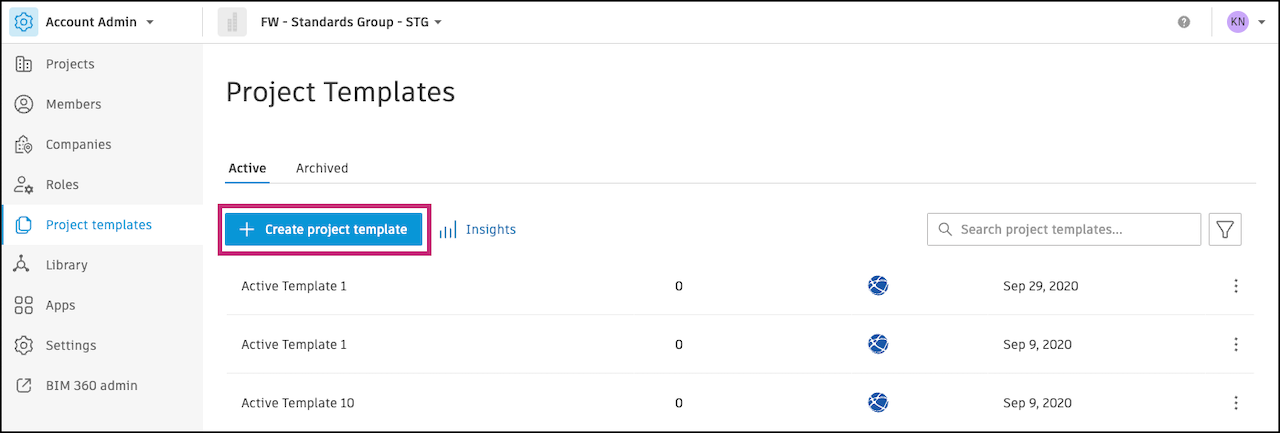
Choose to Create blank template or Create template from existing project.
Click Next.
Enter a template name.
If creating from an existing project, select a project to create your template from.
Click Create template.
After the template is created, you will be brought to the Template members page in the template. Add team members and start editing the template. Learn more.
View and Manage Project Templates in Hub Admin
You can find active and archived project templates in the Project templates tool in Hub Admin.

In the Active tab:
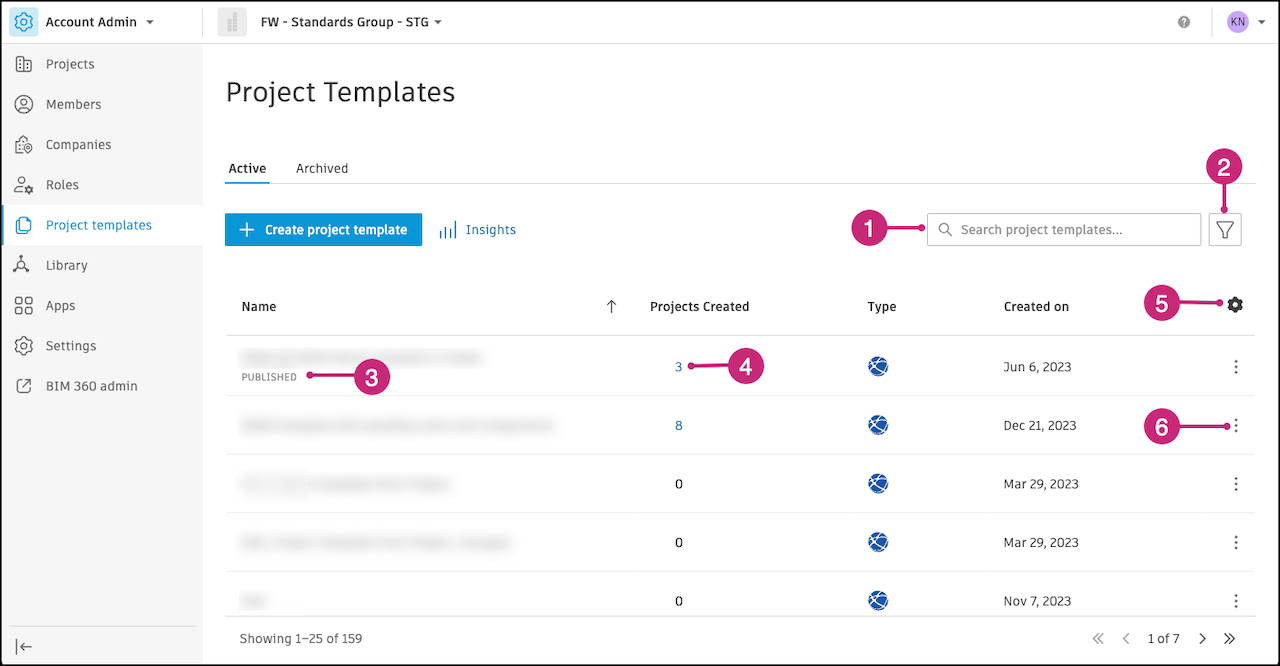
Search for project templates by name.
Filter by template status: All, Published, or Unpublished.
A project is published when it is available for all project members to use to create projects. You can choose to publish or unpublish a template using the More menu
 .
.When a template is published, it will have PUBLISHED underneath the name.
The Projects created column shows the number of projects that have been created from that template. Hover and click the linked number. A pop-up window will show a list of projects that were created from that project template.
Click the
 to hide and reorder columns or change the view density. The Name column must be visible.
 Click the More menu
to perform actions from the template: - Publish or unpublish the template to control whether your team can use it to create projects
- Create project
- Create copy
- Edit name
- Archive
View Project Template Insights
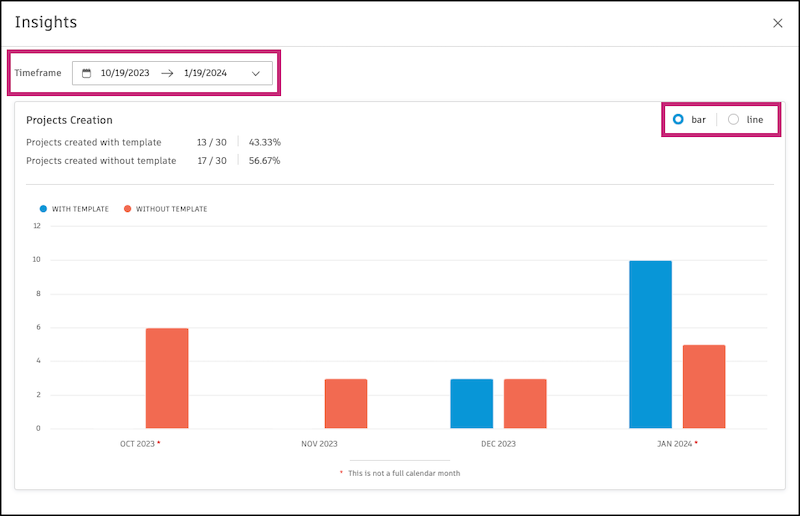
For the project templates in your hub, you can access a dashboard of analytics which include the number of projects that were created using a template. This data can help you make more informed decisions around how to promote standardization and see the actual adoption of your project templates.
To access project template insights:
In Hub Admin, click Project templates on the left navigation to open the Project Templates tool.
Next to Create project template, click
 .
.In the dashboard, you can see how many projects in your hub were created from templates and adjust the timeframe shown or choose between a bar or line graph.
Archive Project Templates in Hub Admin
In the Active tab of the Project templates tool, click the More menu
next to a project template. Click Archive.

Archived templates live in the Archived tab in the Project templates tool.
Restore Project Templates in Hub Admin
In the Archived tab of the Project templates tool, click the More menu
next to a project template. Click Restore.
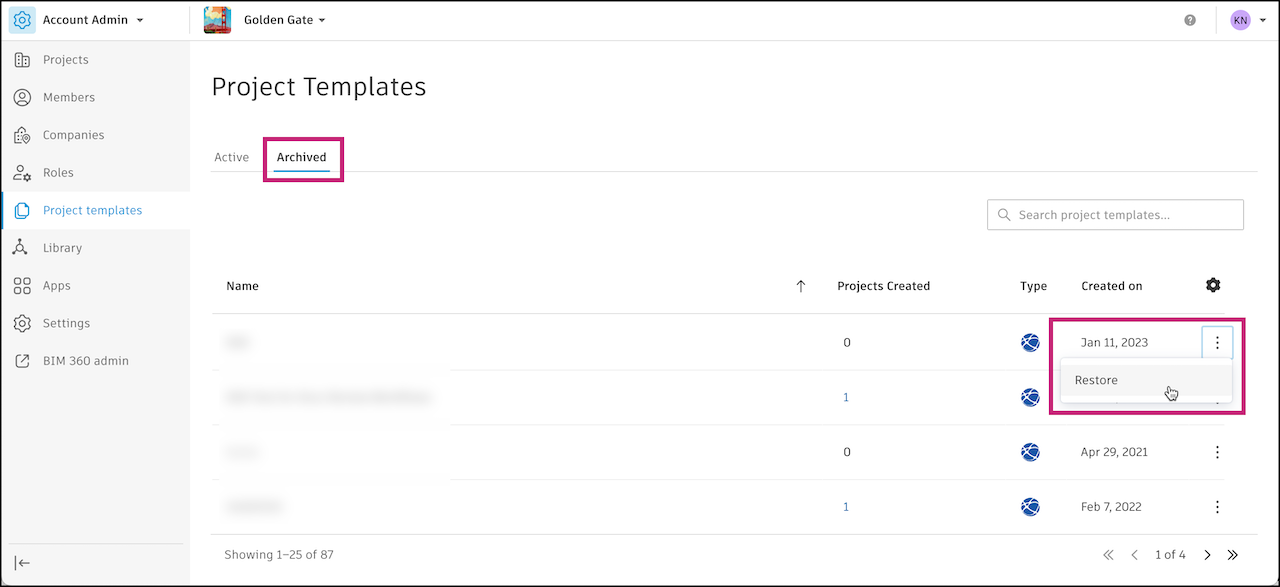
The project template will move to the Active tab and can now be used again by your members to create projects.