Assemble Handover Package with Forma Build
With Forma Build, Handover packages can include project files and project data, such as issues, submittals, and RFIs.
In this article:
Add Files to Handover
You can add files from the Files tool or create a folder for files you want to export to a handover package.
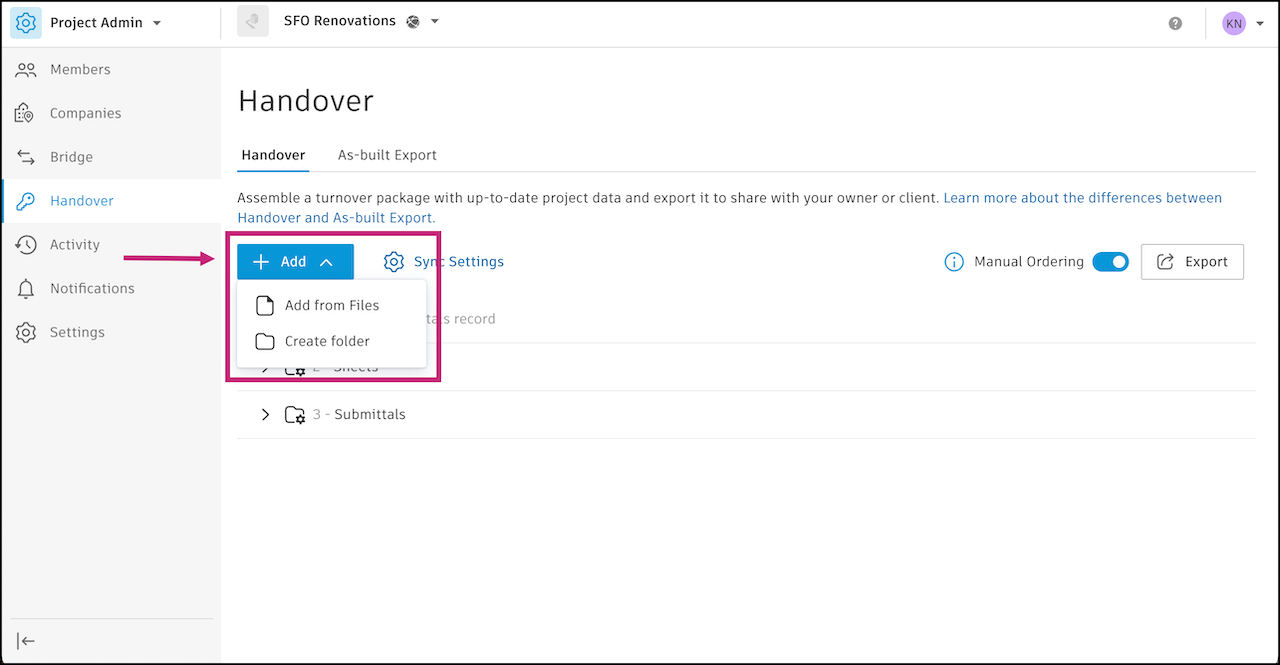
In the Handover tab, click Add.
Select Add from Files or Create folder.
Add from Files: Your project files from the Files tool appear. Select files and folders to add to the package.
To select a range of files, click the first file, then press and hold Shift and click the last file.
Tip: You won't be able to rearrange the contents of a folder that you add as a whole. If you want to rearrange how subfolders and files are displayed in your package, select them individually instead of the top-level folder.Create folder: A new folder appears. Enter a folder name and press Enter to save it. You can drag files into it later after adding them from Files as mentioned previously.
After you add files and folders to Handover:
- Changes to the source files and folders sync to Handover automatically.
- If an item has the same name as an existing file or folder, Handover adds (1) to the end of its name.
- If an item has the same name as a default folder, such as RFIs, Sheets, Submittals, Issues, or Assets, Handover can't add it. Rename the item and try again.
By default, Handover lists folders first, then files, in alphanumeric order. The exported package uses the same order shown in Handover. You can rearrange the order of files and folders. See Organize Folders in Handover for more information.
Configure Build Data for Handover
By default, the Handover tab displays these folders:
These synced folders pull the latest data from the matching Forma Build tools, so you can export that data in a package.
To customize the data that syncs into these folders and add project data:
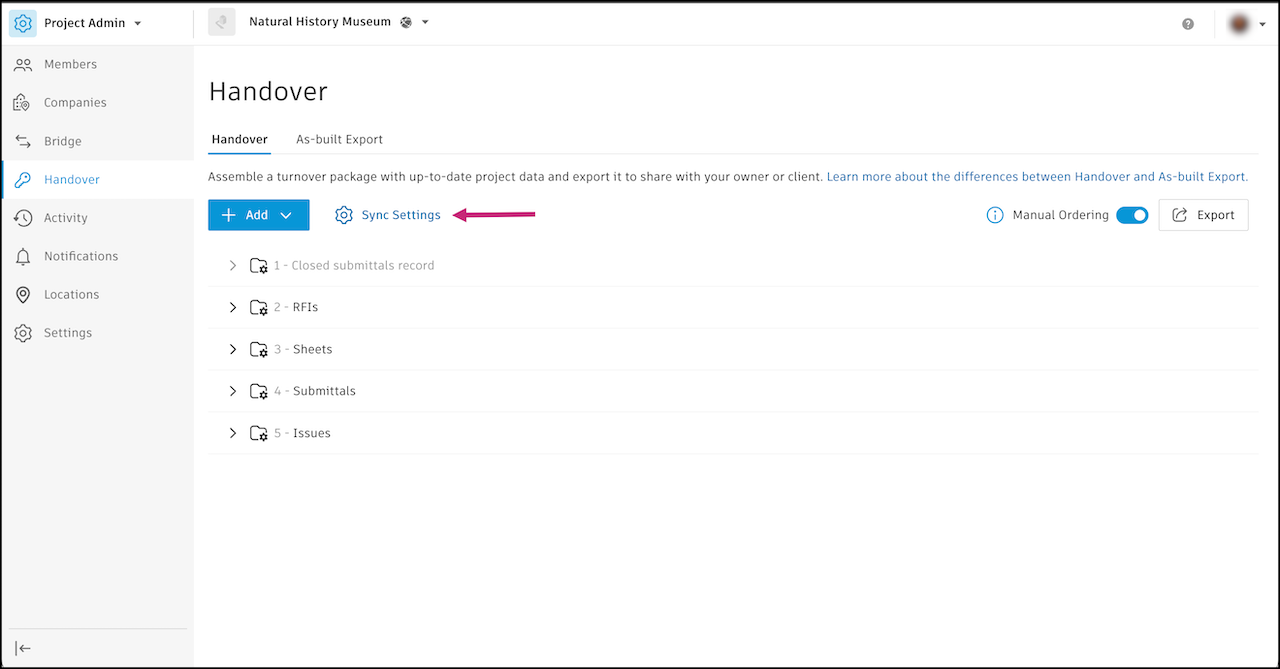
Click Sync Settings.
Tip: You can also hover over a synced folder, click the More menu icon at the far right of the row, and select Sync Settings.
Select or deselect the project data you want to include in the Handover export.
Use the options to narrow the data to export:
- Assets: Include assets from specific categories and statuses.
- Forms: Include all forms or Closed and Archived forms only.
- Issues: Include all issues or Closed issues only.
- Photos: Include all photos. On projects with the new Photos experience, you can also select the albums to include. Projects with the old Photos experience can export all photos only.
- RFIs: Include all Closed RFIs.
- Sheets: Include current or all versions of sheets. You can also choose Published markups only or Published markups linked to RFIs only.
- Submittal Attachments: Include attachments from all submittals of a certain type, or only from Closed submittals of that type. For example, include either:
- All attachments from O&M Manuals and Warranty/Guarantee submittals
- Only attachments from Closed O&M Manuals and Warranty/Guarantee submittals
- Submittal Reports: Include reports for all submittals, or only for Closed submittals of a certain type.
Click Save.
Include references and attachments in Handover export
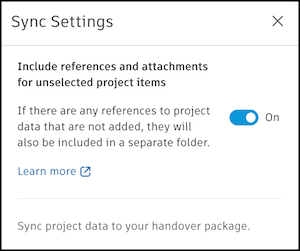
To include references and attachments from project items that aren't selected for export, turn on Include references and attachments for unselected project items at the top of Sync Settings.
For example, if you select Sheets but not RFIs for export, and a sheet references a closed RFI, the export includes that RFI in a separate References and Attachments folder. This folder provides offline access to supported references and attachments without needing to return to Autodesk Forma.
- Supported references and attachments include the same project data types available in Handover: assets, sheets, files, forms, issues, photos, RFIs, and submittals.
- Project links to references or attachments that aren't included in the export package are disabled to prevent broken links. For example, if an RFI references a file that isn't included in the export package, the project link to that file is disabled.