
About Photos - New Experience
Beginning March 24, 2026, projects created in Forma Build will use the updated Photos tool experience. This release introduces new features that improve how you organize and manage project photos.
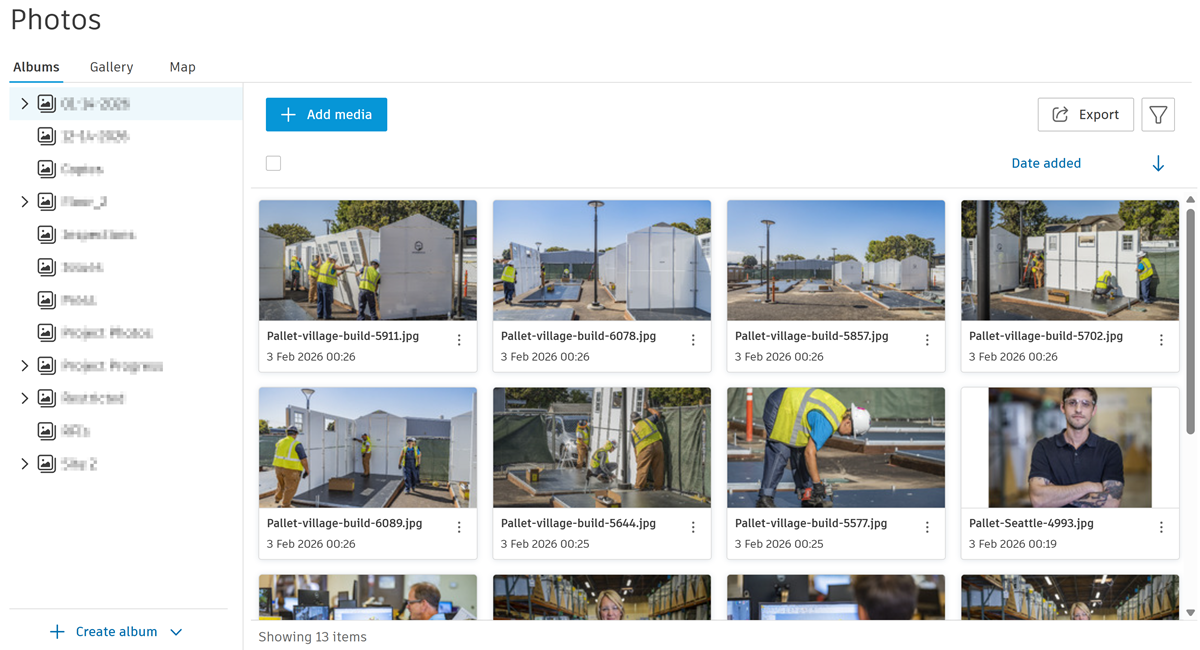
The Photos tool now includes albums to help you organize project media into structured containers. When albums are created, you can control access and actions by adding permissions which are inherited by any sub-albums which are created.
You can view photos in the Gallery and Map tabs and now Maps includes a filter panel so you can refine the display of photos with GPS location data. Note: You can view a feature comparison for the old and new experience help topic for a functionality comparison between the old and new experience.
Getting Started
The table below outlines recommended steps to help you begin using the Photos tool.
| Step | Action | Description |
|---|---|---|
| 1 | Install or update Autodesk Forma mobile app mobile app to the latest version. | This is required to access Photos on mobile. You need version 7.73 (released February 26, 2026) or later |
| 2 | Create albums and sub-albums | This is required to organize your project photos. |
| 3 | Add permissions to albums | Control access to album photos. |
| 4 | Turn on autotag settings if necessary | If you use autotags, enable the autotag setting to automatically add tags to newly uploaded photos. |
| 5 | Upload media to albums | Upload photos and videos in supported file types. |
| 6 | View and edit media details and references | View the photo metadata and edit other details such as location, description, title, tags, and autotags |
| 7 | Create a report | You can create a PDF report which displays specific photos and data. Use search and filter to define which photos are included. |