Download Source Files
Both Download source file and Export save a copy of the file in your local downloads folder, however there are differences between the two actions:
Download source file: Downloads a copy of the file.
Export: You can choose to include standard published and unpublished markups, manually added markup references, and published and unpublished issues and photo markups. This involves more preparation for files.
If you want to download Revit Cloud Models with their linked files, see the Download Options for Revit Cloud Models section.
Note: See the File and Folder Actions help topic for other actions you can access from folder tree, action bar, and files list.
- Permission Required to Download Source Files
- Limitations
- How to Download Source Files
- Download Options for Revit Cloud Models
Permission Required to Download Source Files
You need View + Download folder permission or above to download files, and folders that contain files.
Limitations
You can't download:
Known issue
There is a known issue on Safari and Firefox browsers that prevents a download if the domain of your web server, for example acc.autodesk.eu, is different from the download server, acc.autodesk.com. As a work-around in Safari, go to Preferences > Privacy tab > and disable the Prevent cross-site tracking option. As a work-around in Firefox, click the Shield icon to the left of the address bar and toggle the switch to turn off Enhanced Tracking Protection.
How to Download Source Files
Enable pop-up dialog boxes in your browser settings to download source files.
If you want to download:
- A single file or folder: Right-click the file and click Download source file.
- Multiple files and / or folders: Select the relevant files and folders, right-click one of the selected items and click Download source files.
You can now append up to five attribute values to the file names. If you don't want to do this, click Download.
Note: Attributes will only be appended to directly selected files. They will not append to files in selected folders.Turn on Append attribute values to file names.

Click Select attributes.
You can select from any custom attributes and the following system attributes:
- Description
- Version
- Size
- Last updated
- Updated by
- Review status
- Version added by
Make your selections as required and click Select.
Note: Format shows how the attributes display in the file name. You can drag the selected attributes to change the order as necessary.Click the Delimiter field to choose hyphen, point, or underscore as the delimiter.
Click Download.
Click OK to close the pop-up dialog box reminder.
A copy of the file will download to your local drive.
Important: Operating systems don't allow file names with special characters <>:"/\|?*. If the appended attribute values contain special characters, we will replace these with underscores _ so files can be unzipped successfully after downloading or exporting.
Download Options for Revit Cloud Models
Revit Cloud Models (RCMs) published after June 25, 2025 will no longer automatically include any linked files.
When you select a single RCM published after June 25, 2025 with linked files, you can now choose to download only the host model or also include its linked files.
The new setting is available in the Files tool and the Packages tool.
The following table details the key changes to the relevant download scenarios:
| File type | Download scenario | Published before June 25, 2025 | Published after June 25, 2025 |
|---|---|---|---|
| RCM with published linked files | Select the host file directly in Files/Packages and download | Only the host file | Members will have options to: • Download the host file only • Download the host with all linked files |
| RCM with unpublished linked files | Select the host file directly in Files/Packages and download | A ZIP file including the host file and linked files | Members will have options to: • Download the host file only • Download the host with all linked files |
| Select the folder containing the host file in Files and download | A ZIP file including the host file and linked files | Only the host file | |
| Copy the host file to a target folder and download from the target folder | A ZIP file including the host file and linked files | Only the host file | |
| Bridge the host file to another project and download from the target folder | A ZIP file including the host file and linked files | Only the host file | |
| Transmit the host file and download from the transmittal zip pack | A ZIP file including the host file and linked files | Only the host file | |
| Share the host file publicly and download using a public link | A ZIP file including the host file and linked files | Only the host file |
To download an RCM published after June 25, 2025 that contains links:
Select a single RCM file.
Right-click the file and select Download source file.
In the download panel, you'll see Download options:
Host file only (selected by default): Downloads only the selected RCM as an RVT file.
Host file and linked files: Downloads the selected RCM and its linked files as a ZIP file
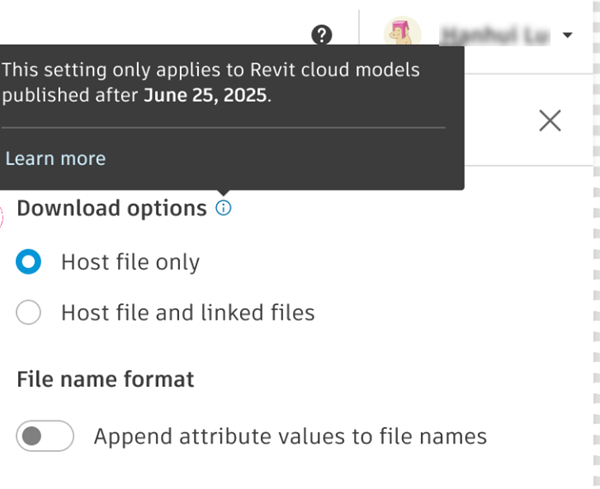
Select your preferred option.
If you want to append attribute values to file names, follow steps 3-6 of How to Download Source Files.
Click Download.