Share Files and Folders with Project Members
You can send links to share files and folders with other project members who have View permission or above for easy access.
In Files, select the files or folders you want to share.
- For a single file or folder, select the checkbox next to the file or folder. Click the More menu
 next to the item and select Share.
 - For multiple files and folders, select the checkboxes next to the files or folders. Click
 in the header.
- For a single file or folder, select the checkbox next to the file or folder. Click the More menu
Select Project members with view-only access or higher to email or copy links to files or folders.
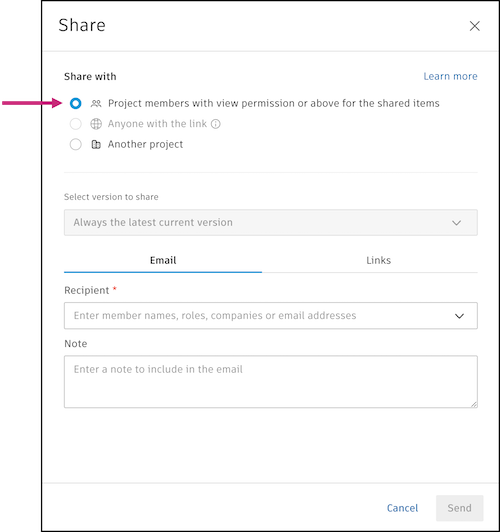
(For files only) Select one of the following version options:
- Always the latest current version
- Only the current version fixed at time of sharing
Choose one of these methods to share:
Email: Send an email with a links to the selected files or folders.
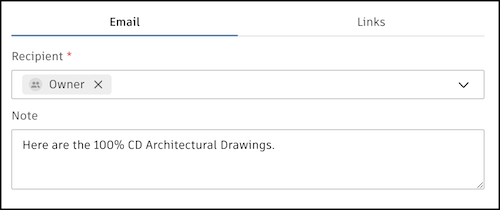
- Click the Email tab.
- Click the Recipients field.
- Select the checkboxes next to any user, role, or company, or start typing to bring up suggestions.
- Click Save after your selections are made.
- (Optional) Add a note to include in the email.
- Click Send.
Links: Copy the links to your clipboard to paste wherever you want to share them.
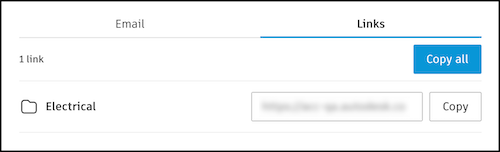
- Click the Links tab.
- Click Copy next to each file or folder you want the link for or click Copy all.
- Click Close.
You can now paste the links from your clipboard to share with other project members.