Associate physical materials with stock materials
Link physical materials to a stock material so they share the same tooling recommendations.
For example:
| Stock material | Physical materials |
|---|---|
| Stainless Steel | Stainless Steel 304, Stainless Steel 316, Stainless Steel 17-4 PH, Stainless Steel 440C |
Add physical materials
On the Manufacture workspace toolbar, click Manage > Stock Materials Library
 .
.The Stock Material Library dialog opens.
In the left panel, select a cloud library.
In the center panel, select a stock material.
Click Edit
 , or right-click the material and select Edit.
The Stock material dialog opens.
Next to Physical Materials, click Add Physical Material
 , then select a physical material from the list.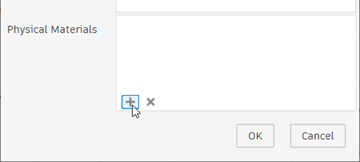
(Optional) Repeat the previous step to add more physical materials.
Click OK.
The physical materials are associated with the stock material.
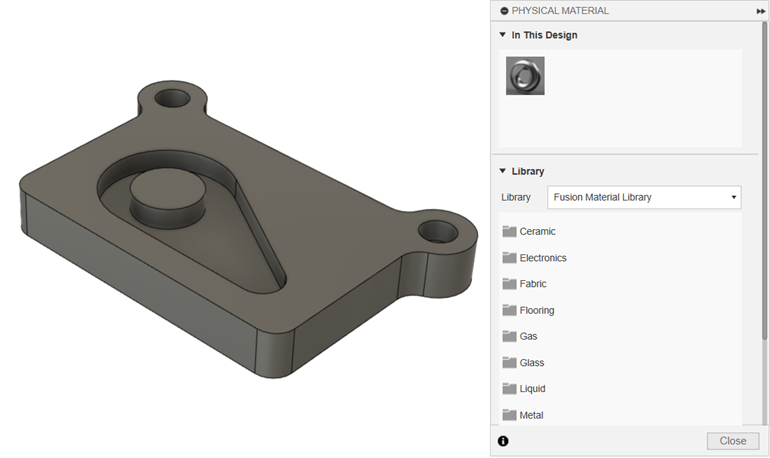
Note: Physical materials are materials assigned to bodies or components in the Design workspace.
Tip: Group materials with similar machining traits. Use keywords for alternate names and standards.