Configure stock materials for tool selection
Use stock materials to find the right tool presets for a setup. Fusion groups the tool presets that match the stock material you select, so you find the right tool faster.
Prepare the stock materials
Create a stock material for each material in your shop.
Associate physical materials with each stock material.
This lets you apply the same tool presets to every material that shares a stock material.
Associate tool presets with each stock material.
Select a tool preset for a stock material
On the Manufacture workspace toolbar, on any tab, click Setup > New Setup
 .
.The Setup dialog opens. By default, Fusion selects the stock material based on the physical material of the model. For example, if the physical material is Steel, Fusion selects the stock material Low-Carbon Steel.
Note: If you don't assign a physical material to the model, Fusion assigns the default physical material, Steel. To change the default, in the Preferences dialog, go to General > Material > Physical Material Name.(Optional) To change the stock material, on the Stock tab, in the Stock Material group, click Select, then select a stock material in the Stock Material Library.
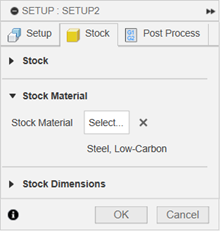
Complete the Setup dialog, then click OK.
Create an operation. In the strategy dialog, on the Tool tab, in the Tool group, click Select.
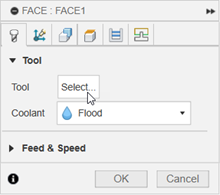
The Select Tool dialog opens.
In the middle, upper panel, select a tool.
In the middle, lower panel, select a tool preset from the group that matches the stock material.
Fusion groups the tool presets into those that match the stock material selected in the setup and those that do not.
Click Select.
The Select Tool dialog closes, and the operation uses the tool preset you selected.