Associate a tool preset with a stock material
Associating tool cutting-data presets to stock materials ensures that the most appropriate cutting parameters are applied for each material, enhancing machining efficiency and consistency.
On the Manufacture workspace toolbar, on any tab, click Manage > Tool Library
 .
.In the Tool Library, in the middle panel, select the tool, then click Edit tool
 .
.In the dialog that opens, select the Cutting data tab.
Select the preset to which you want to associate the stock materials or click Add preset
 if the preset does not exist.
In the Stock material association group, click Edit stock material association.
The Edit stock material association dialog opens.
In the Filter by type list, choose a material type to narrow down the list to stock materials in the selected category.
For example, selecting Metal lists only the stock materials categorized as Metal:
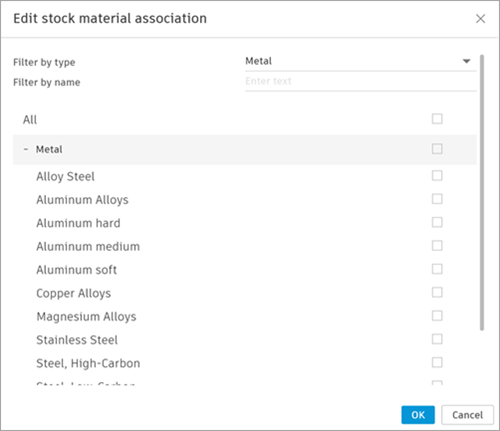
In the Filter by name box, type a search term to further refine the list of stock materials. This search matches the term against the stock material's name, keywords, or associated physical materials.
In the list, select the stock materials to associate with the preset:
- To select all stock materials, select the All checkbox.
- To select all stock materials in a category, select the checkbox next to the category name, for example, Metal.
- To select only some stock materials in a category, select the checkbox next to each stock material name.
Click OK.
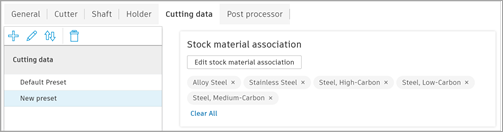
The selected stock materials appear in the Stock material association group. For example:
Finish updating the settings in the Cutting data tab.
Repeat steps 4 to 10 to continue associating different presets to stock materials.
Click OK.
By associating a tool's cutting-data presets with stock materials, you ensure that the most appropriate cutting parameters are applied for each material, enhancing machining efficiency and consistency.