Work with stock materials
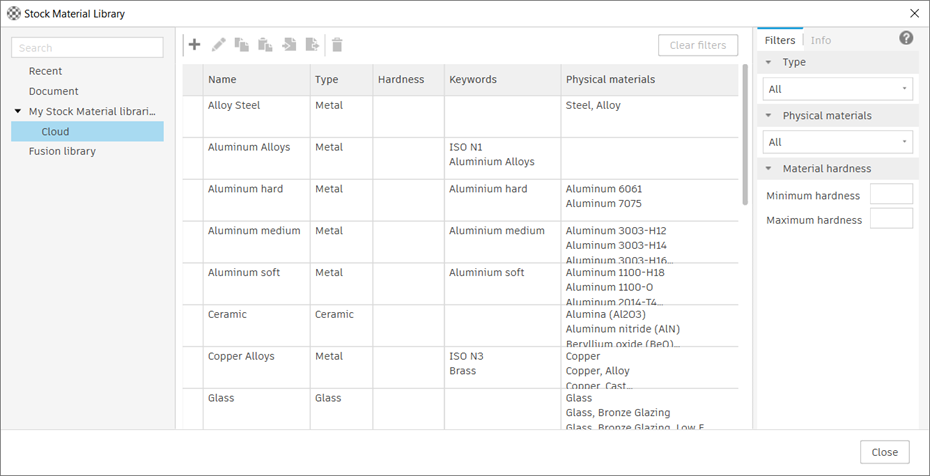
Create, edit, duplicate, delete, and organize stock materials in the Stock Material Library dialog.
Create a stock material
On the Manufacture workspace toolbar, click Manage > Stock Materials Library
 .
.The Stock Material Library dialog opens.
In the left panel, select a cloud library.
Click Create
 .
.In the Stock material dialog, define the stock material:
- In the Name box, enter a name for the stock material.
- In the Type list, select a material type to categorize the stock material. For example, select Metal for Low-Carbon Steel.
(Optional) Add more information:
- In the Hardness box, enter a hardness value, then in the Hardness Unit list, select the unit.
- In the Keywords box, enter alternative names for the stock material. Press Return to separate multiple entries.
- Next to Physical Materials, click Add Physical Material , then select a physical material from the list.
Click OK.
The new stock material appears in the library.
Edit a stock material
On the Manufacture workspace toolbar, click Manage > Stock Materials Library
.The Stock Material Library dialog opens.
In the left panel, select a cloud library.
In the center panel, select a stock material.
Click Edit
 , or right-click the material and select Edit.
In the Stock material dialog, modify the material properties.
Click OK.
The changes are saved to the stock material.
Duplicate a stock material
On the Manufacture workspace toolbar, click Manage > Stock Materials Library
.The Stock Material Library dialog opens.
In the left panel, select a cloud library.
In the center panel, select a stock material.
Click Duplicate
 .
.A copy of the material is added to the same library.
Enter a new name for the copy.
(Optional) Edit the duplicated material to adjust its properties.
Delete a stock material
On the Manufacture workspace toolbar, click Manage > Stock Materials Library
.The Stock Material Library dialog opens.
In the left panel, select a cloud library.
In the center panel, select a stock material.
Click Delete
 .
.Confirm the deletion.
The stock material is removed from the library.
Organize cloud libraries
Create folders under Cloud to organize stock materials into categories that match your workflow. You can move custom libraries between folders as your library grows.