Copper views
A copper view is a flat 2D view of a single copper layer of a PCB that you place on a drawing sheet in an electronics drawing. Use copper views to document the routing on each layer so that fabricators, technicians, and reviewers can inspect and verify the copper on the board.
The following image shows two copper views of the same PCB, with their nodes under Copper Views in the Browser and the Copper View dialog. The Top Copper view uses the standard drawing colors, and the Bottom Copper view uses the layer color from the electronics design.
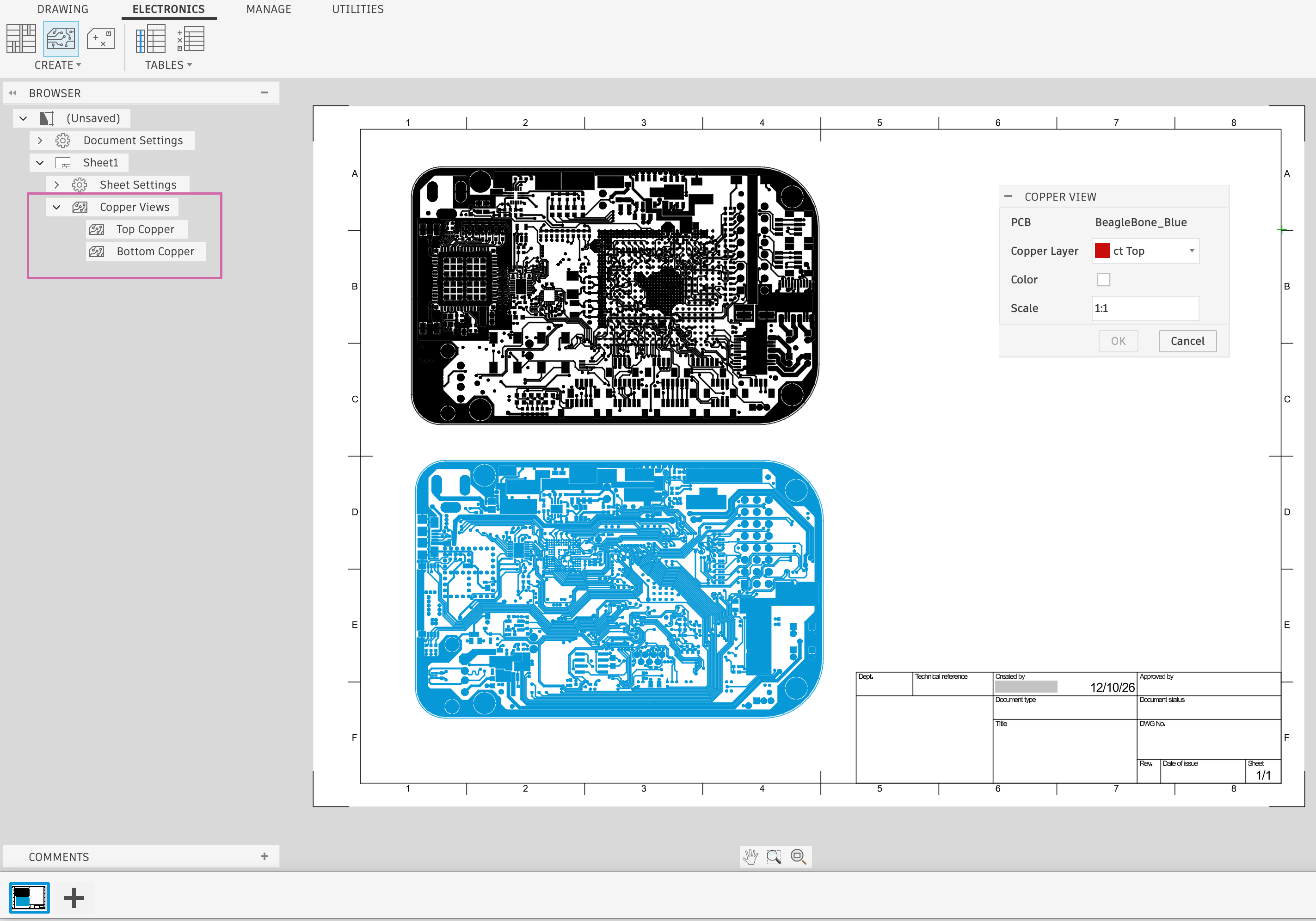
What a copper view shows
A copper view shows the objects drawn on the selected routable layer of the PCB, together with the board outline:
- Board outline and holes
- Routes (wires)
- Pads
- Vias
- Copper pours
- Copper text
A copper view does not show components or silkscreen. To show those objects, use a drawing view of the board.
You can place a copper view for any routable copper layer in the layer stack. Create a separate copper view for each layer to document the routing of a multilayer PCB. For example, place a view of the Top layer and a view of the Bottom layer side by side on the same sheet, or put each layer on its own sheet.
If your drawing is of an assembly that contains more than one PCB, you select the PCB from a drop-down list before you place the copper view.
Color
By default, the Color option is off and the copper view uses the standard drawing colors. When you turn on the Color option, the copper view uses the colors defined for that layer in the Display Layers settings of the electronics design. This makes it easier to tell which layer a view shows when you place several views on a sheet.
Scale
You set the scale of a copper view relative to the physical size of the PCB. At a scale of 1:1, a board that is 100 mm wide in the electronics design is also 100 mm wide on the sheet.
Copper views in the Browser
Each copper view that you place displays as a node in the Browser, under the Copper Views node. The node name shows the layer, for example, Top Copper.
- In an electronics drawing, the Copper Views node displays with the other electronics view nodes, such as Layer Stack and Drills Views.
- In a drawing of a mechanical assembly that contains PCBs, each PCB has its own folder in the Browser, and the Copper Views node displays in the folder of that PCB.
Update copper views
Copper views stay associated with the electronics design. When you change the 2D PCB and run Get All Latest in the drawing, Fusion updates the copper views to match. If the layer that a copper view shows no longer exists in the design, Fusion removes that copper view from the sheet.
To change the copper layer, the Color option, or the scale of a placed copper view, double-click the view on the sheet. When you duplicate a sheet, Fusion duplicates the copper views on that sheet too.