Use context menus in the Electronics Browser
Context menus (general)
Many Browser nodes have context menus for certain actions. Right-click the node (such as the Named Views node, Sheet nodes, or Module instance nodes) to show the context menu for that node. The top-level Schematic node has a menu as well.
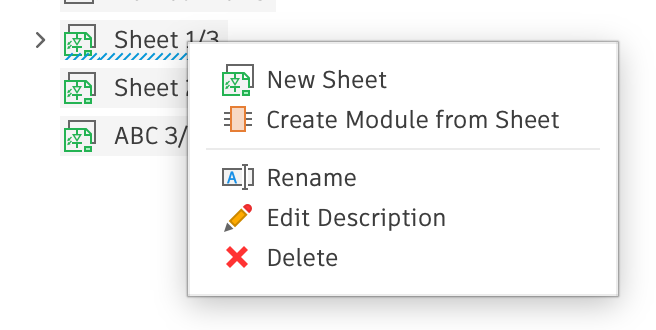
Sheet node menu
Right-click the node to open the context menu.
- New Sheet: Create a new sheet in the current scope
- Create Module From Sheet: Create a new hierarchical module from the chosen sheet
- Rename: Rename the sheet with a custom name, or leave empty for default name
- Edit Description: Edit the Sheet description field with plain text or simple HTML
- Delete: Delete the Sheet from its parent scope
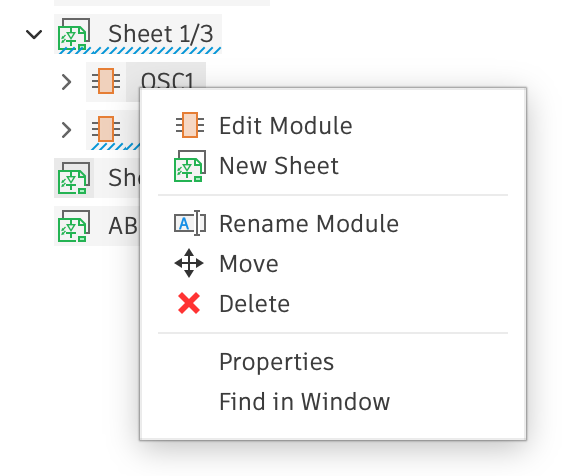
Module instance node menu
Right-click the node to open the context menu.
- Edit Module: Navigates to the first sheet of the module
- New Sheet: Create a new sheet within the module
- Rename Module: Rename the parent module (all instances will be affected)
- Move: Move the module instance. If in Board, all module child objects will be moved.
- Delete: Delete the module instance from its parent Sheet
- Properties: Open properties for the module instance
- Find In Window: Brings the module instance into view, centered on the canvas with zoom set to a standard level
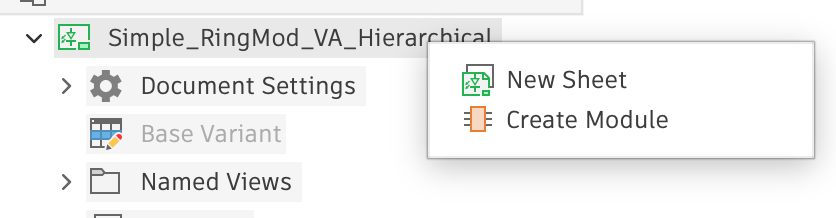
Top schematic node menu
Right-click the node to open the context menu.
- New Sheet: Create a new Sheet at the top level of the schematic
- Create Module: Start the new module creation process (same as Connect/Module menu option)
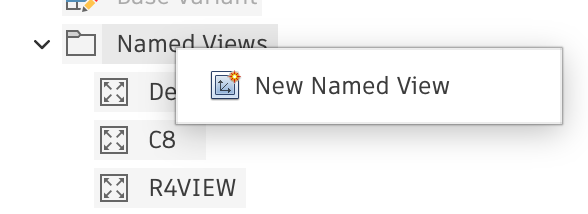
Named View node menu
Right-click the node to open the context menu.
- New Named View: Create a new named view based on the current pan and zoom on the canvas
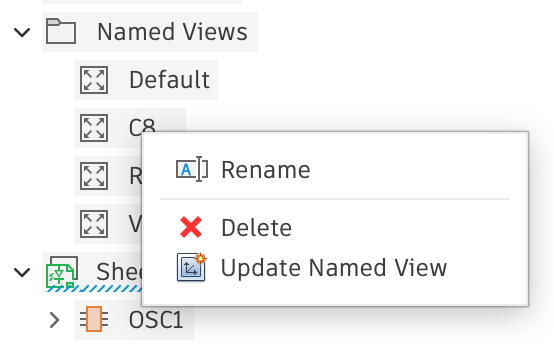
Custom Named View node menu
Right-click the node to open the context menu.
- Rename: Rename an existing Named View
- Delete: Delete an existing Named View
- Update Named View: Reset the existing Named View with the current canvas view