Electronics Browser
Fusion Electronics includes a dedicated Browser for Schematic and 2D PCB, similar to the Browser in other Fusion workspaces. It provides a consistent, structured way to navigate and manage hierarchical electronics designs, helping you stay oriented and work faster as designs grow.
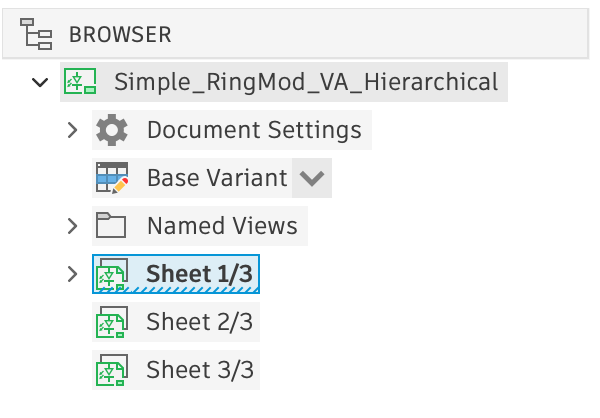
The Browser is a panel like other content in the Electronics workspace. You can dock it, leave it floating, or tab it with other panels (see Electronics persistent panels). The Browser is designed to be transparent when floating, so it can remain in a pinned position over the canvas.
In addition to navigation and hierarchy management, the Browser provides several built-in tools described below.
Sheet previews
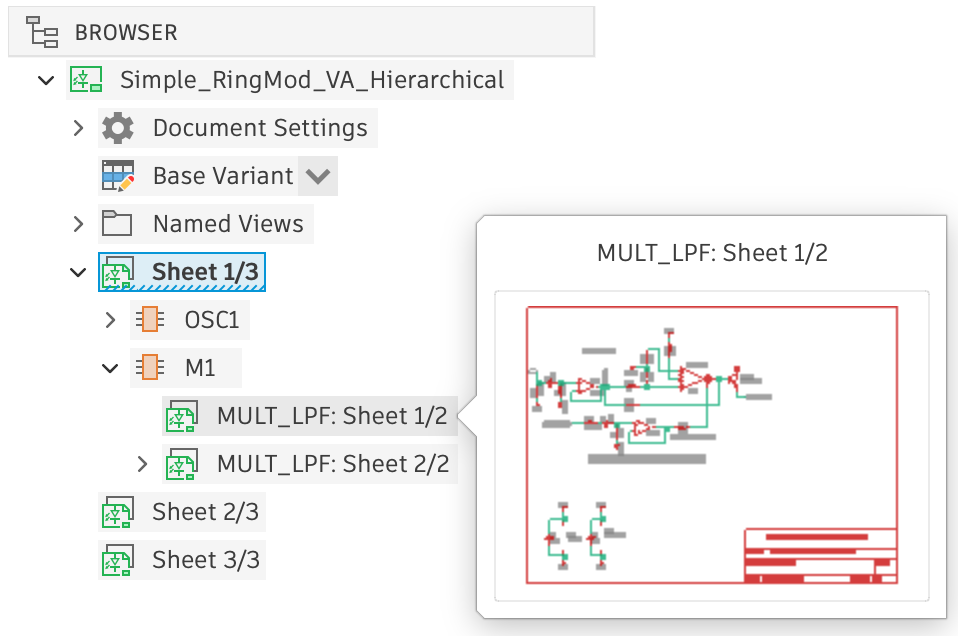
Place the pointer over a schematic sheet node to preview it, making it easier to find the right sheet at a glance.
Named Views
Named Views enable you to save and recall specific canvas views. Create a Named View from the context menu on the top Named View node, and enter a name for the view. This saves the sheet location (if schematic), the zoom level, and the position of the view.
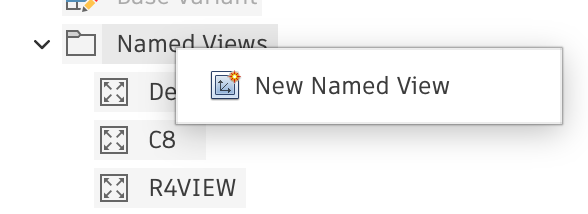
Once you have created a Named View, the context menu on the view includes options to rename, delete, or update the view with the current settings.
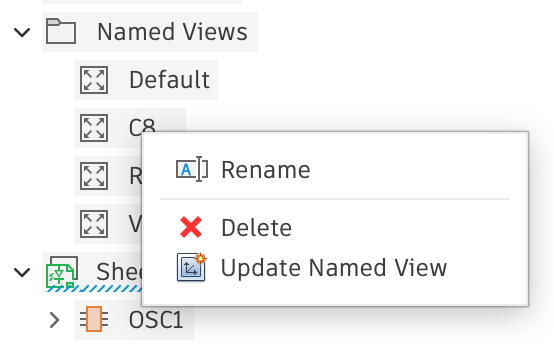
To activate a view, click the Browser node with the view name under Named Views. This moves to the saved sheet (if schematic), restores the saved zoom level, and sets the canvas location to the saved position.
Document settings
The Document Settings node enables quick access to document-level properties such as the Unit. Place the pointer over the Unit node and then click the Edit icon that appears to open the Grid settings dialog.

Find In Window
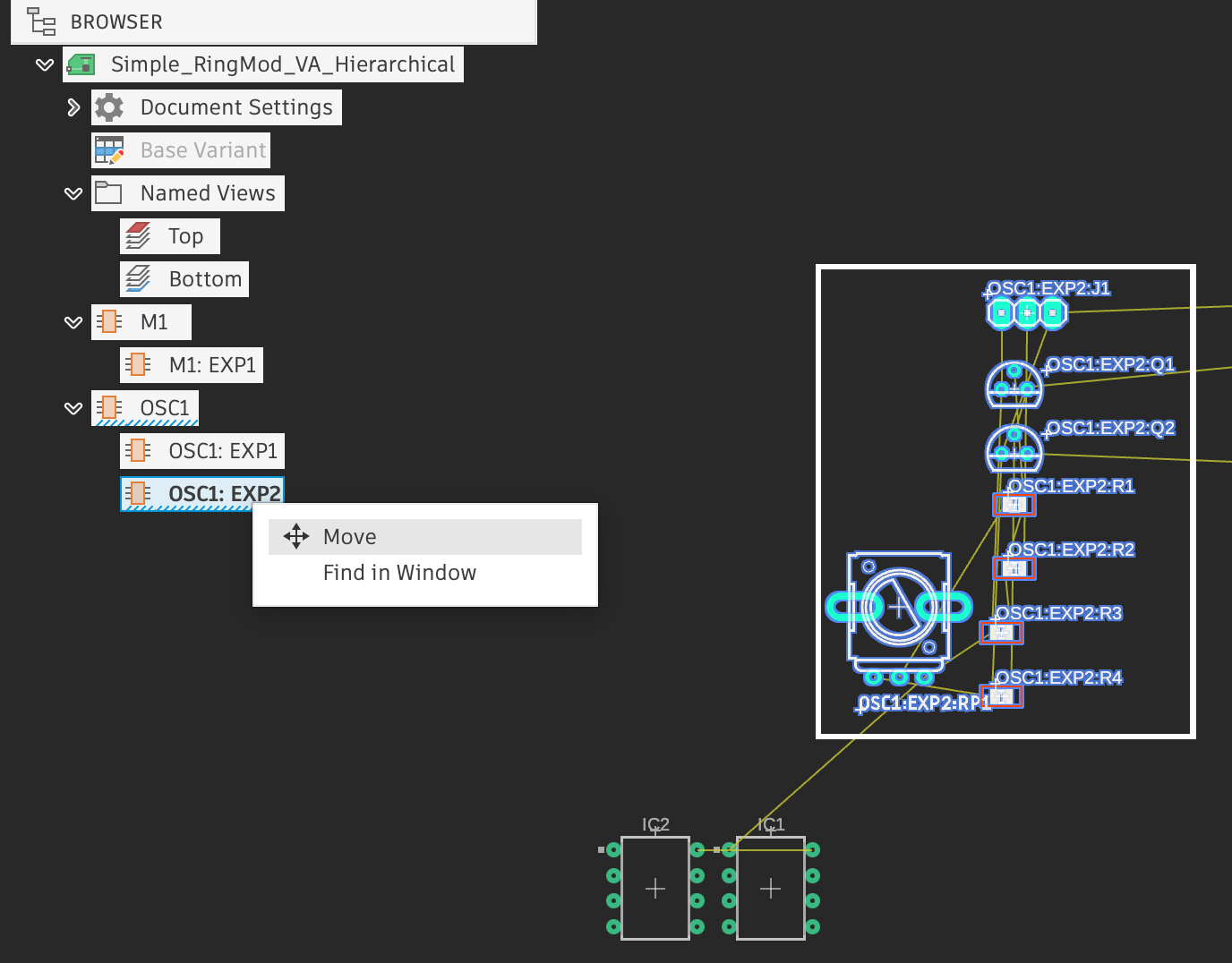
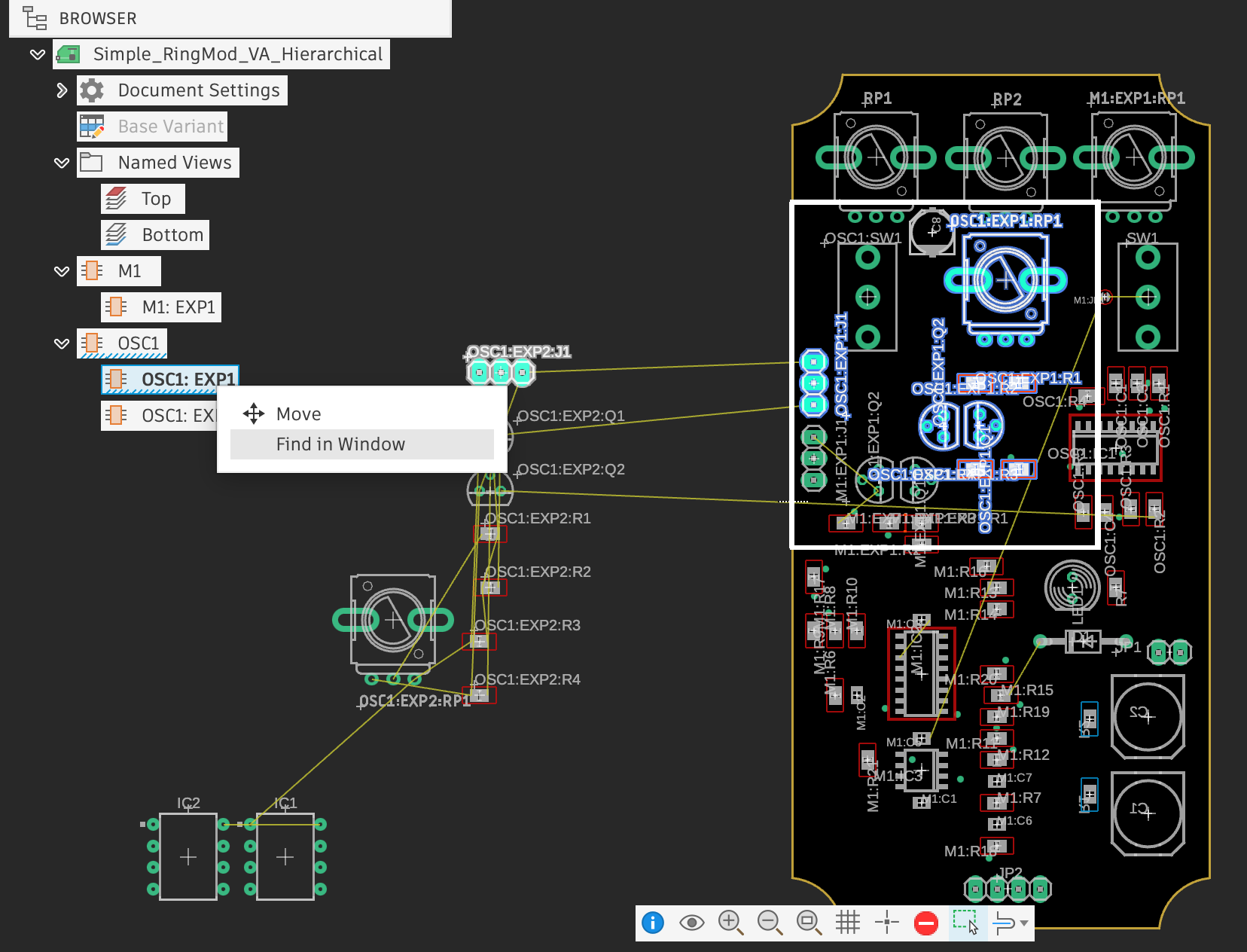
On module instance nodes, choose Find in Window from the context menu to bring the selected object into focus. The canvas zooms and pans to the location of the selected object (or child objects in 2D PCB), and those objects are selected. See Navigate the Electronics Browser for step-by-step instructions.
Clicking a Browser node selects an object but does not move the canvas unless this option is used.
Move
The Browser enables you to move components in both schematic and 2D PCB. On a module instance, choose Move from the context menu to move the instance in schematic, or move all its child objects in 2D PCB.