Access a project or folder
You can access projects and folders from Fusion or the Fusion web client to view and work with your design data. When you access a project or folder, you can see all the content you have permission to view.
Access a project or folder in the Fusion Data Panel
If necessary, in the Fusion application bar, click Show Data Panel
 to open the Data Panel.
If necessary, at the top left of the Data Panel, click Return to project list
 .
.At the top left of the Data Panel, from the drop-down menu, select the project filter you want to use; for example, All Projects.
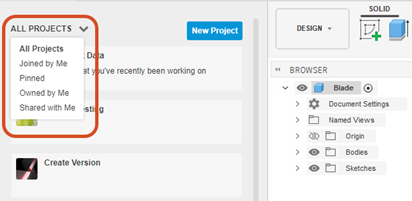
In the project list, double-click a project name.
To access a folder within the project, double-click the folder name.
Optional: To open the folder in the Fusion web client, in the Data Panel beside the folder name, click Open on the Web
 .
.
Access a project or folder in Fusion Home
In the Fusion application bar, click Home
.In the Home tab, find the project you want to access.
Click the project name to open it and view its contents.
To access a folder within the project, click the folder name.
Optional: To open the folder in the Fusion web client:
- Place the pointer over the folder.
- Click More
 .
. - Select Open on the Web.
Access a project or folder in the Fusion web client
If necessary, click Home
at the top left of the Fusion web client to see the list of projects.This is only necessary if you were viewing the Settings or Admin page.
To filter the list, at the top left of the Fusion web client, click Show Projects.
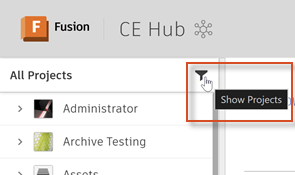
From the drop-down menu, select the project filter you want to use; for example, All Projects.
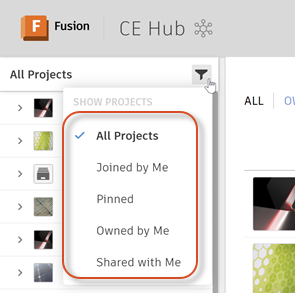
In the project list on the left, click the project name to open it and view its contents.
To access a folder within the project, click the folder name.
Expected Outcome
After accessing a project or folder, you can view all the content you have permission to see, including:
- Designs and drawings
- Other folders
- Project information and settings
From here, with the proper permissions, you can open designs for editing, create new folders, or manage project content.