Search Fusion projects
You can search for Fusion data from Fusion Home, Data Panel, and the Fusion web client.
Search in Fusion Home for designs and properties
Use the Search box at the top of Fusion Home to search for designs and properties.
In Fusion Home, go to My Fusion or Projects.
Click inside the top Search box.
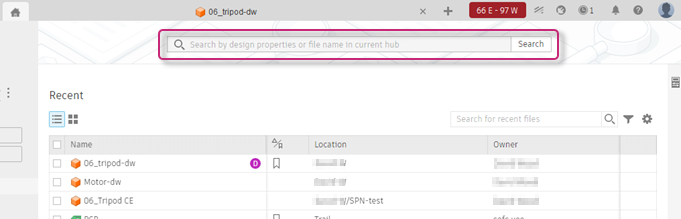
Enter a property value, design name, or file name that you want to find.
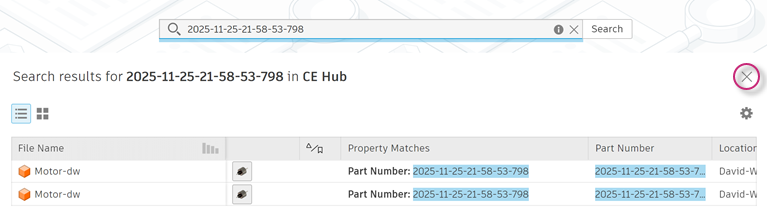
Search results are shown. All matches are combined into one list.
Click Close (X) to return to the previous page.
Search in Fusion Home Projects and Recent pages
Use the lower Search box, on the right side of Fusion Home, to search in the Recent and Projects pages.
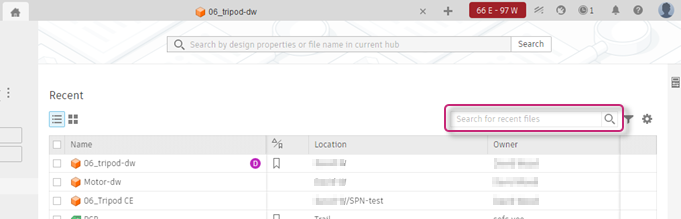
In the Recent page, use Search to find matching component names.
In Fusion Home, click Recent on the left.
Enter a term in the Search box.
Click Filter
 to show options for narrowing search results:
- Date Modified
- File Types
- Versions and revisions
Click Clear filters to clear your selections.
In the Projects page, you have more control of where and what you want to search for. By default, Fusion looks for files and folders in the current hub.
In Fusion Home, click Projects on the left.
Enter a term in the Search box.
Use the Search for
 drop-down menu to change what you search for and where. Fusion will search not just names, but also contents, including referenced components and part numbers.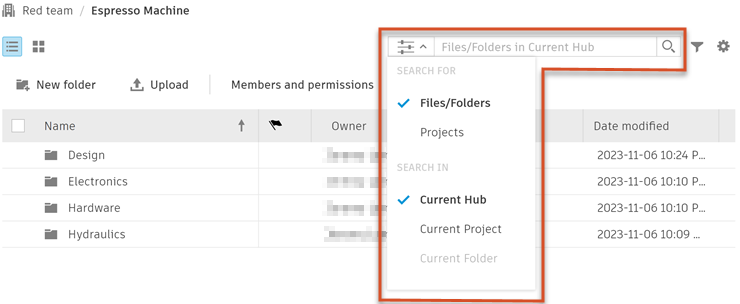
If you narrow the search to Projects, Fusion will search for any matching project names in the current hub and disable the Current Project and Current Folder options.
Note: If you stop using Fusion for a year, you will not be able to search for component contents unless they have been updated.
Search for designs and files in the Data Panel
Use Search in the Data Panel to find design and file names.
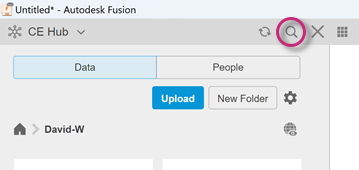
At the top of the Data Panel, click Search
 .
.
Enter text to search for a design or file name.
Fusion searches your most recently-accessed project and shows the results.
Click Back
 to return to the Data Panel.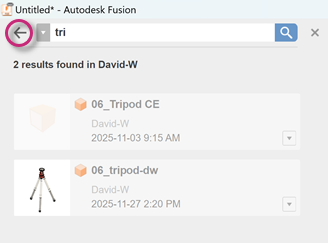
Search for designs and files in the Fusion web client
Use Search in the Fusion web client to find design and file names.
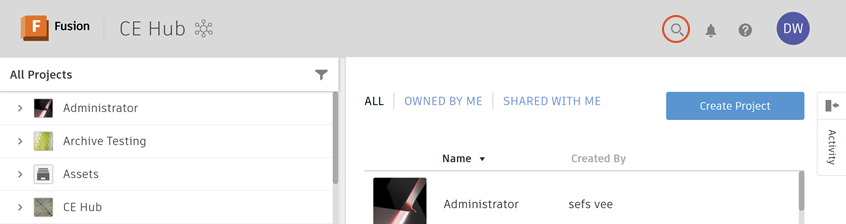
At the top of the Fusion web client, click Search
.
Enter text to search for a design or file name.
In your browser, click Back to return to the previous page.