Change a hub member's role
As a hub admin, you can change a hub member's role to adjust their access and permissions in the hub.
In the Fusion web client, click your profile image in the top-right corner.
Click Admin > Members.
In the Members tab, click the name of the member whose role you want to change.
A side panel with the member's details opens.
In the Manage hub access section, click the drop-down menu:
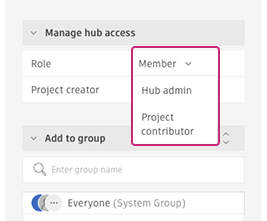
Member: Can create and save Fusion designs
Hub admin: Can manage member permissions, hub settings, security, and other admin tasks
Note: Avoid using the Project contributor role. It's a legacy role no longer in use in Fusion.
Select a role.
(Optional) Toggle Project creator if you want this member to create new projects.
Role change rules
| Current role | Can change to |
|---|---|
| Member | Hub admin, Project contributor |
| Hub admin | Member |
Role changes take effect immediately and update the member's access throughout the hub. You may also want to change the member's role for specific projects. See Change or remove the role of a project member.