Add members to a group
In the Fusion web client, hub admins can add members to a group using either the Groups page or the Members page.
Add members to a group from the Members page
Select the member you want to add to a group.
A side panel with the member's details opens.
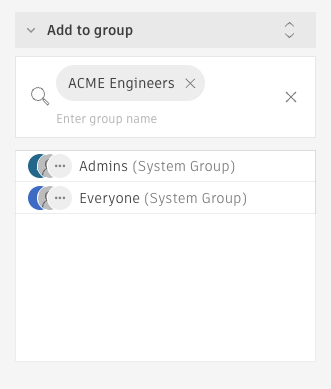
In the Add to group section, type the group's name into the field, select from the drop-down list, and press Enter.
Add members to a group from the Groups page
Select the group you want to add members to.
A side panel with the group's details opens.
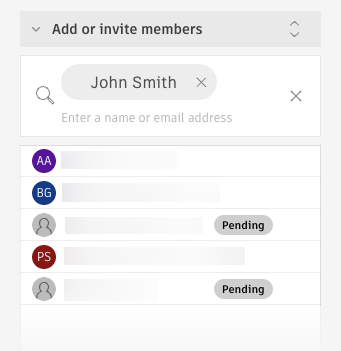
In the Add or invite members section, type the member's name into the field, select from the auto-generated list, and press Enter.
To add people from outside the hub, type their email addresses separated by commas and press Enter. They'll receive an invitation to join the hub and appear in the list with a Pending status.
The member is added to the group.