Remove members from a group
Hub admins can remove members from a group using either the Groups page or the Members page.
Remove members from a group using the Members page
Select the member you want to remove from a group.
A side panel with the member's details opens.
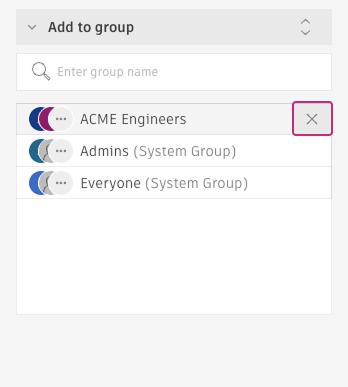
In the Add to group section, locate the group you want to remove:
- Scroll through the list, or
- Type the group's name in the search field to locate it quickly
Hover over the group's name and click the X.
Remove members from a group using the Groups page
Select the group you want to remove members from.
A side panel with the group's details opens.
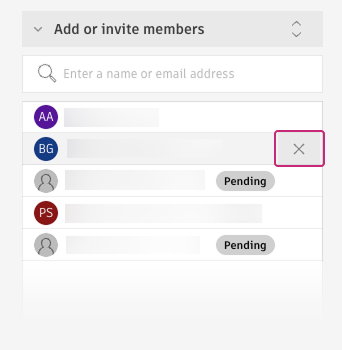
In the Members section, find the member you want to remove:
- Scroll through the member list, or
- Type the member's name in the search field to locate them quickly
Hover over the member's name and click the X.
The member is immediately removed from the group and loses access to any projects or workspaces that were granted through this group.
Note: System groups, like Everyone and Admins can't be modified. If you want to remove a member from the Admins group, you'll need to change the member's role. If you want to remove a member from the hub, you'll have to deactivate the member.