Create lofted flange
Create a sheet metal flange that connects two selected profiles with transitional shape.
On the Sheet Metal tab, select Create > Lofted Flange
 .
.The Lofted Flange dialog appears.
On the canvas, select two open or two closed sketch profiles.
Note: The sketch profile geometry must consist of straight lines and arcs. If you need to use spline profiles, use the Contour flange type instead.(Optional) Select Chain selection to automatically select connected lines and arcs as a chain. When enabled, selecting one segment of an open profile automatically selects all connected segments, eliminating the need to manually select each piece of geometry.
Select the Orientation of the sheet metal material:
- Side 1
 : Extrudes sheet metal material to one side of the sketch profile.
 - Side 2
 : Extrudes sheet metal material to the opposite side of the sketch profile.
 - Center
 : Extrudes sheet metal material evenly on both sides of the sketch profile.
- Side 1
Select the Forming type that best represents the manufacturing method:
- Brake form
 : Creates sheet metal flanges that will be formed using a press brake with a punch and die.
 - Die form
 : Creates sheet metal flanges that will be formed using a stamping die.
- Brake form
If you selected Brake form as the forming type, select the Facet control and adjust its associated setting:
- Chord tolerance
 : Specifies the maximum allowable gap between the straight segments used to approximate curved surfaces and the actual curve. Curved surfaces are approximated with many small straight segments (chords) that follow the curve. A smaller tolerance creates more segments for a smoother, more accurate result with more bends. A larger tolerance creates fewer segments with fewer bends.
 - Facet angle
 : Specifies the maximum allowed angle between the chord of a facet segment and the tangent to the curve at that point. Curved profiles are broken down into smaller, flat, straight sections (facets) for manufacturing. A smaller angle creates more facets for a smoother, more accurate curve but with more bends. A larger angle creates fewer facets, resulting in a coarser, more angular bend with fewer bends.
 - Facet distance
 : Sets the maximum length (width) of the chord for each facet. A smaller distance creates more facets for a smoother, more accurate curve but with more bends. A larger distance creates fewer facets, resulting in a coarser bend with fewer bends.
 - Facet number
 : Specifies the number of straight segments on each arc or the number of facets to create around the bend.
- Chord tolerance
Select an Operation:
- New body
 : Creates a separate sheet metal body within the active component.
 - New component
 : Creates a new sheet metal body in a separate component.
- New body
If there is no Sheet metal rule assigned to the component, select a Sheet metal rule.
(Optional) Select Override rules to change one or more default values from the Sheet metal rule for this operation only. This does not change the values in the Sheet metal rule itself.
Click OK.
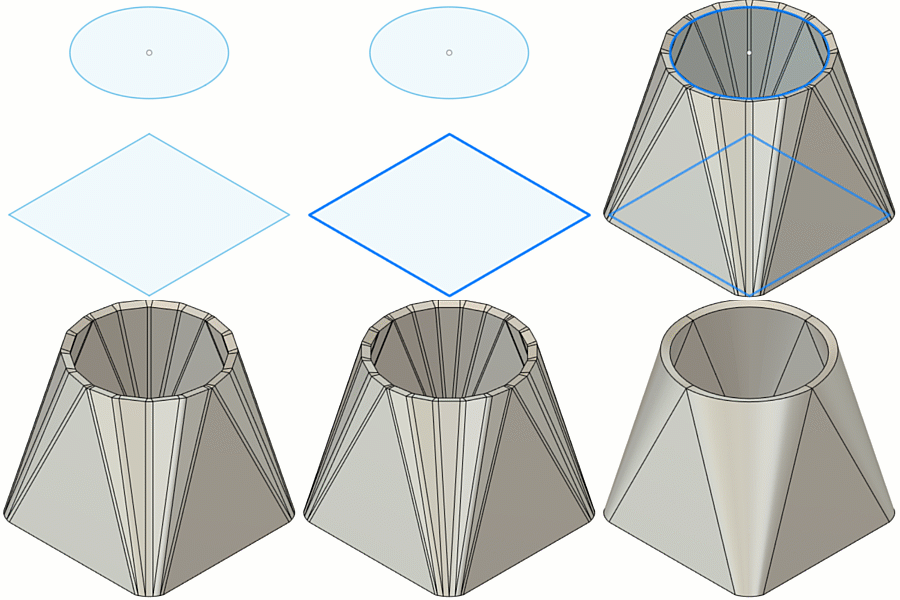
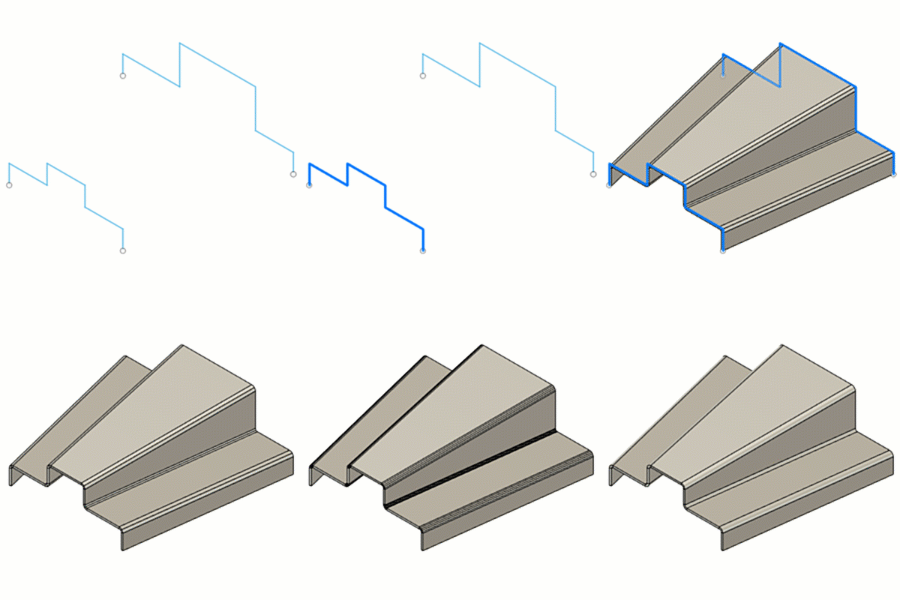
The lofted flange appears as a sheet metal body on the canvas and in the Browser, nested in the Bodies folder of the active component. A Lofted Flange
feature appears in the Timeline.
Tips
- Hold
Ctrl(Windows) orCommand(MacOS) to modify the selection set once the sheet metal hem preview displays on the body on the canvas. - Select Override rules to override one or more values from the Sheet metal rule assigned to the component.