Synchronize result selection in compare mode
By default, result selection is not synchronized for results that use the standard results viewer but is synchronized by default for results that use the online results viewer.
Standard results viewer: Synchronize Result Type
To synchronize result selection
In the Compare tab, select
 Synchronize > Synchronize Result Type.Note: Result selection is synchronized when the command icon background is blue.
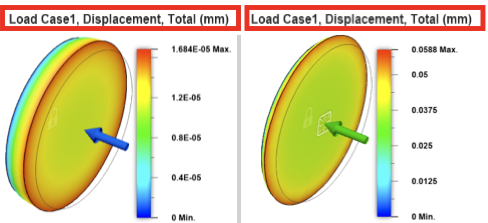
With Synchronize Result Type activated, select different results in one window, and the results in all the other windows update to match.
Note: Use the results selector by the legend in each window.
To desynchronize result selection
In the Compare tab, select Synchronize > Synchronize Result Type.
Note: Result selection is not synchronized when the command icon background matches the rest of the ribbon.
Online results viewer: Synchronize Result Type
To synchronize result selection
In the Compare tab, select
Synchronize > Synchronize Result Type.Note: Result selection is synchronized when the command icon background is blue.With Synchronize Result Type activated, select different results in one window, and the results in all the other windows update to match.
Note: Select results from the Browser in each window. For Modal Frequencies and Structural Buckling studies, use the Mode dropdown above the legend to switch modes.
To desynchronize result selection
In the Compare tab, select Synchronize > Synchronize Result Type.
Note: Result selection is not synchronized when the command icon background matches the rest of the ribbon.